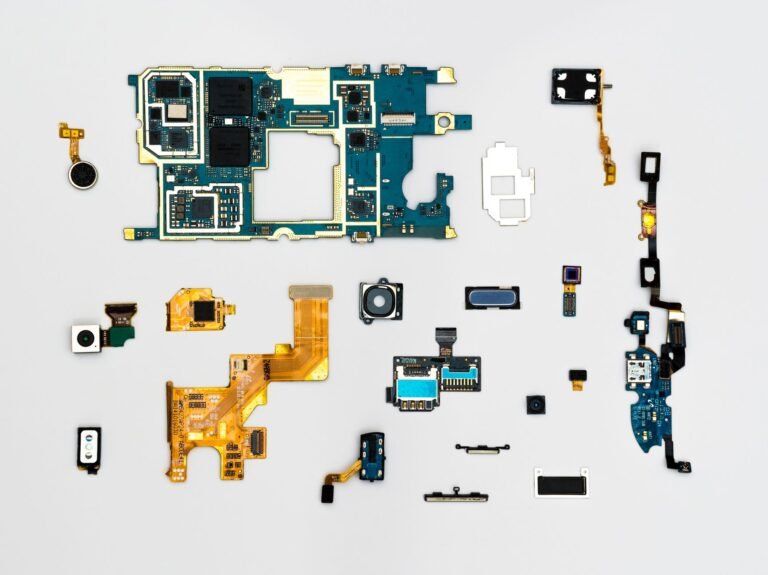
A lost phone is protected by hardware, software, account, and habit-based defenses that guard data after one barrier fails. A stolen handset can keep photos encrypted, while a phishing text can capture your sign-in details, so every layer in your phone has a distinct role.
You’ll see how Android and iPhone (iOS) devices guard files, accounts, apps, connections, and location data, then learn where your own settings can leave an opening.
Layered Defenses Guard Your Data
Your phone holds more than contacts and photos. It can store payment cards, saved passwords, private messages, health details, location history, work files, and access to email accounts that reset passwords for nearly every service you use.
Smartphone security relies on overlapping barriers because a single control cannot stop every threat. Hardware guards secret keys, the mobile operating system restricts sensitive actions, apps face boundaries, encrypted connections shield data in transit, and your choices stop scams that software cannot spot.
| Asset at risk | Main protection | What you should watch |
|---|---|---|
| Photos and files | Device encryption and screen lock | Weak passcodes and backups without encryption |
| Messages and email | Account passwords and two-factor authentication (2FA) | Phishing links and unfamiliar sign-ins |
| Payment details | Tokenized wallet data and account alerts | Stolen credentials and card alerts |
| Location and camera access | App permissions | Apps asking for access without a clear reason |
| The phone itself | Passcode, remote lock, and device locator | Loss, theft, or a changed carrier account |
A hacked phone can mean several different things. Your device could run malware or spyware, your account could be taken through phishing, your mobile number could face SIM-swap fraud, or a thief could gain physical access to the handset.
Each event needs a different response. The starting point is the software chain that decides what code your phone will accept during startup.
The Operating System Sets a Chain of Trust
Secure boot checks startup code
Before the lock screen appears, the phone checks a sequence of software components. Secure boot verifies cryptographic signatures, which makes altered system code far harder to load during startup.
That check matters after theft or physical tampering. A criminal cannot casually install a changed mobile operating system and expect your handset to accept it, because the device checks whether the code matches a trusted signing key.
Code signing identifies software sources
Apps and updates carry digital signatures. Android and Apple iPhone devices use code signing to check that software came from an identified developer and was not altered while traveling to your phone.
Google Titan M chips in some Google Pixel models and Apple Secure Enclave hardware in iPhones guard sensitive cryptographic work. Samsung Knox adds hardware-backed protections on many Samsung devices, including controls for enterprise data and work profiles.
Security patches close known entry points
A patch can repair more than the mobile operating system. Mobile operating system security updates also address browser components, firmware, bundled services, and installed apps, so a phone without new patches grows harder for you to defend over time.
Install updates soon after they appear. Attackers study published flaws too, and a known bug becomes easier to misuse after patch details become public.
Startup checks guard the system, but your files still need protection after the screen locks. That next layer depends on a passcode and device encryption working together.
Passcodes, Biometrics, and Encryption Guard a Locked Phone
Authentication and encryption have separate jobs
Your passcode proves that you are allowed into the device. Device encryption scrambles stored files into unreadable data until protected keys allow the handset to decrypt them.
Modern phones use hardware-backed encryption, tying access to keys held in protected components and to your passcode. Biometric authentication makes entry faster, but it does not replace the passcode beneath it.
| Control | Primary role | Practical limit |
|---|---|---|
| Passcode | Verifies access and guards encryption keys | Short codes are easier to guess |
| Fingerprint or face scan | Fast biometric authentication | Your phone still relies on a passcode |
| Device encryption | Guards files stored on the handset | Does not stop account phishing |
| Remote lock | Restricts access after loss or theft | Needs your account and device locator enabled |
Biometric records stay outside ordinary apps
Fingerprint and face records are processed in protected hardware rather than handed directly to ordinary apps. An app can learn that biometric authentication succeeded, but it should not receive a copy of your fingerprint image or face template.
Choose a longer numeric code or an alphanumeric passcode for your lock screen. A six-digit code has far more combinations than a four-digit code, and a password adds more resistance against guessing attempts.
Do not share your passcode with a casual acquaintance. Anyone holding that code can change account settings, view private content, and weaken controls meant to guard you.
Encryption limits damage from a stolen handset, yet a harmful app can misuse access that you grant. App isolation and permissions address that separate risk.
App Isolation Restricts What Each App Can Reach
Sandboxes separate app data
Operating system sandboxing places every app in its own restricted area. A weather app cannot browse another app’s files, inspect its messages, or control its processes without a permitted route.
That boundary explains why malware does not automatically control your whole phone. Damage expands after you install software from risky sources or grant broad access, especially accessibility control or mobile device management rights.
Permissions show an app’s reach
| Permission | Reasonable use | Warning sign for you |
|---|---|---|
| Location | Maps, weather, and ride services | A simple game asking for precise location |
| Camera and microphone | Video calls and photo tools | Access requested without a feature that needs it |
| Contacts | Messaging and address-book tools | A flashlight app seeking every contact |
| Photos | Photo editing and sharing | Full library access for a one-time upload |
| Accessibility access | Assistive controls | An unfamiliar app reading screen content |
Review permissions after adding a new app and after a major update. Your Android or iPhone settings show which apps used location, camera, or microphone access, giving you evidence instead of a vague suspicion.
Apple App Store review practices and Google Play Protect reduce exposure to known malicious apps. Store screening lowers risk, but it cannot judge every deceptive behavior, so your scrutiny remains part of the defense.
App controls limit direct abuse, but phishing seeks a softer opening: your attention, your password, or your phone number.
Phone Attacks Commonly Target Accounts and Attention
A text claiming that a package cannot be delivered can send you to a lookalike sign-in screen. That screen does not need to defeat device encryption or secure boot; it only needs your password or account recovery code.
- Phishing texts send you toward copied sign-in screens that capture passwords, card details, or account recovery codes.
- Reused passwords turn a breach at one service into access attempts against your email, banking, or shopping accounts.
- Sideloaded apps bypass store screening and can ask for broad permissions or install unwanted components.
- Unsafe Wi-Fi raises risk on poorly guarded networks, especially for apps using weak connection security.
- Bluetooth exposure becomes more plausible where your phone remains discoverable in crowded public places.
- SIM-swap fraud moves your number to another SIM, allowing a criminal to receive text-based verification codes.
TLS encrypts many network connections
When your phone connects to a website or app service, TLS encrypts many of those connections. That protection blocks casual interception of data in transit, yet it cannot tell that you entered credentials into a convincing phishing screen.
A virtual private network (VPN) encrypts traffic between your phone and its VPN server on public Wi-Fi. It does not repair a compromised account, inspect every harmful app, or make a risky link safe.
Account controls guard remote access
Use unique passwords stored in a password manager, then turn on two-factor authentication (2FA) for email, banking, cloud storage, and your Apple Account or Google Account. Your email needs extra care because password resets land there.
Add a carrier account PIN that differs from your device passcode. Ask your carrier about port-out restrictions or number-transfer locks, since those controls make SIM-swap fraud harder to carry out.
Account defenses only work while settings remain current and visible. A short inspection can show you whether your phone has a weak point waiting to be used.
A Security Check Shows Where Your Phone Is Exposed
Updates and lock settings need review
Start in your settings menu and check the operating system version, browser updates, and app update history. Confirm that your manufacturer still sends mobile operating system security updates for your model, because an unsupported phone carries known flaws longer.
- Check updates Install pending system, browser, and app updates while your phone has power and a stable connection.
- Review the lock Set a six-digit or longer passcode, then enable biometric authentication for daily convenience.
- Turn on locating Enable Find My on iPhone or Android Find My Device before loss becomes an emergency.
- Verify backups Confirm that photos, contacts, and essential files have a recent backup that you can access.
- Inspect accounts Review account sign-in activity and remove devices or sessions that you do not recognize.
Profiles and permissions can reveal unusual control
Next, inspect installed apps, configuration profiles, accessibility access, and mobile device management settings. MDM is normal on many work phones, but an unexplained management profile can control settings, install apps, or restrict removal.
Remove unfamiliar apps after checking their names and permissions. A flashlight tool with accessibility control, notification access, and contact access deserves closer scrutiny because those privileges can expose private activity.
Check your primary email account from another trusted device after a suspected breach. A changed recovery address or unfamiliar session can reveal account takeover before your phone shows obvious symptoms.
Your checks reveal settings that need attention, but device choice also shapes how long those defenses stay current. Patch delivery and manufacturer commitments matter more than claims about an impossible-to-hack phone.
Long-Term Patch Coverage Matters More Than Brand Claims
No consumer phone is impossible to compromise. Which phones are hardest to hack depends on prompt patches, a locked bootloader, encrypted stored data, restricted app installation, and long software coverage.
| Area | Android ecosystem | Apple iPhone ecosystem |
|---|---|---|
| Core protections | Encryption, sandboxing, code signing, biometric controls | Encryption, sandboxing, code signing, biometric controls |
| Update delivery | Varies by manufacturer and model | Apple delivers iOS updates directly to eligible iPhones |
| App installation | Google Play Protect scans Google Play apps and some installed apps | Apple restricts app distribution through ecosystem controls |
| Hardware examples | Google Titan M, Samsung Knox, and manufacturer hardware features | Apple Secure Enclave guards sensitive key material |
Your model and its patch history matter more than a brand label. A current Google Pixel, Samsung phone with active patch coverage, or current iPhone can offer strong defenses, while an older handset without updates loses ground regardless of its original design.
Antivirus has a narrow role
Phones do not need antivirus as a substitute for built-in defenses. A reputable security app can flag known malicious apps, risky links, or suspicious behavior after sideloading or exposure to a scam.
Antivirus cannot patch your operating system, undo a password entered on a phishing site, or guard a carrier account. Your passcode, timely updates, permissions review, and two-factor authentication do more against common risks.
Those layers still need a response plan for theft or suspected compromise. Speed limits damage while accounts, money, and recovery settings remain within your control.
Fast Containment Limits Damage After Loss or Compromise
Lost and stolen phones need prompt action
Use Find My or Android Find My Device from another trusted device to locate, mark lost, or remotely lock the handset. Do not erase it until you have weighed location evidence and confirmed that your backups exist.
- Lock the device Use remote controls to restrict access before anyone can open apps or view alerts.
- Change key passwords Start with email, Apple Account, Google Account, banking, and password manager credentials.
- Contact your carrier Report theft or suspected SIM-swap fraud and ask about number-transfer protection.
- Watch financial activity Review bank, card, and wallet alerts for charges or transfers you did not make.
- Review account sessions Remove unfamiliar devices from email, cloud storage, and payment accounts.
Suspected compromise needs evidence rather than panic
Remove suspicious apps, inspect permissions, and run built-in checks or a reputable security app where relevant. Repeated pop-ups, unexplained accessibility access, unfamiliar profiles, or strange account sessions deserve attention before you assume spyware is present.
A factory reset is a last resort, not a reflex. Secure your accounts and backups before erasing the phone, then reinstall only apps you recognize rather than restoring every old setting without review.
Pause before entering credentials from a link, install patches promptly, and revisit permissions several times a year. Those habits keep smartphone security effective because they close gaps that hardware alone cannot cover.
Final Thoughts on Phone Defenses
Your phone stays safer through layered defenses rather than a single app or setting. Hardware-backed encryption guards stored data, the operating system restricts code and apps, account controls resist theft, and your caution stops scams at the point where they request a password or code.
FAQ
How does smartphone security work?
Device encryption, a passcode, biometric authentication, code signing, app sandboxing, account controls, and timely updates form overlapping layers of protection. You get the strongest result where those layers work together, because phishing, theft, malicious apps, and SIM-swap fraud target different weak points.
What security protections are built into Android phones and iPhones?
Android and iPhone devices use encryption, sandboxing, code signing, biometric authentication, secure boot, and app permission controls. Google Play Protect adds scanning on Android, while Apple uses App Store review and ecosystem restrictions to limit harmful app distribution.
What are the biggest threats to smartphone data and privacy?
Phishing, reused passwords, harmful sideloaded apps, unsafe Wi-Fi, Bluetooth exposure, and SIM-swap fraud are major threats. Your data can also be exposed through weak passcodes, unknown app permissions, unfamiliar device-management profiles, and an email account taken over through password recovery.
Do phones need antivirus?
Antivirus is not required for every phone because Android and iPhone devices already use sandboxing, code signing, store screening, and system protections. You can use a reputable security app after risky downloads or scam exposure, but updates and account controls remain more useful defenses.
How do I check if my phone is secure or not?
Check for pending system and app updates, confirm a strong passcode, review app permissions, and inspect your account sign-in activity. You should also verify remote location controls, recent backups, carrier account protection, unfamiliar apps, accessibility access, and device-management profiles.
What is the strongest security to have on your phone?
A six-digit or longer passcode, device encryption, biometric authentication, timely updates, unique passwords, and two-factor authentication form the strongest everyday combination. Your email account deserves special attention because it receives password-reset messages for banking, cloud storage, and other accounts.