

I dug through ten different options, from clip-on accessories to full standalone screens, so anyone shopping for a creative tool right now doesn’t have to guess. Whether the goal is sketching on the couch, finishing client work at a proper desk, or just keeping a sweaty palm off the screen, there’s something in this list that fits the way people actually create.
The Lineup, Simplified
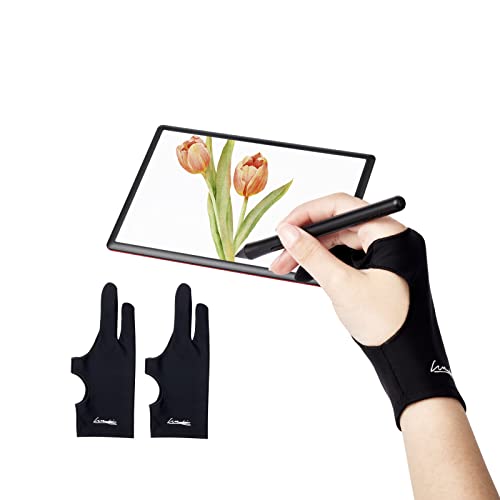
WooKoudai Digital Drawing Glove 2 Pack

HUION Kamvas 13 (Gen 3) Drawing Tablet (Black)
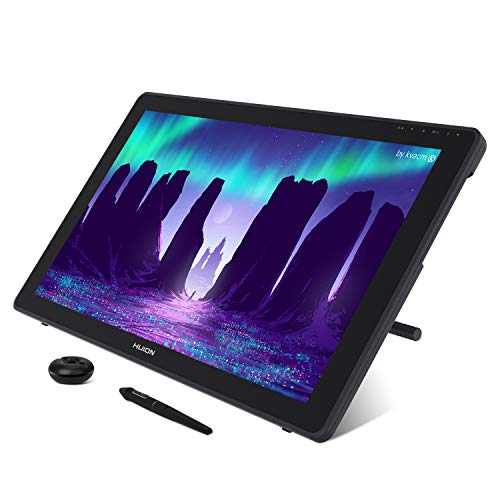
HUION KAMVAS 22 Drawing Tablet 21.5 inch

HUION KAMVAS Pro 19 4K UHD Drawing Tablet

XPPen Artist 24 Pro 2.5K QHD Drawing Tablet 23.8″

RubensTab T14 Standalone Drawing Tablet 14.1″
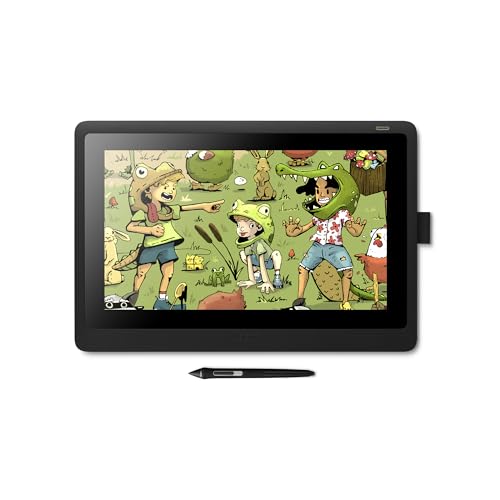
Wacom Cintiq 16 Drawing Tablet with Pro Pen 2
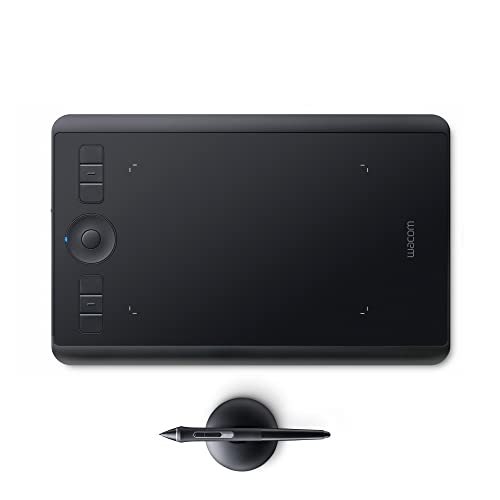
Wacom Intuos Pro Small Wireless Drawing Tablet

Frunsi T8 Standalone Drawing Tablet 8 inch

RubensTab T11 Pro Standalone Drawing Tablet
Inside Each Recommended Option
Starting with the smallest item on this list, but probably the most underrated one. The WooKoudai glove covers the heel of the drawing hand and leaves two fingers free, so the palm glides across the screen without leaving oily streaks behind. It’s a fabric sleeve, not a piece of hardware, which makes it the cheapest add-on here by a wide margin.
I included it because almost every other pick in this lineup will benefit from one. Anyone who sketches for hours on a warm day knows the smudge problem firsthand, and this fix costs almost nothing. It pairs naturally with the HUION Kamvas 13 (Gen 3) and the Wacom Cintiq 16 covered below.
The Practical Payoff
- Two-finger cutout keeps natural pen grip untouched
- Fits both left and right hands in a single pack
- Medium size covers roughly 3.15 x 8.58 inches, which fits most adult hands
- Stops screen smudging during long drawing sessions
- Lightweight enough to toss in a laptop bag
Worth Noting
- Fabric wears thin over months of heavy use, depending on how rough the sessions get
- Doesn’t help with palm rejection on its own, so a tablet without that feature still needs the screen to ignore palm contact
Whose Studio Drawer It Belongs In
Anyone with a sweaty palm and a pen display will see the difference within a single session.
Look Elsewhere When
Step up to the RubensTab T14 if the goal is a full standalone creative setup, since a glove alone won’t replace a real tablet.
The Kamvas 13 (Gen 3) leans into portability. It’s a 13.3-inch pen display that must be tethered to a laptop or desktop to function, but that tether lets HUION pour the cost into screen quality instead of internal processors. The new Canvas Glass 2.0 layer is etched, so the pen tip feels closer to paper than to slick glass.
Two physical dials on the side give quick access to brush size and zoom, which matters when bouncing between programs. For anyone sketching in a hotel room or at a coffee shop, the compact size and dual-dial layout are the real draw, much more so than the wired connection.
Bright Spots
- 13.3-inch fully laminated screen with anti-glare Canvas Glass 2.0
- Dual dial controls for fast brush and zoom tweaks
- Compact enough to slip into a 14-inch laptop sleeve
- Connects to most modern laptops with a single cable setup
Trade Offs
- Cannot run drawing apps on its own, so it always needs a host computer nearby
- Smaller canvas than the Kamvas 22, which means more zoom and pan on detailed work
Quick Facts
Who Will Love This
Digital illustrators and concept artists who travel light and want a paper-like surface at a manageable size.
Skip It When
Pick the RubensTab T14 instead if there’s no intention of carrying a laptop around, since the T14 runs drawing apps on its own.
The Kamvas 22 stretches out into proper studio territory with a 21.5-inch screen and 120% sRGB color coverage. That wider color space translates into artwork that matches what gets printed or uploaded, and the 178-degree viewing angle means the image holds its color even when leaning over to check a detail. This is a desk-anchored machine, not a travel one, and the panel size makes that clear from the moment it’s unboxed.
It’s a sensible step up from the Kamvas 13 (Gen 3) for artists who already know they want a full-time drawing surface. The 1920 x 1080 resolution is comfortable for illustration, though it stops short of the 4K panel found in the Kamvas Pro 19 covered below.
The Value In It
- 21.5-inch screen gives a generous canvas for full-arm strokes
- 120% sRGB color gamut for accurate, vivid artwork
- 178-degree viewing angle keeps color consistent across positions
- 1000:1 contrast ratio helps shadows and highlights pop
- Pen display design means drawing happens directly on the image
Room For Improvement
- Needs a deep desk to fit comfortably, which rules out smaller setups
- Requires a wired connection to a computer, just like the Kamvas 13
Built With In Mind
Studio-bound illustrators and animators who work at a fixed desk and want a roomy canvas with strong color.
Swap It Out When
The HUION KAMVAS Pro 19 fits better if pixel density matters more than panel size for the kind of detail work being done.
This is the one for pixel-peepers. The Kamvas Pro 19 packs a 4K UHD 3840 x 2160 resolution into an 18.4-inch panel, which HUION claims is the first 18.4-inch 4K drawing monitor on the market. The etched glass surface adds friction so the pen feels like it’s catching on paper rather than skating across a window. Touchscreen capability rounds out the package, letting fingers pinch and zoom right on the panel.
PenTech 4.0 is HUION’s latest pen technology, and it shows up in subtle ways like a smoother pressure curve at the lightest touches. For anyone whose work depends on hairline detail, the jump from Full HD to 4K is the whole story here.
Benefits That Matter
- 4K UHD resolution delivers crisp, retina-level detail
- Anti-glare etched Canvas Glass 2.0 surface for paper-like friction
- Touchscreen input for direct on-screen gesture control
- Full lamination reduces parallax between pen tip and cursor
Points To Note
- Tethered to a computer, just like the other Kamvas displays in this list
- Smaller panel than the Kamvas 22, so arm-strokes feel tighter
- Higher pixel density needs a reasonably modern graphics card to drive cleanly
Feature Snapshot
The Right Fit
Retouching pros, comic inkers, and concept artists who zoom in constantly and need every pixel to behave.
Reach For A Different Pick When
The Wacom Cintiq 16 is a smarter buy if brand familiarity and Pro Pen 2 ergonomics matter more than raw resolution.
The XPPen Artist 24 Pro goes a different direction than the HUION panels. It keeps a sharp 2.5K QHD resolution at 2560 x 1440 on a 23.8-inch IPS panel, which means more pixels per inch than the Kamvas 22. The real headline feature is the 20 physical shortcut keys built into the bezel, something most pen displays skip entirely. A battery-free stylus with 8192 pressure levels and tilt support rounds out the package.
It’s compatible with Windows, Mac, Chrome, and Linux, so switching between a MacBook at home and a Linux box at work doesn’t break the workflow. For productivity-minded artists who want their most-used commands a tap away, this is the most ergonomic pen display on the list.
Points In Its Favor
- 20 shortcut keys replace constant keyboard hunting
- 2.5K QHD resolution keeps lines crisp on a 23.8-inch canvas
- Battery-free stylus with 8192 pressure levels and tilt support
- Cross-platform support for Windows, Mac, Chrome, and Linux
- 16.7 million display colors for nuanced gradient work
- Anti-glare film reduces eye strain during long sessions
Softer Spots
- 23.8-inch footprint demands a deep desk, similar to the Kamvas 22
- Wired-only setup with no wireless option
Perfect Match For
Working illustrators and editors who bounce between programs and want hotkeys at their fingertips.
Not Your Match When
The HUION Kamvas Pro 19 is a better pick for anyone whose work depends on 4K detail rather than physical shortcut keys.
The RubensTab T14 is the first standalone tablet on this list, meaning it doesn’t need a computer to work. An octa-core CPU runs drawing apps natively on the 14.1-inch Full HD IPS screen. Pre-installed drawing apps and tutorials ship with the device, so someone unboxing it for the first time can start sketching within minutes. Bonus items in the box nudge it firmly toward the beginner and student crowd.
It’s the natural counterpart to the HUION Kamvas 13 (Gen 3). The Kamvas requires a host computer, while the RubensTab handles everything itself. For students in dorm rooms or beginners without a desktop setup, that freedom changes how creative time gets spent.
Good Reasons To Consider
- No computer required, so it works anywhere there’s a flat surface
- Octa-core CPU handles drawing apps smoothly without lag
- Pre-installed apps and tutorials shorten the learning curve
- 14.1-inch Full HD IPS display balances portability with screen real estate
- Bonus accessories included for beginners and students
Small Caveats
- Built-in apps and tutorials may feel limiting once skills grow past beginner level
- 14.1-inch screen sits between the compact T8 and the larger Kamvas 22
Feature Rundown
Who Should Grab It
Beginners, students, and anyone who wants to sketch on the couch without dragging a laptop along.
Another Choice May Suit
The Frunsi T8 is a better fit for travelers who care more about pocket size than screen real estate.
The Wacom Cintiq 16 sits at the heart of countless studios, and it’s easy to see why. A 15.4-inch Full HD display pairs with the Pro Pen 2, which uses electromagnetic resonance to draw power from the tablet, so no batteries or charging ever get in the way. Tilt response adds shading nuance that cheaper pens struggle to match. Foldable legs on the back adjust the angle without needing a separate stand.
It’s heavier than the HUION Kamvas 13 (Gen 3), coming in around four pounds and roughly one inch thick, so it’s clearly a desk-bound device. For artists who already know Wacom’s pen feel and driver ecosystem, this is the comfortable, familiar choice.
Useful Highlights
- Pro Pen 2 with tilt response for nuanced shading
- Battery-free pen design powered by electromagnetic resonance
- Foldable legs adjust the angle without extra accessories
- Full HD 15.4-inch display with high-contrast output
- Scratch-resistant exterior handles daily studio wear
Possible Compromises
- Around four pounds makes it a stationary tool, not a travel one
- Requires a computer connection like most pen displays in this category
Made For
Professional illustrators and studios who value Wacom’s pen feel and want a reliable, no-surprises workflow.
Consider Something Else When
The Wacom Intuos Pro Small makes more sense for working illustrators who need a wireless, ultra-portable option instead.
The Intuos Pro Small is everything the Cintiq 16 isn’t. No screen, no tether, no chunky footprint. It’s a pen tablet, meaning the artist looks at a monitor while drawing on the Intuos surface, and the active area sits around seven inches across. Under a pound in weight, it slips into a backpack without a fight. Wireless support means fewer cables on the desk.
The included Pro Pen 2 and the multi-function Touch Ring give it the same drawing precision as its bigger sibling. For working illustrators who already have a good monitor and just want a compact input device, this is a sensible pick. Eye-hand coordination takes a few days to adjust for anyone moving from a pen display.
Well-Handled Touches
- Pro Pen 2 with tilt response included in the box
- Touch Ring adds programmable scrolling and brush controls
- Wireless connection cuts cable clutter on the desk
- Under one pound, so it travels in almost any bag
- Compact 10.6 x 6.7 inch footprint fits small workspaces
Things That May Matter
- No built-in screen, so artists must glance back and forth at a monitor
- Smaller active area means more zoom-outs on detailed pieces
- Needs a few sessions to retrain hand-eye coordination for pen-tablet drawing
Best Suited To
Working illustrators, retouchers, and photo editors with a quality monitor who want a portable Wacom feel.
A Better Fit Elsewhere
The Wacom Cintiq 16 is the smarter pick for anyone who can’t adjust to drawing without seeing the pen tip under their hand.
The T8 is the most portable option in this list. At 8 inches, it fits in places no other tablet here can, like a coat pocket or a small crossbody bag. Android 13 runs the show, so installing familiar drawing apps from the app store takes seconds. The 1200 x 800 resolution display is enough for thumbnail sketches and ideation work.
It’s not built for full illustrations. The RubensTab T11 Pro below offers more working space, and the RubensTab T14 above adds tutorials. The T8 fills the role of a digital sketchbook, the kind of device someone pulls out on a train or at a café when inspiration hits.
What Earns Its Place
- 8-inch form factor is genuinely pocket-friendly
- Android 13 OS supports common drawing apps from the store
- Standalone design means no laptop required to draw
- Lightweight enough to hold one-handed for quick gestures
Where It Is Less Suited
- Smaller canvas than the RubensTab T11 Pro or T14
- 1200 x 800 resolution feels tight for detailed finished work
Right Fit For
Traveling sketchers and hobbyists who want a digital notebook that fits anywhere.
Where A Sibling Pick Shines
The RubensTab T11 Pro is the better buy when a slightly bigger screen and FHD resolution matter for longer sessions.
The RubensTab T11 Pro splits the difference between the pocket-friendly T8 and the larger T14. A 10.1-inch Full HD IPS screen at 1920 x 1200 resolution keeps detail crisp, and the IPS panel preserves color at off-angle views. Like its siblings, it runs drawing apps on its own without needing a computer, which is the whole point of the RubensTab line.
It feels like the right size for students who want more working room than an 8-inch tablet gives, without committing to a 14-inch display. Compared to the T8, the extra real estate adds breathing room for finished pieces rather than just rough sketches.
Useful Strengths
- 10.1-inch FHD IPS display with 1920 x 1200 resolution
- Standalone operation with no host computer needed
- IPS panel keeps colors accurate at varied viewing angles
- Compact enough to toss in a backpack for class or travel
Practical Considerations
- Sits between the T8 and T14 in both size and capability
- Pre-installed app ecosystem may vary across regions, depending on local listings
Who It Suits Best
Students and casual artists who want a mid-size standalone tablet for everyday sketching and class assignments.
Not Your Match When
The RubensTab T14 is the better choice for anyone planning to use beginner tutorials and bonus accessories out of the box.
What To Weigh Before Picking an Art Tablet With Pen
Start with the screen question. Pen displays like the Kamvas 13 (Gen 3) and Wacom Cintiq 16 show the artwork under the pen tip, which feels natural from the first session. Pen tablets like the Wacom Intuos Pro Small keep the screen separate, which takes adjustment but rewards users with lighter gear and lower cost. Standalone tablets like the RubensTab line remove the computer entirely, which is a different kind of freedom for someone who draws on the go.
Pressure levels tell you how finely the pen tracks light and heavy strokes. The XPPen Artist 24 Pro and Kamvas Pro 19 sit at the higher end of the spec range, while older pens may register fewer levels. Tilt support, found on the Wacom Pro Pen 2 and many newer pens, lets shading mimic a real graphite pencil at an angle.
Resolution and screen size work together. A 4K panel on the Kamvas Pro 19 makes small details razor-sharp, while a 21.5-inch Full HD Kamvas 22 prioritizes space over density. Color gamut matters for anyone preparing work for print, and 120% sRGB on the Kamvas 22 covers that need.
Connectivity shapes the workspace. Tethered models keep the desk cleaner of batteries but require a computer nearby. Wireless pen tablets like the Intuos Pro Small free up the desk but still need a monitor. Standalone options like the RubensTab T14 need neither, which is the simplest setup of all.
Key Considerations Across These Picks
Common Shopping Slip Ups
The biggest trap in this category is choosing a tethered pen display without checking the cable situation. A Kamvas or Cintiq needs HDMI and USB connections that older laptops may not support, so verifying port compatibility first saves a return. Another common mistake is overlooking palm rejection. Without it, the tablet reads the resting hand as input, which throws off every brushstroke. The drawing glove from the first pick helps, but software-based palm rejection on the tablet itself is the better long-term fix.
What The Higher Tier Buys
Stepping up to a 4K display like the Kamvas Pro 19 buys pixel density that Full HD panels can’t match, which shows up most in fine line art, retouching, and comic inking. The XPPen Artist 24 Pro’s 20 shortcut keys replace keyboard shortcuts with tactile buttons, a small change that adds up across thousands of strokes per week. Higher tiers also tend to ship with better pens, where the Pro Pen 2 and PenTech 4.0 hold up longer and feel more responsive than entry-level styluses.
Frequently Asked Questions
Do art tablets with pen need a computer to work?
Only some of them. Standalone tablets like the RubensTab T8, T11 Pro, and T14 run drawing apps natively with no host computer required. Pen displays like the HUION Kamvas and Wacom Cintiq need a tethered laptop or desktop to function, while pen tablets like the Wacom Intuos Pro Small work wirelessly but still need a monitor to show the artwork.
What does pen pressure levels actually change?
Pressure levels control how many distinct thicknesses the tablet registers between a light touch and a full press. More levels mean smoother transitions in line weight, which matters most for inking, calligraphy, and detailed shading. For casual sketching, the difference between 2048 and 8192 levels is harder to notice.
Is a pen display better than a pen tablet?
Pen displays let the artist draw directly on the artwork, which feels intuitive and removes the eye-hand learning curve. Pen tablets keep the screen and drawing surface separate, which is harder at first but offers lighter gear and lower cost. The honest read is that pen displays win for illustration, while pen tablets win for travel and budget setups.
How important is screen resolution for drawing?
Higher resolution shows up most in fine detail work like comic inking, photo retouching, and UI design. For sketching and concept art, a solid Full HD panel like the Kamvas 22 gets the job done. 4K on the Kamvas Pro 19 matters once pixel-level precision becomes part of the workflow.
Can these tablets run Photoshop or Procreate?
Tethered pen displays and pen tablets run whatever software the connected computer has installed, so Photoshop, Clip Studio Paint, and Krita all work normally. Standalone tablets like the RubensTab line run their own app ecosystems, which typically include Android-compatible drawing apps rather than full desktop software.
Bottom Line
The right pick depends on where and how the drawing happens. A studio-bound artist working at a desk every day will get the most out of a tethered pen display like the Kamvas Pro 19 or the Wacom Cintiq 16. A traveler sketching between locations will appreciate the wireless Wacom Intuos Pro Small or the standalone RubensTab T11 Pro. Beginners who want the simplest path should start with the RubensTab T14 and its pre-installed tutorials. And anyone with a sweaty palm should grab the WooKoudai glove to pair with whatever tablet lands on the desk. The right tool is the one that fits the actual creative routine, not the one with the longest spec sheet.
