

I keep a notebook full of half-finished doodles, and every artist I know has a similar graveyard of paper scraps. A drawing tablet cleans that chaos into a single, searchable, undo-able workspace. This roundup covers ten art drawing tablets for 2026 that suit different budgets, experience levels, and creative workflows, from toddler-friendly LCD boards to studio-grade pen displays that compete with traditional canvases.
An Overview Of The Picks

XPPen Artist 15.6 Pro V2 Drawing Tablet with Screen

Zhehao 8.5-Inch LCD Writing Tablet Drawing Board, Pastel

XPPen Artist 13.3 Pro V2 Drawing Tablet with Screen, 16K, Red Dial
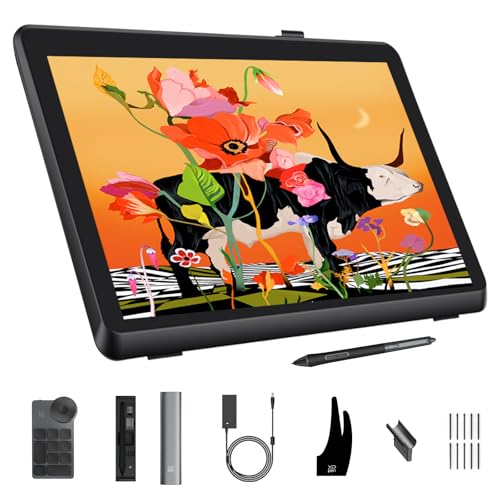
XPPen Artist Pro 22 Gen 2 22-Inch 2.5K Drawing Tablet with Screen, 16K, Calman

Fox LCD Writing Tablet for Kids, Coloring Drawing Pad, 10 Inch

UGEE Drawing Tablet, 14.25-Inch Large Screen 2.4K Standalone Drawing Pad

HUION Kamvas 13 (Gen 3) Drawing Tablet with Screen, Dual Dial

HUION Kamvas Pro 16 Drawing Tablet with Screen, Touch Bar

HUION KAMVAS 16 (Gen 3) 2.5K QHD Drawing Tablet with Screen
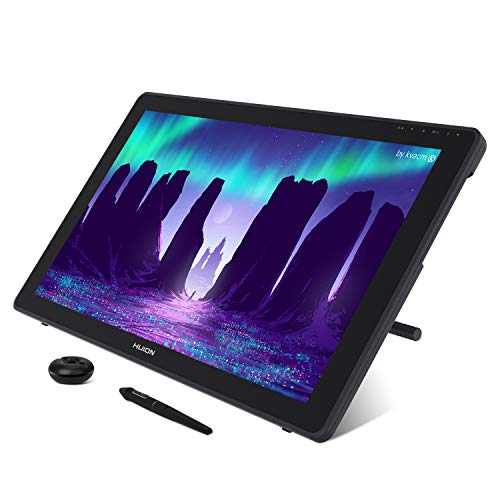
HUION KAMVAS 22 120% sRGB Drawing Tablet with Screen 21.5-Inch
A Breakdown Of The Leading Choices
The 15.6-inch screen sits in a comfortable middle ground between portability and room to work, which is why I keep recommending it to people who have outgrown their first slate. It connects to a computer or laptop, so think of it as a second monitor you can sketch on rather than a standalone gadget.
The X3 Pro stylus (the pencil-like tool) responds to 16,384 pressure levels, which translates to lines that get thicker or thinner as naturally as a real pen would. For anyone moving from paper or a basic graphics tablet, that responsiveness is what makes the difference between fighting the tool and forgetting it’s there.
Standout Benefits
- The 16K pressure sensitivity (the range of how lightly or firmly the pen detects a stroke) handles both delicate hairline work and bold inking without obvious stepping.
- The included 3-in-1 cable keeps the desk tidy, which matters in cramped home studios where every cable counts.
- A 15.6-inch panel feels generous without dominating a small desk, making it a practical daily driver.
- The X3 Pro chip reduces the brief delay between pen movement and line appearance, so sketches feel closer to drawing on paper.
Things To Consider
- It must stay tethered to a computer, so it isn’t a grab-and-go option like some newer standalone pads.
- The screen surface benefits from a screen protector during heavy use, since pen nibs can wear the coating over time.
Key Product Details
Who It Suits Best
Serious hobbyists and design students who already own a capable laptop and want a responsive pen display for daily work.
Where Another Pick Suits Better
Travelers who need a tablet that runs without a computer should look at the UGEE Drawing Tablet instead, since it works as a standalone device.
This pack of twenty small LCD writing boards leans fully into the “no mess, no charging” idea behind the category. Each board has a pressure-sensitive screen that draws lines with the included stylus and clears with a single button press.
The eight-and-a-half-inch size fits kid hands and short attention spans. For parents running a daycare setup or teachers outfitting a classroom, having twenty boards in four pastel colors means nobody has to wait their turn, and the eye-friendly LCD doesn’t strain small eyes the way a phone screen can.
Strengths Worth Knowing
- Twenty boards per pack keeps siblings, classmates, or party guests happily busy at once.
- The simple one-button erase cuts down on lost drawings, which can frustrate young children.
- Battery life on these LCD boards tends to stretch for months under casual use, based on the sealed-cell design common to the format.
- Pastel color options give a softer look than the typical neon toy palette.
Trade-Offs
- These are drawing toys, not creative tools, so the line quality stays blocky and doesn’t suit serious art practice.
- Stylus tips can wear down with heavy use and may need occasional replacement to keep lines consistent.
Right Fit For
Teachers, party hosts, and parents who want a screen-free creative outlet for kids without the cleanup of crayons.
Consider Something Else When
A child ready to draw on a computer should move up to the XPPen Artist 13.3 Pro V2, which actually connects to art software.
If the 15.6-inch XPPen above felt like a lot of screen to commit to, this 13.3-inch version trims it down without dropping the pro-level internals. The fully laminated AG glass (anti-glare glass bonded directly to the LCD, which reduces parallax, the gap that makes the cursor seem to float above the line) closes that gap between pen tip and line.
Beginners tend to learn faster on a smaller canvas because they don’t get lost scrolling around a giant page. The red dial and eight programmable keys give you quick access to brush size, zoom, or undo, which saves you from hunting through menus mid-sketch.
What Earns Its Place
- The compact 13.3-inch display fits a dorm desk or small apartment workspace where a 22-inch monitor would feel excessive.
- 99% sRGB coverage (a standard color range covering most web and print needs) means the colors you see match what you’ll share online.
- The X3 Pro stylus delivers the same 16K pressure response as the larger sibling, so beginners grow into a pro-grade tool.
- An included stand adjusts the drawing angle, saving the wrist strain that comes from drawing flat on a desk.
Worth Noting
- The smaller screen limits how much of a multi-layered illustration you can see at once.
- Like the other XPPen display in this list, it requires a connected computer to function.
Built With In Mind
First-time digital artists, animation students, and anyone stepping into Photoshop or Krita for the first time.
Skip It When
Color-critical photo editors should consider the XPPen Artist Pro 22 Gen 2, which targets Adobe RGB accuracy.
When the work demands color you can trust, this 22-inch 2.5K display pulls ahead of the pack. The Calman verification means the panel has been tested against a professional color calibration standard, so Delta E (a numerical measure of color error, where lower is better) sits below 1.
For photographers retouching skin tones or designers sending files to print, that kind of accuracy saves the back-and-forth of “looks different on my screen.” The bundled ACK05 shortcut remote adds a tactile dial and buttons for zoom or layer switching without crowding the display bezel.
Positive Takeaways
- 99% Adobe RGB coverage (a wider color gamut used in professional print and photography) handles the demanding color work that sRGB panels can’t.
- The 22-inch canvas gives room for full-page illustrations without constant zooming.
- Calman verification means the display ships ready for color-critical work, which most consumer monitors can’t claim.
Points To Keep In Mind
- The 22-inch footprint demands a deep desk and a sturdy monitor arm.
- Color accuracy matters less for hobby sketches, so beginners may not notice the upgrade over a 99% sRGB panel.
- Like the other pen displays, it needs a connected computer or laptop.
Key Product Details
Whose Shelf It Belongs On
Professional illustrators, retouchers, and print designers who need verified color accuracy on every project.
Reach For A Different Pick When
Casual hobbyists will get more value from the HUION Kamvas Pro 16, which covers a similar color range on a smaller, friendlier screen.
This single 10-inch LCD board solves a very specific parenting problem: kids who want to draw constantly, without paper waste or marker stains on the couch. The pressure-sensitive screen traces lines from the stylus and clears with a single button, so the cycle is endless and silent.
It’s aimed at the three-to-eight age range, and the size gives a little more drawing room than the eight-and-a-half-inch Zhehao board. For road trips or restaurant waits, it slips into a bag and keeps small hands busy without a glowing tablet screen.
Reasons It Performs
- The 10-inch screen gives kids enough room to practice letters and shapes without cramping their style.
- Eye-friendly LCD technology avoids the harsh blue light that phones and tablets emit.
- One-touch erase means no lost work and no frustration over “ruined” drawings.
Minor Gripes
- The board can’t save drawings, so finished artwork disappears with one button press, which can upset younger kids.
- Stylus nibs can loosen over time and may need replacement under heavy daily use.
Made For
Preschool and early-elementary children who benefit from low-pressure creative play without screen-time guilt.
A Better Fit Elsewhere
The Zhehao 20-pack suits classrooms or large families who need multiple boards at once, while this single 10-inch board works better for one child.
This one breaks the mold of the list. Where most pen displays need to be tethered to a computer, the UGEE pad runs on Android with a six-nanometer octa-core processor, 8GB of RAM, and 256GB of storage built in. For illustrators sketching on a plane or in a café, that freedom is huge.
The paper-like NanoMatte display gives the stylus just enough tooth to feel like a pencil on sketchbook paper, rather than skating on glass. The 10,000mAh battery with 27W fast charging keeps the workflow going through long sessions away from an outlet.
What Stands Out
- No computer required, so it works as a true standalone sketchbook for travel and outdoor sessions.
- The matte display surface reduces glare and feels closer to drawing on paper than glossy alternatives.
- Ample storage holds thousands of layered files without needing a cloud subscription.
- A U-Key button switches between regular, ink paper, and color paper viewing modes for different creative moods.
Where It Is Less Suited
- Standalone Android systems don’t always run full desktop software like Photoshop, so users tied to specific programs should check compatibility.
- Battery life depends on screen brightness and app demands, so heavy users may still want a charger handy on long trips.
Feature Snapshot
Best Suited To
Traveling illustrators, comic readers, and digital artists who want a tablet that draws without needing a laptop nearby.
Not Your Match When
Studio artists who rely on full desktop software like the Adobe suite should consider a tethered pen display such as the HUION Kamvas 16 (Gen 3).
At 13.3 inches, the Kamvas 13 slips into a backpack and weighs barely more than a hardback novel, which makes it my usual recommendation for illustrators who split their week between a home studio and a coworking space. The dual physical dials give independent control over brush size and zoom.
The Canvas Glass 2.0 surface cuts down on glare from overhead lights and adds a touch of texture that pencils into the glass, which makes long sessions easier on the wrist. Like the XPPen pen displays, it needs to be plugged into a computer to function.
Bright Spots
- The 13.3-inch form factor fits inside a typical laptop sleeve, so it travels with a work setup without bulk.
- Two dials and customizable express keys speed up workflow in programs like Photoshop and Clip Studio Paint.
- Anti-glare Canvas Glass 2.0 reduces eye strain under typical office lighting.
Honest Caveats
- The 13.3-inch active area (the part of the screen that registers pen input) feels tight for full-page comic pages.
- Requires a tethered computer connection, so it doesn’t replace a laptop the way the UGEE standalone pad can.
Who Should Grab It
Working illustrators who commute or split time between studios and want a pen display that travels light.
Look Elsewhere When
Anyone needing a larger workspace for detailed layouts should consider the HUION KAMVAS 22 instead.
This 15.6-inch Kamvas Pro holds steady as a versatile all-rounder. The fully laminated screen and anti-glare glass cut parallax down to almost nothing, so the pen tip lines up exactly with where the line appears.
The touch bar along the side gives quick access to zoom, brush size, or scrolling without taking up valuable screen real estate with on-screen buttons. The 120% sRGB rating (a wider-than-standard color range that pushes beyond the typical sRGB baseline) keeps colors lively across animation, illustration, and casual photo work.
Real-World Strengths
- The 15.6-inch panel sits at a comfortable middle size for both portrait and landscape workflows.
- 120% sRGB coverage adds vibrancy that basic sRGB monitors can miss, which matters for animated and illustrated work.
- The touch bar keeps shortcuts within thumb’s reach without crowding the drawing surface.
Soft Spots
- It requires a tethered computer connection, which limits placement flexibility on a desk.
- Color accuracy targets a wider gamut but isn’t factory-calibrated to the same level as the XPPen Pro 22.
Quick Facts
Perfect Match For
General-purpose illustrators, animators, and content creators who want a vivid screen and don’t need print-grade color.
Swap It Out When
Print designers chasing Adobe RGB precision should move up to the XPPen Artist Pro 22 Gen 2.
Resolution matters when you zoom in to ink fine details, and this 15.8-inch QHD panel (2560×1440) hits 186 pixels per inch. The PenTech 4.0 stylus adds a shorter retraction distance (the space between the pen nib and where the cursor registers a contact), which gives strokes a more planted feel on the glass.
Covering 99% of sRGB and Rec.709 (the color standard used for HD video), plus 90% of Adobe RGB, it covers the bases for both web illustration and video work. It must be connected to a computer, so plan on keeping it parked near your main setup.
What It Does Well
- The 2.5K QHD resolution keeps lines crisp at any zoom level, which matters for inking and fine detail work.
- Wide color coverage handles both web illustration and video color spaces.
- PenTech 4.0 reduces the gap between pen and line for a more natural drawing rhythm.
Less Ideal Details
- It needs a tethered computer, so it isn’t a portable standalone sketchbook.
- The 15.8-inch screen sits between common laptop and tablet sizes, so users should measure their desk space first.
The Right Fit
Detail-oriented illustrators and video colorists who need sharp resolution and balanced color coverage.
Another Choice May Suit
Print-focused designers should look at the XPPen Artist Pro 22 Gen 2 for full Adobe RGB coverage.
When a desk has the depth to spare, the KAMVAS 22 turns the drawing tablet into something closer to a full studio canvas. The 21.5-inch 1920×1080 panel displays 16.7 million colors with 120% sRGB coverage and a 1000:1 contrast ratio (the difference between the brightest white and deepest black the screen can show).
The wide 178-degree viewing angle keeps colors consistent if you angle the screen or someone peers over your shoulder to see the work. It needs to be tethered to a computer, so it’s best parked in a permanent setup rather than a mobile bag.
What Makes Sense
- The 21.5-inch canvas lets you fit full-page illustrations, layouts, and retouching tasks without scrolling.
- A wide viewing angle keeps colors stable even when the screen is tilted for ergonomic comfort.
- 120% sRGB coverage adds vibrancy for animation, illustration, and casual photo editing.
Practical Considerations
- The footprint demands a deep desk, ideally with a monitor arm rated for the weight.
- 1920×1080 resolution spread across 21.5 inches results in a lower pixel density than the smaller QHD panels above, so fine lines look slightly softer.
- It requires a tethered computer connection.
Feature Card
Who Will Love This
Studio artists and retouchers who want a permanent large-canvas setup at their main workstation.
Where A Sibling Pick Shines
Anyone needing sharper detail should consider the HUION KAMVAS 16 (Gen 3), which fits a higher pixel density into a smaller panel.
What To Weigh Before Choosing Art Drawing Tablets
Screen Size vs Workspace
The first decision is whether you want a tablet you draw on while watching a separate monitor (a graphics tablet) or a pen display that shows your work directly on the drawing surface. Pen displays tie up desk space and need a computer connection, but they shorten the feedback loop since your eyes stay on the same screen as your hand. Standalone tablets like the UGEE Drawing Tablet skip the computer requirement entirely but limit which software you can run.
For most home studios, a 13.3-inch or 15.6-inch pen display hits the sweet spot. Anything under 13 inches starts feeling cramped for full illustrations, while anything over 22 inches demands real estate many desks don’t have.
Pressure Levels And Pen Feel
Pressure levels refer to how many distinct levels of pressure the stylus can detect between a light tap and a heavy press. A pen with 16K levels handles everything from hairlines to bold inking without obvious stepping between shades. The texture of the glass or matte surface also affects the feel. Matte coatings like the NanoMatte surface on the UGEE pad add tooth, which mimics paper and reduces slipping.
Color Coverage And Calibration
sRGB covers most web and consumer work, while Adobe RGB covers a wider gamut needed for print and photo editing. Calman-verified panels like the XPPen Artist Pro 22 Gen 2 ship with measured Delta E below 1, which means the colors you see match the colors in the file almost perfectly. For casual sketching, this matters less, but professional retouchers will notice the difference.
Connectivity And Workflow
Most pen displays in this list need a wired connection to a computer, which limits where you can place them but keeps the workflow simple. Standalone pads like the UGEE model trade full desktop software access for true portability. Consider where you actually work before deciding between the two.
Smart Choices When Comparing Art Drawing Tablets
Common Shopping Slip Ups
A frequent mistake is buying the cheapest pen display without checking whether the active drawing area matches the screen size. Some panels shrink the active area to fit a bezel, so the advertised screen inches don’t always equal the usable drawing space. Another trap is assuming every tablet works with every computer. macOS, Windows, and Android often need different drivers, and older operating systems may not support newer pen protocols.
Where The Extra Money Goes
Higher-tier models in this list typically add Calman-verified color accuracy, QHD or 2.5K resolution, or larger laminated glass surfaces. The lamination step reduces the air gap between the pen tip and the line below, which feels more like drawing on paper. These features matter most for professionals whose work gets printed, graded for color, or sold at print resolution. Hobbyists often don’t notice the difference, so a mid-range model like the HUION Kamvas Pro 16 covers most needs without the studio price tag.
Frequently Asked Questions
Do I Need A Computer To Use A Drawing Tablet?
Most pen displays in this list require a connected computer or laptop to function. The UGEE Drawing Tablet stands out as a standalone option that runs on its own Android system, while the Zhehao and Fox LCD boards are completely screen-free toys for kids.
What Does Pressure Sensitivity Actually Do?
Pressure sensitivity lets the tablet detect how hard you’re pressing the stylus, which translates to thicker or thinner lines, lighter or darker shading, and varied opacity. Higher pressure levels give smoother transitions between extremes, which matters most for inking and detailed shading.
How Big Should The Screen Be?
A 13.3-inch screen fits small desks and travel bags, while 15.6 inches works well as a daily driver. Anything above 20 inches gives a studio-style canvas but demands real desk depth. For most home setups, 13 to 16 inches is the practical range.
Are LCD Writing Tablets For Kids The Same As Drawing Tablets?
No. LCD writing boards like the Zhehao and Fox boards are sealed-screen toys that capture lines locally and erase with a button. They don’t connect to a computer or save files. Digital art tablets like the XPPen and HUION models plug into a computer and work with professional art software.
Can I Use These Tablets With My Existing Software?
Most pen displays listed here are compatible with Photoshop, Clip Studio Paint, Krita, and other major art programs across Windows, macOS, and Android, though specific driver support varies. Always check the manufacturer’s compatibility list before committing, especially for older operating systems.
The Takeaway
Art drawing tablets in 2026 cover a wide spectrum, from screen-free kids’ boards to studio-grade pen displays with calibrated color. The right pick depends on where you work, what software you rely on, and how much desk space you have to spare. Match the tablet to your actual workflow rather than the spec sheet, and you’ll spend less time fighting the tool and more time making the work.
