Picking up animation as a hobby can feel intimidating when the gear list reads like a flight manual. Screenless drawing pads work, but for anyone serious about frame-by-frame work or polished character animation, a pen display makes learning faster and far less frustrating. I’ve spent time comparing the entry-level options to find tablets that pair well with software like Clip Studio Paint, Krita, and Blender’s Grease Pencil, focusing on screens that respond naturally to a light hand and pressure that feels honest.
The Choices Worth Comparing
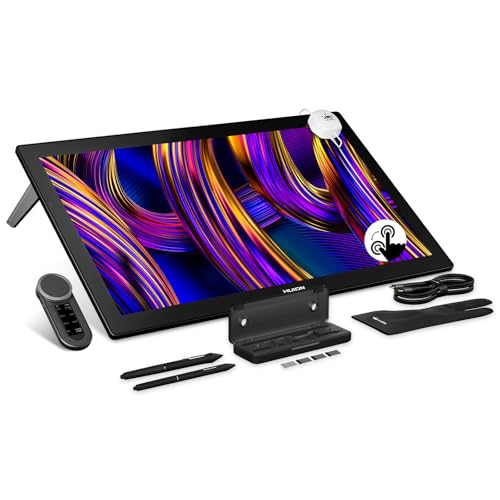
HUION KAMVAS Pro 27 (144Hz) 4K Drawing Tablet

HUION Kamvas 13 (Gen 3) Drawing Tablet

HUION Kamvas Pro 16 Drawing Tablet with Screen

HUION KAMVAS 16 (Gen 3) 2.5K Drawing Tablet
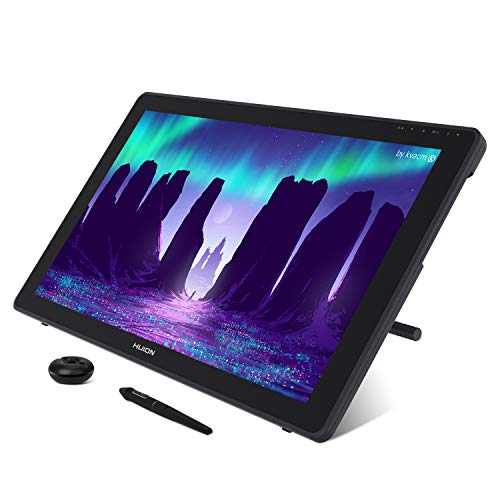
HUION KAMVAS 22 Drawing Tablet with Screen

HUION KAMVAS Pro 19 4K Drawing Tablet

HUION KAMVAS Pro 24 (Gen 3) Drawing Tablet
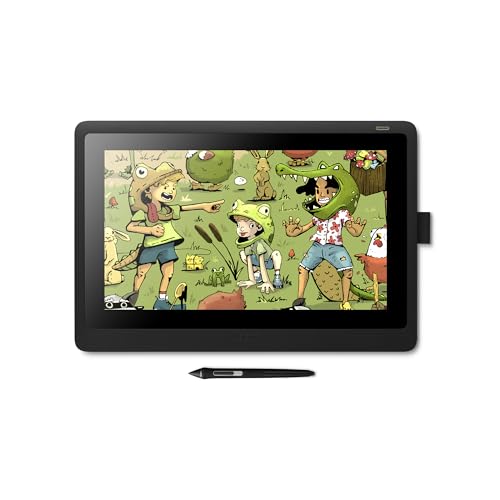
Wacom Cintiq 16 Drawing Tablet with Screen

HUION KAMVAS Pro 27 4K Drawing Tablet
The flagship Kamvas Pro 27 brings a 144Hz refresh rate (meaning the screen redraws 144 times per second) into the animation-friendly pen display market, and that detail alone changes how brushes feel under the pen. For animators working frame-to-frame, faster screen updates translate to smoother previews and less visual drag during long stroke sessions. The 27-inch 4K panel gives you generous real estate for timeline-based work where multiple reference layers and toolbars all need breathing room.
Compared to the smaller Kamvas 13 I’ll cover next, this is a desk-dedicated workstation rather than a portable companion. Beginners who want room to grow into professional workflows often find that starting with a larger canvas saves them from upgrading later, though it does demand dedicated desk space.
What Makes Sense
- 144Hz refresh rate keeps lines feeling responsive during quick sketching
- 4K resolution offers sharp detail for character and background work
- Generous 27-inch canvas supports timeline-heavy animation layouts
- PenTech 4.0 stylus delivers refined pressure sensitivity for line weight variation
- Anti-glare etched glass reduces eye fatigue during long sessions
Trade Offs
- Requires substantial desk depth and a sturdy mount or stand
- Needs a reasonably powerful computer to fully benefit from 4K at high refresh
- Larger screen means cable management takes planning
Who Will Love This
Animation students or hobbyists planning to graduate into professional-level work who want a screen that won’t bottleneck them in two years.
Where Another Pick Suits Better
Anyone working from a small dorm desk or shared apartment space will find the HUION Kamvas 13 (Gen 3) easier to live with day-to-day.
For someone just opening their first animation software, a 13.3-inch screen hits a sweet spot between portability and usability. The Kamvas 13 (Gen 3) pairs a fully laminated display (meaning the glass and LCD are bonded together with no air gap, which reduces parallax) with anti-sparkle glass, so the cursor tracks closer to your pen tip than older models. That distinction matters when you’re still training your eye to draw directly on screen.
The dual programmable dials on the side let you scrub through animation timelines without leaving the canvas, which I find genuinely helpful for beginners reviewing rough frame sequences. It’s a computer-required pen display rather than a standalone unit, so plan to pair it with a laptop or desktop.
Strong Points
- Compact footprint fits crowded desks and coffee-table workspaces
- Laminated screen reduces the visual gap between pen and cursor
- Dual dials speed up timeline scrubbing for short animations
- Lightweight enough for travel or shifting between work and home
Points To Note
- Requires a connected computer, no standalone mode
- Smaller screen can feel tight for compositions with multiple reference layers
- Glare reduction is helpful but direct sunlight still creates challenges
Right Fit For
True beginners who want the lowest barrier to entry and value portability over raw screen real estate.
Swap It Out When
Once you start running longer animations or building full character rigs, the HUION Kamvas 16 (Gen 3) gives you meaningfully more room to work.
The original Kamvas Pro 16 remains a thoughtful balance of price and performance for learners stepping into digital animation. Its 15.6-inch fully laminated screen sits in a middle ground that works for most desk setups, and the touch bar offers a tactile shortcut strip for common brush actions. The 120% sRGB color coverage (a color gamut measurement indicating the range of colors the screen can reproduce) gives a pleasingly accurate palette, which helps when color-matching frames.
Beginners who want a tried-and-true workhorse without the newest Gen 3 upgrades will appreciate that this model has been refined over several software iterations. It’s not the most exciting pick on the list, but for someone learning fundamentals, reliability matters.
Where It Helps
- Smooth texture on the drawing surface feels natural under the pen tip
- 120% sRGB color coverage keeps animation palette work consistent
- Touch bar offers quick access to brush and zoom controls
- Anti-glare glass reduces ambient light interference
Honest Caveats
- Lacks the newer PenTech 4.0 stylus refinement
- No higher refresh rate, so fast brush strokes show slight visual drag
Best Suited To
Animation students on a budget who need dependable performance and don’t need bleeding-edge pen response.
Look Elsewhere When
If sharper color accuracy or a faster-refreshing screen matters for your style of work, the HUION KAMVAS 16 (Gen 3) is the natural upgrade.
The Gen 3 refresh of the popular 16-inch Kamvas bumps resolution to 2.5K QHD (2560×1440) and pairs it with PenTech 4.0, which is the brand’s latest stylus refinement. For animators who care about pixel-level clarity when detailing characters, the 186 PPI pixel density (pixels per inch) keeps edges crisp without straining your eyes. The 15.8-inch panel is a touch smaller than the older Pro 16, but the higher resolution more than compensates.
Color coverage hits 99% sRGB, 99% Rec.709, and 90% Adobe RGB, which is plenty for animation workflows. That makes this an interesting middle option between the Pro 16 covered earlier and the larger Pro 19 or Pro 24 models.
A Favorable Mix
- 2.5K resolution delivers noticeably sharper line work
- Wide color gamut coverage supports both animation and illustration
- PenTech 4.0 stylus improves grip and reduces tip wobble
- Compact 15.8-inch size fits most workspace setups
Some Limits To Know
- Not a 4K panel, so those wanting maximum detail may prefer the Pro 19
- Smaller than mid-range options at 22 inches or larger
Feature Card
Made For
Beginners who want a future-proof panel that handles both drawing and color work without jumping to 4K hardware.
Reach For A Different Pick When
If you regularly work on scenes that need massive canvas space, the HUION KAMVAS 22 offers more room at the cost of pixel density.
Stepping up to a 21.5-inch pen display changes how you work with animation software. The Kamvas 22 gives you enough real estate to keep your timeline, color picker, and canvas all visible at once, which reduces the constant window-switching that breaks creative flow. The Full HD resolution isn’t the sharpest on this list, but at typical viewing distances the image holds up well.
The 178-degree viewing angle is genuinely useful when you’re showing your work to friends or collaborating on a scene. The 120% sRGB color range keeps skin tones and painted backgrounds looking the way you intended.
Good Reasons To Consider
- 21.5-inch canvas accommodates timeline-heavy animation workflows
- Wide viewing angle supports collaborative review sessions
- 1000:1 contrast ratio delivers solid image depth
- Comfortable for extended sketching without cramped layouts
Things To Weigh
- Full HD resolution may feel less crisp compared to 2.5K or 4K panels
- Larger footprint demands stable desk space
Perfect Match For
Animators who want generous canvas space for storytelling scenes and don’t need the absolute highest pixel count.
Skip It When
Color-critical professionals should look at the HUION KAMVAS Pro 27 (98% Adobe RGB) for tighter color accuracy.
The Kamvas Pro 19 occupies an unusual spot: 18.4 inches of working area with full 4K UHD resolution. That’s a rare combination that keeps the pixel density high while avoiding the desk-hogging footprint of 24 or 27-inch screens. For animators who work between two locations or have modest desk space, this size hits a sweet middle ground.
The etched canvas glass adds slight friction under the pen tip, which mimics the feel of paper. Beginners often find that paper-like resistance helps them draw more confidently because the pen doesn’t skate across glossy glass. Anti-sparkle treatment keeps reflections in check during daytime work.
Positive Points
- 4K resolution packed into a manageable 18.4-inch screen
- Etched glass surface adds pleasant drawing resistance
- PenTech 4.0 stylus improves accuracy and grip comfort
- Full lamination reduces parallax for more precise strokes
Practical Considerations
- Higher cost than smaller 1080p alternatives
- Still requires a connected computer to operate
Feature Card
Whose Shelf It Belongs On
Animators craving 4K detail without committing to a full-size studio display, especially those working in tighter spaces.
Consider Something Else When
You need maximum timeline length on a single screen, in which case the HUION KAMVAS 22 or Pro 24 (Gen 3) may suit you better.
The Kamvas Pro 24 (Gen 3) keeps the familiar 23.8-inch form factor of its predecessor but upgrades the internals. Narrow bezels maximize the usable canvas, and the 4K UHD resolution ensures that fine details survive even when zoomed in. For animators working on full character sheets or detailed backgrounds, that combination is genuinely useful.
PenTech 4.0 brings 16,384 levels of pressure sensitivity (the number of distinct pressure increments the stylus can detect), which matters when you’re trying to achieve hairline-thin sketch lines alongside bold shadow strokes. It’s overkill for total beginners, but rewarding as your technique develops.
Everyday Wins
- 4K resolution on a spacious 23.8-inch canvas
- Narrow bezels keep the focus on your work
- 16,384 pressure levels support nuanced line work
- Anti-glare etched glass improves drawing comfort
Potential Drawbacks
- Larger footprint means you’ll want a dedicated arm mount or stand
- Higher-end pricing puts it out of casual experimentation range
Built With In Mind
Intermediate to advanced animators who want studio-quality workspace at home without jumping to the largest 27-inch options.
A Better Fit Elsewhere
Casual learners exploring animation as a hobby will likely find the HUION Kamvas 13 (Gen 3) more approachable and easier on the budget.
The Wacom Cintiq 16 is the entry point into a brand many art instructors trust and teach with. For beginners taking a class or following online tutorials, that familiarity carries real weight, since most educational materials assume Wacom compatibility. The included Pro Pen 2 supports tilt response, meaning the tablet detects the angle of your pen for shading techniques, which is a feature not all budget displays offer.
The Full HD resolution on a 15.4-inch screen isn’t going to compete with 4K alternatives on this list, but for many learners it’s plenty sharp. The foldable legs let you adjust the drawing angle to mimic a traditional sketchbook.
Notable Gains
- Pro Pen 2 with tilt response supports natural shading techniques
- Wacom compatibility ensures broad software and tutorial support
- Foldable legs allow adjustable drawing angles
- Durable scratch-resistant surface handles daily use
Less-Strong Areas
- Full HD resolution shows its age next to newer 2.5K and 4K options
- Priced higher than many newer alternatives with similar or better specs
Perfect Match For
Traditionalists who value brand trust and anyone learning in a structured environment where Wacom is the standard.
Reach For A Different Pick When
If sharper resolution or higher refresh rates matter for your animation style, the HUION KAMVAS Pro 19 (4K) offers noticeably more detail.
The non-144Hz sibling of the flagship Pro 27 still delivers a massive 4K canvas with 98% Adobe RGB color coverage (a professional color gamut standard used widely in print and digital illustration). For animators working on character animation with painted backgrounds, that color accuracy keeps painted layers matching across frames. The 27-inch workspace means you can sketch big and not constantly zoom in and out.
PenTech 4.0 rounds out the package with the brand’s best stylus experience yet. The trade-off compared to the 144Hz model I covered earlier is mostly refresh rate, so if you don’t animate fast-action scenes at high frame rates, you may not notice the difference.
Everyday Perks
- 4K UHD resolution on a generous 27-inch canvas
- 98% Adobe RGB coverage for professional color work
- PenTech 4.0 stylus for refined pressure response
- Ideal for full-scene composition without constant zooming
Trade-Offs To Consider
- Standard refresh rate, not the 144Hz of the Pro 27 (144Hz) covered earlier
- Requires significant desk space and a sturdy mounting solution
Who Should Grab It
Character animators and illustrators who prioritize color accuracy and screen size over ultra-smooth preview playback.
Where A Sibling Pick Shines
Animators focused on fast motion previews may prefer the HUION KAMVAS Pro 27 (144Hz) for its smoother frame-to-frame response.
What To Think About Before Buying A Pen Display
Choosing your first animation tablet is really about matching the tool to your workspace and learning style. Screen size is the most personal decision: smaller displays (13 to 16 inches) travel well and fit cramped desks, while larger panels (22 inches and up) make timeline-based work much more comfortable. Resolution matters less for beginners than you’d think, since most entry-level animation software runs smoothly at Full HD, but sharper screens do reduce eye strain during long sessions.
Pressure sensitivity, the number of distinct pressure levels your stylus can detect, directly affects how natural your lines feel. Styluses with 8,000+ levels give you nuanced control over line weight, while older or cheaper pens may feel binary. If you’ve used traditional media, higher pressure sensitivity will feel more familiar. Tilt support is a bonus for painters but not essential for frame-by-frame line animation.
Color gamut coverage (the range of colors a screen can display) only matters if you plan to do finished color work for print or professional pipelines. For learning and online sharing, 99% sRGB coverage is plenty. Don’t overspend on Adobe RGB coverage until you have a real project that demands it.
Lastly, always confirm your computer can drive the display properly. A 4K pen display on an older laptop can feel laggy, even if the tablet itself is excellent. Check the connection type and recommended specs before committing.
Key Considerations Across These Picks
Pitfalls Shoppers Hit
The most common mistake is choosing a screen size based on spec sheet excitement rather than actual desk reality. Measure your space first, including depth, since larger displays need room behind them for ventilation and cable routing. Another trap is buying a 4K display without confirming your computer’s graphics card can handle driving it smoothly during animation playback.
Where The Extra Money Goes
Higher-tier pen displays justify their cost through three main upgrades: faster refresh rates for smoother animation previews, better color accuracy for finished work, and refined stylus technology with more pressure levels. For beginners, the stylus refinement and screen size matter more than raw color specs. Spend up when those factors align with how you actually plan to work, not just because a display has a longer feature list.
Frequently Asked Questions
Do animation tablets for beginners need to be standalone or computer-connected?
Most beginner-friendly options, including every model covered here, connect to a computer rather than running independently. That keeps them lighter and more affordable, and lets them leverage your existing software setup.
How important is pressure sensitivity for animation?
It’s quite important because pressure controls line weight, which is how you convey depth and emotion in animated strokes. Look for styluses with at least 8,000 pressure levels to keep your lines feeling expressive.
Can I use these tablets with free animation software?
Yes, most pen displays work with free tools like Krita, Blender’s Grease Pencil, and the trial versions of Clip Studio Paint. Driver compatibility is usually broad across Windows, macOS, and Linux.
What’s the difference between a pen display and a regular graphics tablet?
A pen display has a screen you draw directly on, while a standard graphics tablet is a flat surface without visual feedback. For animation, pen displays dramatically shorten the learning curve because your eyes stay focused on the artwork.
Is screen size really that important for beginners?
It depends on your workspace, but a screen that’s too small can slow your progress by forcing constant zooming and panning. Aim for at least 13 inches for portability, or 16 inches if your desk allows.
Closing Remarks
The best animation tablet for beginners is the one that matches your space, your computer, and the kind of stories you want to tell. Smaller displays like the Kamvas 13 lower the barrier to entry, while mid-range 16-inch models offer the most balanced learning experience. Larger Pro-series displays reward you as your skills grow, but they’re investments rather than starting points. Pick what fits your current setup, give yourself time to practice, and trust the process of learning frame by frame.