

I spent weeks digging through specs, comparing pressure curves, and weighing what actually matters for anime-style work, where clean linework, smooth inking, and screen response separate a fun sketch session from hours of frustration. This list covers a real spread: standalone tablets for couch sketching, tethered displays for serious inking, and beginner-friendly pads that won’t empty your wallet before you’ve drawn a single panel.
The Main Contenders

XPPen 16K Artist 15.6 Pro V2 Drawing Tablet
One by Wacom Medium Drawing Tablet
Wacom Intuos Medium Bluetooth Drawing Tablet

XPPen Artist 13.3 Pro V2 Drawing Tablet
XPPen Artist Pro 22 Gen 2 Drawing Tablet

RubensTab T14 Standalone Drawing Tablet

Wacom Intuos Small Wired Drawing Tablet

XPPen Artist 15.6 Pro Tilt Drawing Tablet

Frunsi T8 Standalone Drawing Tablet

RubensTab T11 Pro Standalone Drawing Tablet
What Each Pick Brings To The Table
The 15.6-inch screen on this XPPen sits in the sweet spot for anime work: large enough to draw full-body character sheets with breathing room, compact enough to fit on a modest desk next to a keyboard. The X3 Pro smart chip stylus delivers 16,384 pressure levels (the number of distinct pressure strengths the pen can detect), which translates into very fine control over hairlines in manga inking and gradual tonal shifts in screen tones. Because it’s a tethered display, you connect it to your computer with the included 3-in-1 cable and draw directly on the surface, the way you would on paper.
Compared with the entry-level One by Wacom on this list, the Artist 15.6 Pro V2 gives you a real screen to draw on and dramatically finer pressure gradation, which matters a lot when inking tight anime eyes and mouths. You also get 8 customizable shortcut keys along the side for brush, undo, and layer switching.
Positive Points
- 16,384 pressure levels give you very precise line weight control for clean anime linework.
- 15.6-inch full-laminated display reduces the parallax gap (the visible offset between pen tip and cursor) so your strokes land where you expect.
- Tethered connection means you tap straight into your existing art software, no file transfers needed.
- Eight shortcut keys speed up brush swaps, undo, and layer toggles during long sessions.
Things To Consider
- Requires a computer or laptop to function, so it isn’t a couch or travel option on its own.
- Owners commonly note the included stand is serviceable but worth upgrading for marathon sessions.
Feature Snapshot
Who It Suits Best
Intermediate and professional anime illustrators who already work from a desk and want a serious display without stepping up to a 22-inch flagship.
Consider Something Else When
Casual sketchers who travel often should consider the RubensTab T14 Standalone Drawing Tablet, which runs without a computer attached.
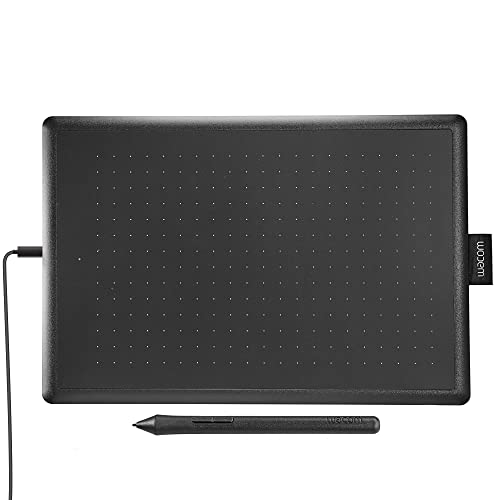
The One by Wacom is the brand’s most approachable pad: a medium 10.9 by 7.4-inch surface with no screen, just a matte drawing area and a battery-free pen. You look at your monitor while the pen moves on the tablet, which is the classic way most working illustrators started before display tablets became affordable. It’s a real Wacom build, which means the driver support is mature and works smoothly with Chromebook, Mac, and Windows machines out of the box.
For absolute beginners dipping a toe into anime art, this is the path of least resistance. There’s no screen calibration, no color profile fuss, and the learning curve is mostly about hand-eye coordination rather than hardware quirks.
Practical Advantages
- Reliable Wacom driver support across Mac, Windows, and Chromebook.
- Battery-free pen means no charging breaks mid-sketch.
- Compact footprint fits a dorm desk or shared workspace.
Worth Noting
- No built-in screen means an adjustment period for people used to drawing on paper.
- Pressure level data isn’t published, so serious inking artists may find it less expressive than higher-tier picks.
Right Fit For
First-time tablet users, students, and hobbyists who want a low-friction entry into digital anime drawing.
Skip It When
Someone who wants to draw directly on a screen should look at the XPPen Artist 13.3 Pro V2 Drawing Tablet instead.
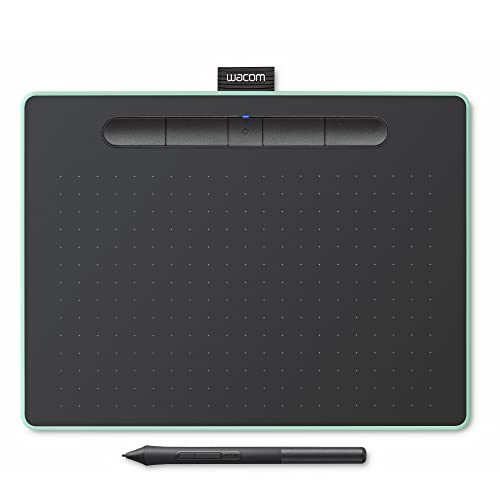
This pistachio-finish Wacom Intuos adds Bluetooth to the familiar pen-tablet formula, so you can sketch wirelessly from a laptop on the couch or at a cafe table. The medium active area gives you enough room for standard manga page roughs, and four customizable ExpressKeys along the side handle brush, undo, and layer shortcuts without forcing you back to the keyboard. Compatibility stretches across Chromebook, Mac, Windows, and select Android devices, which is wider than most competitors in this price band.
Compared to the wired One by Wacom earlier in this list, the Intuos Medium adds wireless freedom and physical shortcut keys, two upgrades that genuinely change how a sketch session flows.
Where It Helps
- Bluetooth cuts the cord for couch, cafe, and library sketching.
- Four ExpressKeys reduce keyboard reaching during long sessions.
- Broad OS support including Chromebook and Android.
Points To Note
- Wireless mode requires occasional charging, unlike the battery-free One by Wacom pen.
- Pressure level count isn’t published in available source data.
Feature Snapshot
Made For
Commuters, students, and mobile creators who want Wacom reliability without staying tied to a desk.
Look Elsewhere When
Artists who prefer drawing directly on screen should consider the XPPen 16K Artist 15.6 Pro V2 Drawing Tablet.
The 13.3-inch screen here is the smallest of the XPPen display tablets in this roundup, which makes it the friendliest choice for cramped desks, shared workspaces, or travel setups where a 15.6-inch screen would feel oversized. The full-laminated AG glass (anti-glare etched glass bonded directly to the LCD, reducing reflections and parallax) keeps the cursor close to where the pen tip appears, and 99% sRGB coverage means colors stay honest for cel shading. The red dial is genuinely handy: a quick scroll zooms in and out of a manga panel without breaking your brush hand’s rhythm, while 8 keys handle layer and undo shortcuts.
Versus the larger 15.6-inch Artist Pro on this list, this model trades screen real estate for portability. For sketch-heavy anime work where you rough on one layer and ink on another, the smaller canvas is plenty.
Advantages To Know
- Red dial offers fast zooming without interrupting brush flow.
- Compact 13.3-inch footprint fits most setups, including travel bags.
- 16K pressure sensitivity matches the larger XPPen flagships in this list.
Minor Gripes
- Smaller active area means more scrolling and zooming on multi-panel manga pages.
- Tethered design requires a computer connection at all times.
Best Suited To
Anime artists with limited desk space or those who sketch on the go and want a display tablet that travels.
A Better Fit Elsewhere
Studio illustrators who want maximum workspace should look at the XPPen Artist Pro 22 Gen 2 Drawing Tablet.
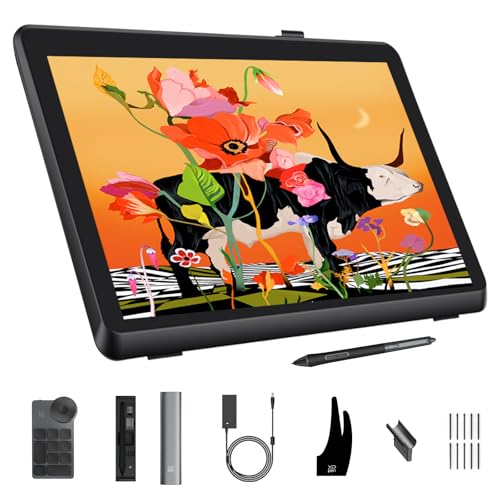
This is the studio-grade display in the roundup. The 22-inch 2.5K panel is Calman Verified for color accuracy with Delta E under 1 (a measurement of color difference; lower numbers mean the screen displays colors closer to the intended reference). Translation: what you paint is what shows up on screen and in published prints. With 99% Adobe RGB coverage and a Calman-verified calibration report, this is the kind of tool a working illustrator or finishing artist reaches for when color-critical anime work is on the line. The included ACK05 shortcut remote is a small wireless puck you can place anywhere on your desk for custom key assignments.
Compared to the 15.6-inch XPPen earlier in this list, the Gen 2 trades portability for a much larger canvas and verified color precision. The adjustable stand is genuinely useful for long sessions at varied angles.
Where It Excels
- 22-inch canvas fits full manga pages and complex scenes without constant zooming.
- Calman-verified color accuracy protects color-critical anime and illustration work.
- ACK05 shortcut remote declutters the tablet surface.
Honest Caveats
- 22 inches demands serious desk space, which apartment dwellers may not have.
- Premium positioning means it costs meaningfully more than the 15.6-inch sibling.
Perfect Match For
Professional anime illustrators and studios who need color-accurate, large-canvas work surfaces.
Reach For A Different Pick When
Beginners and hobbyists get more value from the XPPen 16K Artist 15.6 Pro V2 Drawing Tablet in this list.
The RubensTab T14 is built around a different premise than the tethered XPPens earlier: no computer required. Inside sits an octa-core CPU (eight processing cores, enough to run drawing apps smoothly without a laptop), a 14.1-inch Full HD IPS screen (IPS = In-Plane Switching, a panel type known for wide viewing angles and accurate color), and pre-installed drawing apps with tutorials to get you started. You sketch, ink, and save files on the device itself, then transfer them later. For anime artists who want to draw on the couch, in bed, or at a cafe without dragging a laptop along, that’s a meaningful shift in workflow.
The 14.1-inch size is close to the XPPen 13.3 Pro V2 above but with the freedom to leave your computer at home. Bonus items in the box sweeten the value for beginners.
Where It Delivers
- True standalone design frees you from a desk setup entirely.
- Pre-installed apps and tutorials lower the barrier for new anime artists.
- Full HD IPS screen offers good color and wide viewing angles.
Practical Considerations
- Standalone hardware typically trails tethered displays in pen pressure nuance.
- Software ecosystem is more limited than PC-based Clip Studio or Krita setups.
Feature Snapshot
Who Should Grab It
Anime hobbyists who sketch in different spots around the house or want a self-contained device without buying a laptop.
Swap It Out When
Working illustrators who depend on a full desktop software stack should stick with the XPPen 16K Artist 15.6 Pro V2 Drawing Tablet.
The small Intuos keeps things simple: a compact wired tablet, a light pressure-sensitive pen, and bundled software to get you drawing the day you unbox it. There’s no Bluetooth and no screen, which keeps the cost down, but you still get the same Wacom driver maturity as the larger Intuos above. For anime beginners on a tight budget who mainly sketch character heads, expressions, and small manga panels, the small active area is workable, especially on a laptop-driven workflow.
Versus the One by Wacom Medium earlier in this list, this is the smaller, more affordable cousin, trading workspace for a lower entry cost.
The Case For It
- Lowest-cost path into a real Wacom pen experience.
- Bundled software gets you drawing immediately.
- Wired connection means no battery management.
A Few Limitations
- Small active area can feel tight for full-body or multi-panel manga work.
- No wireless option, so mobility is limited to wherever the cable reaches.
Built With In Mind
Anime beginners who want Wacom reliability at the lowest cost and don’t need a large workspace.
Where A Sibling Pick Shines
Artists who want wireless sketching and a larger surface should consider the Wacom Intuos Medium Bluetooth Drawing Tablet.
This earlier-generation 15.6-inch XPPen display carries 8,192 pressure levels (still plenty for anime linework) and adds tilt support, which means the pen recognizes the angle you’re holding it and can shade accordingly, mimicking how a real pencil or brush behaves on paper. That makes it especially nice for hatching and screen-tone shading in manga, where traditional artists often angle the pen. The 120% sRGB color space (the range of colors the screen can display) gives you a vivid palette for cel-style anime coloring, and the red dial plus 8 shortcut keys mirror the layout on newer XPPen models.
Compared to the newer 16K Artist 15.6 Pro V2 earlier in this list, this one offers tilt support and a similar screen size but with fewer pressure levels. For tilt-loving illustrators, that trade can be worth it.
The Upside
- Tilt support feels natural for traditional pencil and brush shading styles.
- 15.6-inch full-laminated display keeps parallax minimal.
- 120% sRGB delivers punchy anime-style colors.
Trade-Offs To Consider
- 8,192 pressure levels are still excellent but trail the 16K V2 model in fine control.
- Tethered to a computer, so it isn’t a true portable option.
Feature Snapshot
Whose Shelf It Belongs On
Anime artists who come from traditional backgrounds and rely on tilted pen strokes for shading.
Not Your Match When
Hardcore inking specialists who want the absolute finest pressure resolution should look at the XPPen 16K Artist 15.6 Pro V2 Drawing Tablet.
The Frunsi T8 is the smallest standalone pick in the roundup at 8 inches, small enough to slip into a daypack without thinking about it. It runs Android 13, which means you can install drawing apps from the Play Store and sketch without any tether. For quick character doodles on a train ride or thumbnailing manga layouts at a cafe, the size is genuinely useful, even liberating. The 1200×800 resolution display is modest compared to the 14-inch RubensTab above, but the trade for portability is the whole point.
Versus the T14 standalone earlier in this list, this is the lighter, more pocketable option. Versus the T11 Pro below, it sits as the most travel-ready choice.
Features That Help
- Compact 8-inch form factor slips into bags and backpacks easily.
- Android 13 opens access to mainstream drawing apps.
- No computer required for sketching sessions.
Things To Weigh
- Small canvas limits how much of a manga page you can rough at once.
- Lower resolution display means fine linework demands careful zooming.
The Right Fit
Travelers and anime hobbyists who want to sketch on the go without carrying a full tablet or laptop.
Another Choice May Suit
Home-based sketchers who want a bigger standalone canvas should consider the RubensTab T14 Standalone Drawing Tablet.
The RubensTab T11 Pro is the middle child of the standalone lineup: a 10.1-inch Full HD IPS display that’s bigger than the pocket-friendly T8 above but more portable than the 14-inch T14. It runs Android, ships with pre-installed drawing apps, and works completely free of a computer. For bedroom-based anime creators who want to sketch at a desk or on the bed without setting up a full workstation, this is a tidy middle ground. The Full HD resolution at this size keeps lines crisp.
Compared to the T8 on this list, you trade a little pocket-friendliness for more room to breathe on a sketch. Against the tethered XPPens earlier in the roundup, you trade software flexibility for true portability.
Well-Handled Touches
- 10.1-inch Full HD IPS screen balances portability with usable canvas.
- Standalone design means no laptop is required to draw.
- Pre-installed apps support beginners out of the box.
Softer Spots
- Standalone apps may not match the depth of PC-based Clip Studio or Krita features.
- Limited active area compared to tethered 13-inch or 15-inch display tablets.
Who Will Love This
Bedroom anime creators, students in dorms, and casual artists who want a self-contained device that doesn’t tether them to a desk.
A Better Fit Elsewhere
Professional illustrators needing pro-grade pressure and software should reach for the XPPen 16K Artist 15.6 Pro V2 Drawing Tablet.
Picking The Right Tool For Your Anime Style
Anime illustration covers a wide range of work, from quick chibi doodles to detailed manga panels and full-color character art, and the right tablet depends heavily on which end of that spectrum you live at. Beginners usually benefit most from a no-screen Wacom or a budget standalone like the RubensTab T11 Pro, where the focus is on learning brush control and software basics rather than fine pressure gradation.
Display vs. No-Screen Tablets
A display tablet lets you draw directly on the screen, which mirrors how paper feels and shortens the hand-eye learning curve dramatically. Tethered displays like the XPPen Artist 13.3 Pro V2 and the 15.6 Pro V2 need a computer, but they tap into your full software setup. Pen-only tablets like the One by Wacom are cheaper and lighter, and many illustrators still prefer them after years of practice.
Pressure Levels and Tilt Support
Higher pressure levels give finer control over line weight, which matters for the variable line widths common in manga inking. Tilt support matters if you shade with angled strokes like a traditional pencil. For anime-style hatching and brush effects, tilt is a real workflow upgrade.
Screen Size and Workspace
A 13-inch screen is portable but feels tight on multi-panel manga work. A 15.6-inch screen is the everyday sweet spot. A 22-inch screen like the XPPen Artist Pro 22 Gen 2 fits full pages with room to spare but demands desk space. Standalone tablets sidestep the tether entirely but trade software depth for portability.
Standalone vs. Tethered
Standalone tablets (RubensTab T14, T8, T11 Pro) work without a computer, ideal for couch, travel, and bedroom sketching. Tethered displays offer stronger pressure, faster response, and access to your full PC software stack. Choose based on where you actually draw, not just what’s most powerful on paper.
Key Considerations Across These Picks
Pitfalls Shoppers Hit
A common mistake is buying a flagship 22-inch display when a smaller 13-inch or 15-inch model would fit your desk and workflow. Many new anime artists also over-invest in pressure levels before they have the brush control to use them; a 15.6-inch entry-level display often serves better than a top-tier unit for the first year. Skipping stand compatibility and cable management is another quiet regret: tethered displays need stable placement to feel natural.
The Upgrade Payoff
The jump from a budget pen tablet to a 15K-level pressure display is genuinely noticeable in line weight and shading nuance, especially once you start inking serious manga pages. Color-accurate panels like the XPPen Artist Pro 22 Gen 2 matter once you move into print or commission work, where color shifts across screens can derail a deliverable. For hobbyists, the upgrade is more about workflow joy than output quality.
Frequently Asked Questions
What size tablet screen is best for anime art?
A 15.6-inch display hits a comfortable middle for most anime artists, offering enough room for full character sketches without demanding a large desk. Larger 22-inch screens benefit studio work, while 13-inch and smaller displays favor travel setups.
Do I need a computer to use an anime drawing tablet?
Not always. Standalone tablets like the RubensTab T14, T11 Pro, and Frunsi T8 run drawing apps internally without a connected computer. Tethered displays and most pen-only tablets require a computer or laptop to function.
Is a display tablet better than a pen tablet for beginners?
It depends on your learning style. A display tablet feels closer to drawing on paper and reduces hand-eye adjustment, which helps many absolute beginners. A pen tablet is more affordable and builds strong foundational skills over time.
What pressure level count matters for anime linework?
Anything above 4,000 pressure levels handles anime linework well in practice. The jump to 8,192 or 16,384 levels gives finer control over very thin hairlines and subtle shading gradients, which becomes more meaningful as your technique develops.
Can I use these tablets with free drawing software?
Yes. Most of these tablets support popular free options like Krita and Medibang Paint, alongside paid apps like Clip Studio Paint. Standalone tablets rely on Android-compatible apps, while tethered displays work with the full desktop software ecosystem.
The Takeaway
For most anime artists, the best fit depends on where you draw and how serious the work is: a display tablet like the XPPen 16K Artist 15.6 Pro V2 for desk-based inking, a Wacom Intuos Medium Bluetooth for wireless sketching, or a RubensTab standalone for untethered creativity. Pick the tool that matches your actual routine, not the one with the loudest spec sheet.
