

Sketching on a screen has quietly become one of the most natural ways to draw, plan, and unwind, and the gear has finally caught up with how people actually work. The right tablet can turn a crowded desk into a studio, a coffee shop table into a sketchbook, or a long flight into a productive creative session.
I’ve put together this roundup for hobbyists picking up a pen for the first time, art students on a budget, working illustrators who need a reliable daily driver, and anyone curious about drawing on Android without tethering to a desktop. The list mixes standalone Android tablets for sketching with traditional pen tablets that play nicely with Android phones and Chromebooks, so the right choice depends on whether you want an all-in-one slab or a partner for a computer you already own.
The Leading Options At A Glance
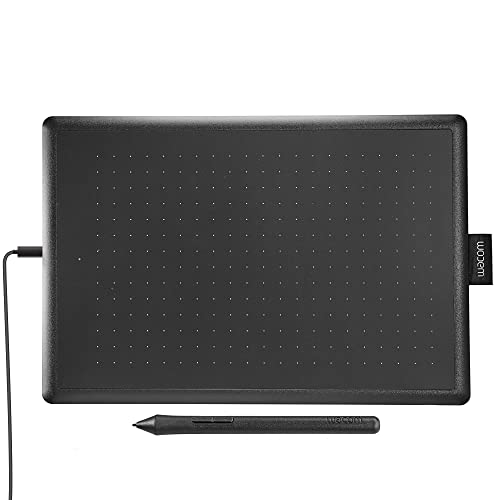
Wacom One Drawing Tablet (Medium)
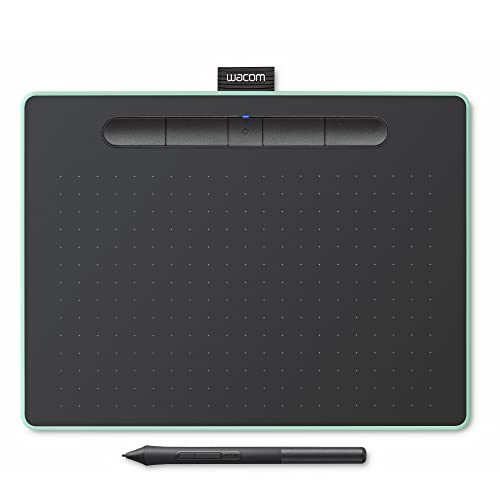
Wacom Intuos Medium Bluetooth Drawing Tablet

Frunsi RubensTab T14 Drawing Tablet

UGEE 14.25-inch 2.4K Drawing Pad

Boogie Board Basics Reusable LCD Writing Pad
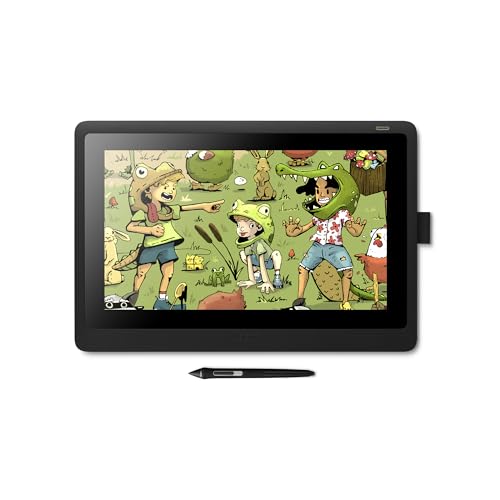
Wacom Cintiq 16 Pen Display Tablet

Frunsi T8 8-inch Standalone Drawing Tablet

Wacom Intuos Small Wired Drawing Tablet

XPPen Artist 15.6 Pro Drawing Tablet

Frunsi RubensTab T11 Pro Drawing Tablet
The Strengths Of Each Pick
The Wacom One medium sits in that sweet spot where a tablet feels substantial on the desk but doesn’t crowd a small workspace. Drawing on the active 10.9 by 7.4 inch surface feels close to sketching on a sheet of letter paper, which helps anyone transitioning from a paper sketchbook keep their hand position natural.
Setup is genuinely painless for newcomers. The pen is pressure-sensitive, so light strokes produce thin lines and heavier pressure builds thicker marks, a behavior that mirrors a real graphite pencil more closely than a mouse ever could. Anyone working from a Chromebook, Mac, or Windows machine will find it plays nicely with the most common creative apps. For a first tablet, the learning curve is short and the experience feels familiar rather than foreign.
What Pays Off
- Pressure-sensitive pen that mimics the feel of graphite, helping students learn line weight control.
- Generous 10.9 by 7.4 inch active area gives sketches room to breathe on screen.
- Broad compatibility with Chromebook, Mac, and Windows removes friction for mixed households.
- Wacom’s reputation for durable pens and replacement nibs keeps long-term ownership affordable.
Things To Consider
- This is a pen tablet, not a screen tablet, so beginners may need a few sessions to stop looking down at the surface while watching the cursor.
- The included pen uses replaceable nibs that wear down with heavy daily use, so a small stash of replacements is worth keeping nearby.
Who It Suits Best
First-time digital artists, classroom students, and anyone wanting Wacom reliability without committing to a screen-based setup.
Skip It When
You’d rather draw directly on the image, in which case the Wacom Cintiq 16 pen display will feel more intuitive for your workflow.
The Wacom Intuos Medium wireless steps up from the entry-level One by adding Bluetooth and four programmable ExpressKeys, while keeping the same approachable footprint. The pistachio finish is small, but it’s the kind of design choice that makes a tablet feel personal rather than generic, which matters when a tool sits on your desk every day.
Wireless connectivity means the tablet pairs to a Chromebook, Mac, PC, or select Android phone, and slips into a backpack for café sessions or classroom demos. Four customizable ExpressKeys (shortcut buttons that trigger common commands with a tap) along the side let a sketch workflow map to brush size, undo, or pan without keyboard gymnastics. Compared with the One by Wacom above, the Intuos trades some simplicity for genuine mobility and a more flexible setup.
What Makes Sense
- Built-in Bluetooth removes cable clutter from the desk and the travel bag.
- Four ExpressKeys can be mapped to undo, brush size, or pan, shaving seconds off repeated actions.
- Wide compatibility across Chromebook, Mac, Windows, and select Android phones.
Worth Noting
- Battery life depends heavily on use, so carrying a charging cable for long sessions is sensible.
- Like the One by Wacom, this is a pen tablet with no screen, so the hand-eye gap takes practice.
Made For
Students, teachers, and freelance creators who want a cable-free workflow and the freedom to sketch from a couch, classroom, or coworking space.
Look Elsewhere When
You need a fully standalone setup without tethering to a phone or laptop, where the Frunsi RubensTab T14 is the more natural choice.
The RubensTab T14 is built for people who want to draw on the couch, in a sketch circle, or anywhere a laptop would feel like overkill. The 14.1 inch Full HD IPS display at 1920 by 1200 produces sharp linework and color that holds up from wide viewing angles, and the octa-core CPU keeps brush lag to a minimum when working on layered files.
Because it’s a standalone Android tablet with pre-installed drawing apps and tutorials, there’s no setup ritual before the first sketch. Open the box, charge it, and the canvas is ready. Beginners get a guided start, while traveling illustrators can leave the laptop at home and still finish client roughs on the road. Stepping up from the Wacom Intuos Medium above means trading Bluetooth pen-input for a full drawing surface in one device.
What Helps Most
- Standalone design means no computer, no cables, and no extra devices to charge on travel days.
- 14.1 inch Full HD IPS canvas gives sketches room to breathe with vivid, accurate color.
- Pre-installed apps and tutorials ease the cold-start problem many beginners face on day one.
Trade Offs
- Battery drain under heavy brushwork is common, so a power bank helps during full-day sessions.
- Pre-installed apps are convenient, but the app ecosystem is narrower than a full Chromebook or Windows setup.
Key Specs
Best Suited To
Traveling illustrators, classroom teachers, and hobbyists who want a tablet they can grab and sketch on without booting anything else.
A Better Fit Elsewhere
If color accuracy is the top priority for client work, the XPPen Artist 15.6 Pro offers 120 percent sRGB coverage in a larger 15.6 inch panel.
The UGEE 14.25 inch tablet pushes resolution into 2.4K territory, which makes fine linework and texture-heavy paintings look noticeably crisper than standard Full HD. The paper-like NanoMatte surface adds a touch of friction that mimics drawing on a sketchpad rather than skating across slick glass, a detail that many illustrators notice within the first few strokes.
Running Android 14 on a 6 nanometer octa-core chip means apps open fast and stay responsive during heavy multitasking. Storage of 8GB RAM plus 256GB holds hundreds of layered files, and the 10000mAh battery with 27W DC fast charging supports long days away from a wall outlet. Compared with the RubensTab T14 above, the UGEE trades a bit of portability for sharper detail and snappier performance.
Strengths Worth Knowing
- 2.4K resolution delivers sharp details that hold up under zoom for intricate linework.
- NanoMatte texture feels like paper rather than glass, easing fatigue on long drawing sessions.
- 256GB of storage swallows thousands of sketches without offloading to the cloud.
- 10000mAh battery with 27W charging powers through long commutes and travel days.
Minor Gripes
- Fast charging requires the included 27W DC adapter for full-speed top-ups.
- The textured surface, while pleasant, can wear through standard pen nibs a bit faster than glass.
Who Will Love This
Detail-focused illustrators, comic artists, and digital painters who want crisp resolution and a paper-like feel without a deskbound setup.
Consider Something Else When
Portability is the priority and you’d rather carry something pocketable, in which case the Frunsi T8 8-inch tablet makes more sense.
The Boogie Board Basics is the anti-smartphone drawing tool, a one-color LCD writing pad that runs without apps, batteries, or even a Bluetooth connection. Lines appear with light pressure from the included stylus, and a single button clears the screen instantly, which makes it feel closer to a magic slate than a computer.
It earns its place on this list because not every sketch needs to be saved, layered, and exported. Quick thumbnail ideas, grocery lists, kid-friendly doodles, or message-board notes happen here without the friction of unlocking a tablet and choosing an app. The trade-off is clear: nothing persists once the screen clears, so anything worth keeping needs a quick phone photo before the tap.
Well-Handled Touches
- Instant erase button clears the entire screen with a single tap.
- Battery-free operation means no charging routine to remember.
- Stylus, fingertip, or even a pencil all register on the surface.
A Few Limitations
- Sketches disappear with one button press, so nothing is saved automatically.
- Single-color LCD only, no shading, color, or pressure-based line weight.
Right Fit For
Parents looking for a mess-free drawing toy, kitchen-counter note takers, and anyone who sketches disposable ideas without needing a saved file.
Swap It Out When
You want sketches to live beyond the screen, where the Wacom Intuos Small gives you real digital files for a similar low-friction feel.
The Wacom Cintiq 16 brings pen and screen together, which sounds small until the first sketch lands exactly where the stylus touched. The 15.4 inch Full HD display sits inside a scratch-resistant exterior, and the included Pro Pen 2 responds to 8192 pressure levels plus tilt, meaning angled brushstrokes shade the canvas the way a real pencil would.
At roughly four pounds and about an inch thick, the Cintiq 16 isn’t a travel-first tablet, but the foldable legs let it sit at a comfortable angle on a desk for hours. For animators, illustrators, and concept artists who already work inside Mac or PC software, the direct-on-screen feel is what makes long creative sessions sustainable. This sits well above the Wacom One in capability, with a price tag and a screen-centric workflow to match.
A Few Strong Suits
- Pro Pen 2 with tilt response shades edges the way a real graphite pencil does.
- Direct-on-screen drawing removes the hand-eye gap that frustrates beginners on pen-only tablets.
- Foldable legs tilt the display to a comfortable sketching angle on a desk.
Points To Keep In Mind
- Requires a Mac or PC connection to function, so it isn’t a standalone tablet.
- The 15.4 inch footprint wants a dedicated desk space rather than a lap setup.
- Pen nibs are consumable, so a small replacement stock is wise for daily illustrators.
Quick Facts
Perfect Match For
Working illustrators, animators, and concept artists who already use desktop software and want the most natural on-screen drawing experience.
Not Your Match When
Mobility matters more than screen fidelity, in which case the Frunsi RubensTab T11 Pro offers a smaller standalone canvas for true grab-and-go work.
The Frunsi T8 is a curious little tablet, an 8 inch standalone sketch device that fits in a coat pocket or a small crossbody bag. The 1200 by 800 resolution display is modest by 2026 standards, but Android 13 keeps app compatibility current, and the size encourages quick gesture sketches rather than sprawling illustrations.
Daily commuters and travelers tend to appreciate how little space this tablet demands. Pull it out on a train, thumb-sketch a layout, and slip it back in the bag. The trade-off shows up when detail-heavy work enters the picture; the smaller canvas means more zooming and panning for fine linework. Stepping up to the RubensTab T11 Pro below trades a bit of pocketability for a noticeably larger drawing surface.
What It Does Well
- 8 inch form factor slips into pockets and small bags without a dedicated case.
- Standalone Android 13 setup means no laptop or phone is required to start sketching.
- Low weight makes one-handed sketching comfortable on transit or in tight spaces.
Possible Compromises
- 1200 by 800 resolution is modest for heavily detailed illustration.
- The small screen means more scrolling and zooming during complex compositions.
Built With In Mind
Commuters, students between classes, and travelers who want a pocket-sized sketchpad that doesn’t depend on a phone.
Another Choice May Suit
For roomier sketching on the road, the Frunsi RubensTab T11 Pro offers a 10.1 inch canvas in roughly the same standalone category.
The Wacom Intuos Small keeps things stripped down and tidy: a wired pen tablet in a footprint that fits on a notebook, a corner of a dorm desk, or beside a laptop on a kitchen table. The pressure-sensitive pen behaves like the rest of the Wacom family, so the experience scales up gracefully if the user later moves to a larger Intuos or a Cintiq.
Because the tablet connects by cable, there’s nothing to charge, no Bluetooth pairing to troubleshoot, and no driver drama on most operating systems. Students in particular tend to appreciate that reliability when deadlines loom. The small active area limits wide strokes a little, but it actually encourages cleaner, more economical linework, a habit many illustrators pick up early.
The Helpful Details
- Wired connection means no batteries or pairing routines to manage.
- Pressure-sensitive pen delivers the classic Wacom line-weight response.
- Compact footprint tucks neatly beside a laptop or a stack of textbooks.
Honest Caveats
- The small active area means broader strokes need repeated swipes.
- Like other Wacom pen tablets, there’s a learning curve for users used to drawing on a screen.
Whose Shelf It Belongs On
Art students, hobbyists, and anyone stepping into digital drawing who wants a low-cost entry point with a familiar brand behind it.
Reach For A Different Pick When
Drawing directly on the screen feels essential from day one, in which case the Wacom Cintiq 16 is worth stretching the budget for.
The XPPen Artist 15.6 Pro is a screen tablet with strong opinions about color. The 15.6 inch Full HD panel covers 120 percent of the sRGB color space (a standard range used across most web and print content), which means the blue you mix on screen is more likely to match what prints on paper or shows up on a client monitor. The full-laminated design brings the glass close to the LCD, shrinking the parallax gap (the visible offset between pen tip and cursor) that frustrates on-screen sketching.
Tilt support on the stylus lets broad strokes shade edges like a calligraphy brush, and 8192 pressure levels give fine control over opacity. The red dial and eight shortcut keys make brush size, undo, and canvas rotation one tap away. Just remember, this tablet still wants a computer: the XPPen does not run standalone, so unlike the RubensTab T14 above, it’s a partner device rather than a self-contained studio.
The Value In It
- 120 percent sRGB coverage supports color-accurate painting for print or web work.
- Tilt support shades broad strokes the way a real brush would behave.
- Eight shortcut keys plus a red dial speed up brush and navigation changes.
Details To Watch
- Requires connection to a computer, so it isn’t a grab-and-go option.
- Color calibration can drift slightly over time, especially under heavy daily use.
Feature Snapshot
Who Should Grab It
Illustrators, color-focused comic artists, and photo editors who care about accurate color on a computer-driven workflow.
Where Another Pick Suits Better
Going fully mobile matters more than color fidelity, where the UGEE 14.25-inch 2.4K Drawing Pad is a stronger standalone option.
The RubensTab T11 Pro lands in the middle of Frunsi’s standalone lineup, a 10.1 inch Full HD IPS tablet with 1920 by 1200 resolution and no computer required. The IPS panel keeps colors consistent when the tablet tilts, which matters when sketching at odd angles on a couch or propped against a backpack.
For students and casual artists, the size hits a useful sweet spot: bigger than a phone for real drawing, smaller than a laptop for grab-and-go sketching. Compare it to the pocket-friendly Frunsi T8 above, and the extra two inches of canvas make composition breathing room tangible. The honest read is that the T11 Pro is the everyday sweet spot in the Frunsi family.
Positive Takeaways
- 10.1 inch Full HD IPS display strikes a balance between portability and canvas size.
- Standalone operation removes the need to tether to a phone or laptop.
- IPS panel keeps colors accurate even when viewed off-angle.
Less Ideal Details
- Charging habits matter; long sessions without a power plan can run the battery dry.
- The 10.1 inch screen is still smaller than a Cintiq 16 for sprawling digital paintings.
The Right Fit
Students, hobbyists, and casual artists who want a standalone Android tablet for sketching without carrying a full laptop.
A Better Fit Elsewhere
For the biggest standalone canvas in this list, the RubensTab T14 with its 14.1 inch display gives sketches noticeably more room to expand.
Matching The Right Tablet To The Way You Draw
Choosing an Android tablet for sketching gets easier once the use case is clear, and most shoppers land in one of three buckets. Pen-only tablets like the Wacom One and the Wacom Intuos pair with a computer or Chromebook, keep the cost low, and stay out of the way on a small desk. Pen displays like the Wacom Cintiq 16 and the XPPen Artist 15.6 Pro draw directly on screen, which feels the most natural but ties the tablet to a host computer. Standalone Android tablets like the RubensTab T14, UGEE 14.25 inch, Frunsi T8, and RubensTab T11 Pro run their own apps and need nothing else, making them the easiest travel companions.
The active drawing area is the second thing to weigh. A medium surface around 10 by 6 inches suits most hand movements without forcing constant zoom. Smaller pads like the Wacom Intuos Small encourage tighter, more economical linework, while larger 14 to 15.6 inch canvases breathe more freely but ask for a real desk.
Pressure sensitivity, expressed as the number of distinct pressure levels the pen can register, matters more than it sounds. Higher numbers (8192 on the Wacom Cintiq 16 and XPPen) give finer control over line weight and brush opacity, which helps detailed illustration. Lower numbers still feel good for casual sketching and note-style doodling.
Finally, think about where the tablet will actually live. A standalone Android tablet shines on a train or a café table. A pen display rewards a dedicated desk with a stable stand. A small wired tablet disappears into a backpack pocket for class. Picking the form factor that matches the real environment tends to matter more than chasing the largest screen or the longest spec sheet.
Pressure Levels And Why They Matter
Pressure levels describe how many distinct pressure steps the pen can register between a featherlight touch and a heavy press. More levels mean smoother transitions between thin and thick lines, which is why serious illustrators look for 8192 levels. Casual sketchers often find 2048 levels perfectly expressive for everyday work.
The Active Area Explained
The active area is the portion of the tablet surface that tracks the pen. A larger active area gives more room for broad arm movements, while a smaller one keeps gestures tight and controlled. Matching the active area to your natural hand motion is often more important than chasing the biggest number on the box.
Key Considerations Across These Picks
Pitfalls Shoppers Hit
First-time shoppers often pick the cheapest tablet and then feel stuck when the learning curve feels steeper than expected. A pen-only tablet requires real adjustment for anyone used to drawing on paper or a touchscreen. Similarly, choosing a standalone Android tablet without checking the app ecosystem can leave a shopper locked into limited software choices. Finally, ignoring the nib replacement situation leads to worn-down tips faster than expected on heavily used pens.
When Paying More Pays Off
A higher-tier tablet earns its keep in three places. Screen quality matters most for color-accurate painting and detailed linework, where the Wacom Cintiq 16 and XPPen Artist 15.6 Pro pull ahead. Pressure sensitivity and tilt support reward artists who sketch with angle changes, and standalone performance pays off when the laptop stays at home. For casual sketches, the entry tiers cover the basics well, but the upgrade buys finer control, longer hardware life, and a more forgiving creative surface.
Frequently Asked Questions
What is the difference between a pen tablet and a pen display?
A pen tablet has no screen, so you draw on the surface while watching a monitor. A pen display has a built-in screen, so the pen tip and cursor sit in the same place, much closer to drawing on paper.
Do standalone Android tablets need an internet connection to sketch?
No. Once drawing apps are installed, sketches work fully offline. An internet connection only matters for app updates, cloud backups, and downloading reference images.
How important is pressure sensitivity for beginners?
Some pressure sensitivity helps a beginner learn line weight control. Most entry tablets offer enough levels for early sketches, and 8192 levels become more meaningful once illustration skills mature.
Can a drawing tablet replace a laptop for art students?
For sketching, yes. A standalone Android tablet handles class assignments, tutorials, and most illustration apps. Anything involving heavy video editing, 3D work, or large file transfers still wants a laptop.
Are replacement pen nibs easy to find?
Yes. Wacom, XPPen, UGEE, and Frunsi all sell replacement nibs in multipacks, and most tablets ship with a small starter set tucked into the box.
Closing Remarks
The honest read is that the best Android tablet for sketching is the one that fits the way you actually draw, not the one with the biggest spec sheet. A student needs something forgiving and affordable. A working illustrator needs accurate color and a familiar pen feel. A commuter needs a tablet that disappears into a bag. Whichever profile sounds closest, the list above has a match worth a serious look.
