

Animation work has gone fully digital, and the tablet under your hand shapes everything from line confidence to how long a session stays comfortable. I pulled together this list for animators and aspiring animators who want gear that actually fits the workflow, whether you’re roughing out keyframes on a kitchen table or finishing a short film at a studio desk. The picks below cover a real spread: standalone units that leave the laptop behind, screen tablets for direct-on-canvas drawing, and a few supportive accessories and starter-friendly boards for those still getting their footing.
An Overview Of The Picks
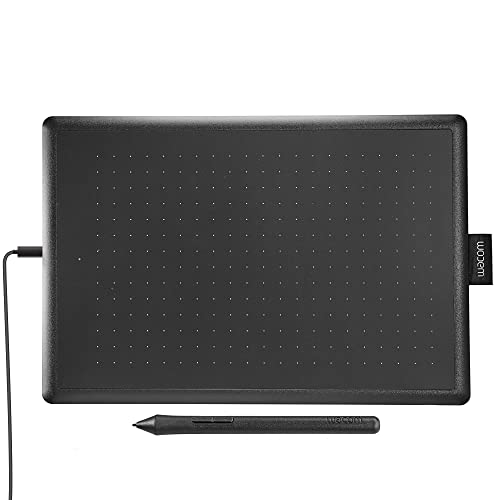
One by Wacom Drawing Tablet Medium

Wacom Cintiq 16 QHD Drawing Tablet

Fox LCD Writing Tablet 10 Inch

RubensTab T14 Standalone Drawing Tablet
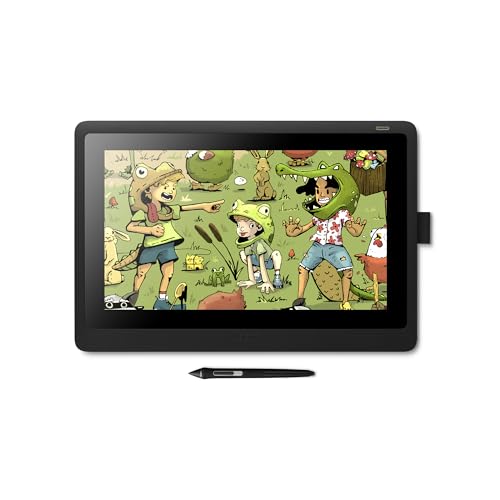
Wacom Cintiq 16 Full HD Drawing Tablet

HUION Skeleton Artist Glove

Wacom Intuos Small Wired Tablet

XPPen Artist 15.6 Pro Drawing Tablet

T8 Standalone 8-Inch Drawing Tablet

RubensTab T11 Pro Standalone Tablet
Why These Options Stand Out
Most animation journeys start with a non-screen tablet, and the One by Wacom Medium is the pick I keep recommending to people still building hand-eye coordination. The active drawing area measures roughly 10.9 by 7.4 inches, which is wide enough for full-arm gesture work but small enough to fit beside a laptop on a cluttered desk. The pen runs on EMR technology, meaning it never needs a battery, so the tablet ships slimmer than competitors that house rechargeable styluses.
For a student juggling homework and animation drills, the tablet plays nicely with Chromebook, Mac, and Windows setups, so switching machines mid-week doesn’t mean reinstalling drivers. The medium footprint feels like a sweet spot; smaller tablets cramp the elbow, larger ones force constant repositioning. Beginners chasing a low-cost entry into animation timing exercises will probably appreciate that.
Why It Works Well
- Battery-free EMR pen keeps the kit light and skips recharging routines during marathon sessions.
- Medium active area suits the elbow motion that 2D animation frames demand.
- Broad OS compatibility means a Chromebook for school and a desktop for animation files both connect cleanly.
- Lightweight body (under half an inch thick) slips into a backpack for class or library work.
Honest Caveats
- No built-in screen, so newcomers must learn to draw while looking up at a monitor, which feels awkward for the first weeks.
- Pressure curves are decent, not expressive, so seasoned animators may want to upgrade within a year.
Key Product Details
Who It Suits Best
First-time animators in school or self-taught beginners who want a low-commitment way to practice timing, in-betweening, and clean-up work.
Consider Something Else When
Anyone already comfortable drawing on paper who wants the direct-on-screen feel should look at the Wacom Cintiq 16 Full HD Drawing Tablet instead.
The Cintiq 16 QHD sits at the top of Wacom’s mainstream pen-display line, and the bump to a 2560 by 1600 IPS panel changes how animation frames actually read on screen. Fine linework stays sharp at zoom levels where older Full HD displays started to blur, which matters when pushing a clean-up pass over a keyframe. The Pro Pen 3 ships in the box with 8192 pressure levels (a measure of how finely the pen senses push from light to hard) and tilt response, so sketch dynamics land closer to a real graphite feel.
Compared to the entry-level One by Wacom reviewed above, this tablet draws directly on the screen, eliminating the hand-eye split that frustrates many newcomers. Three customizable shortcut keys flank the display, which is fewer than the eight or ten found on some competitors, but enough for an animator’s core rotation: play, pause, undo, and brush swap.
The Helpful Details
- QHD resolution on a 16-inch IPS panel keeps pencil-thin lines legible during detailed clean-up.
- Pro Pen 3 tilt and pressure fidelity translate subtle wrist angles into brush response.
- Direct-on-screen drawing removes the disconnect that non-display tablets demand newcomers learn.
- Holder mounts to either side of the display so the pen stays within reach for fast takes.
Worth Bearing In Mind
- Larger desk footprint than a non-screen tablet, so small dorm setups may need a monitor arm shuffle.
- Requires connection to a computer; no standalone battery, so studio power or a capable laptop is mandatory.
- Only three shortcut keys compared to rivals that offer eight or more.
Best Suited To
Working animators and advanced students who spend hours on detailed clean-up and want pen performance that matches their skill.
Look Elsewhere When
Travelers who need to draw on the road without hauling a laptop should consider the RubensTab T14 Standalone Drawing Tablet instead.
This isn’t a computer tablet at all, and I want to flag that honestly: the CHAFEGY Fox LCD Writing Tablet is a pressure-sensitive doodle board, the kind that mimics a magic slate from decades past. The 10-inch LCD surface accepts a stylus, displays the line in dark green or blue, and clears with the press of a button. For a child aged roughly three to eight, it’s a zero-mess way to practice the looping motions that later translate into mouse and pen work.
Parents who want a low-cost way to encourage visual storytelling before any screen time kicks in will probably find this a tidy bridge toy. Animation families looking for serious tools should jump to the Wacom Cintiq 16 QHD Drawing Tablet further down the list.
The Case For It
- No charging or cables needed beyond the coin battery that powers the screen.
- One-button erase lets kids iterate freely without paper waste.
- Light, durable shell survives backpack tosses.
- Useful for warm-up gesture practice before sitting at a real drawing tablet.
Points To Note
- Lines are stored only on-screen, so a single erase wipes an entire sketch.
- Stylus pressure sensitivity is rudimentary; animation prep beyond age eight may feel limiting.
Who Will Love This
Families with young children who want a quiet, mess-free drawing toy that builds motor skills before any computer-based work.
Reach For A Different Pick When
An older child ready for actual digital art should skip ahead to the One by Wacom Drawing Tablet Medium.
The RubensTab T14 from Frunsi skips the laptop entirely, which is a quietly radical idea for an animator. Inside the 14.1-inch Full HD IPS display runs an octa-core CPU (eight processing cores working in parallel) with pre-installed drawing apps and tutorials, so the tablet boots straight into a sketch-ready environment. For a freelancer working out of cafes, co-working spaces, or a camper van, that freedom is the headline feature.
Compared to the Wacom Cintiq 16 QHD Drawing Tablet above, the T14 trades tethered connection for portability. You give up some software ecosystem depth in exchange for being able to sit down anywhere and start animating. Travelers who already own a stylus workflow on a tablet will adapt quickly.
Everyday Wins
- No computer required, so the workstation travels in one piece instead of three.
- 14.1-inch screen with 1920 by 1200 resolution gives a comfortable canvas without dominating a backpack.
- Pre-installed drawing apps shorten the setup gap for first-time users.
- Octa-core CPU handles moderate Photoshop or Procreate-style layers without obvious lag.
Some Limits To Know
- App ecosystem is narrower than a full Mac or Windows setup, so some studio pipelines may need workarounds.
- Battery life during heavy rendering is shorter than casual sketching sessions.
Quick Facts
Made For
Animators who travel often or share workspace with others and need a self-contained setup that fits in a single bag.
Skip It When
Studio-bound artists working inside a strict software pipeline should stick with the Wacom Cintiq 16 QHD Drawing Tablet instead.
The earlier Wacom Cintiq 16 with the Pro Pen 2 has stuck around the animation world for good reason. The 15.4-inch Full HD screen remains serviceable for keyframe work, and the foldable legs along the back let an animator tilt the display to match a sketchbook angle without propping it on books. The Pro Pen 2 brings tilt response and a comfortable grip, which means lighter animation thumbnails feel less like chiseling.
Where the newer Cintiq 16 QHD model reviewed above bumps resolution, this older sibling offers a more forgiving learning curve. Animation students managing tuition costs will find the feature set sufficient for two years of coursework without obvious compromise.
What Works In Its Favor
- Direct screen drawing with the Pro Pen 2 still feels smooth and predictable.
- Foldable legs allow flat or angled positioning, easing wrist strain during long days.
- Scratch-resistant exterior handles backpack commutes between classes.
- Compatible with the same Wacom driver ecosystem as more expensive siblings.
Practical Considerations
- Full HD resolution on 15.4 inches looks slightly softer than the newer QHD sibling.
- Heavier chassis (around four pounds) means a sturdier desk is helpful.
Right Fit For
Animation students building a serious portfolio who need reliable screen drawing without stretching to the latest panel generation.
A Better Fit Elsewhere
Anyone who prioritizes color accuracy for finished frames should jump to the XPPen Artist 15.6 Pro Drawing Tablet with its 120% sRGB coverage.
A drawing glove sounds like a small thing until you spend a full afternoon finishing a sequence and notice the smudges your palm leaves across the tablet surface. The HUION Skeleton Glove is a two-finger accessory that fits either hand, roughly 7.87 inches long and 3.15 inches wide, designed to glide over the active area while leaving the rest of your hand free to relax. For animators doing long clean-up sessions, that comfort compounds across hours.
Compared to the screen tablets reviewed above, this accessory isn’t a tablet at all, but it sits in the kit of anyone serious about marathon sketching sessions. Pairing it with the Wacom Cintiq 16 QHD Drawing Tablet feels natural.
Practical Pluses
- Ambidextrous design saves ordering confusion between left and right handers.
- Smooth fabric reduces friction drag across the tablet surface during sweeping strokes.
- Anti-smudge coverage keeps oil and sweat off the active drawing area.
- Light, breathable skeleton pattern avoids sweaty palm discomfort on warm days.
Factors To Consider
- Free-size stretch may feel snug on larger hands or loose on smaller ones.
- Not a substitute for actually resting the palm properly on a screen tablet.
Perfect Match For
Animators running long daily sessions who notice smudge streaks on screen tablets or finger drag on non-display tablets.
Swap It Out When
Anyone who draws only in short bursts probably doesn’t need it, and should put the budget toward the One by Wacom Drawing Tablet Medium instead.
The Intuos Small is the smallest active area Wacom still ships in its consumer line, which makes it the kind of tablet that slides into a sleeve alongside a laptop and disappears into a coffee shop corner. The pressure-sensitive pen runs on EMR, so no batteries or charging docks to pack, and the wired USB connection avoids pairing fuss. Online tutorials ship with the package, which softens the learning curve for animators still figuring out gesture basics.
Against the One by Wacom Medium reviewed earlier, the Intuos Small trades active space for portability. Travelers who animate between flights or in tight hotel desks tend to favor this footprint.
The Upside
- Pocket-friendly footprint fits any laptop bag sleeve or daypack.
- Wired connection skips the Bluetooth pairing quirks that frustrate new users.
- Compatible with Mac, PC, Chromebook, and select Android devices.
- Included software bundle and tutorials ease the first month of practice.
Small Caveats
- Active area is small, so sweeping animation arcs require repeated repositioning of the canvas.
- No built-in screen, so the same hand-eye learning curve applies as the One by Wacom.
Built With In Mind
Travelers and sketchbook-style animators who want a thin, light tablet that pairs with a phone or tablet for quick roughing sessions.
Where A Sibling Pick Shines
Studio-bound artists who want more canvas room should consider the RubensTab T11 Pro Standalone Tablet for a larger screen.
The XPPen Artist 15.6 Pro is a busy tablet in the best way, packing eight customizable shortcut keys and a red rotary dial onto a 15.6-inch full-laminated screen. The full-laminated construction means the protective glass sits flush against the LCD panel beneath, eliminating the air gap that causes parallax (the visual offset between pen tip and actual line position). For animators who flip between brush sizes and timeline scrub during a single take, the dial handles brush sizing without keyboard hunting.
Covering 120% of the sRGB color space (a standard measure of color range, where higher means more vivid and accurate hues), this screen reads closer to finished-frame color than the older Cintiq 16 model reviewed above. It still needs a computer connection, so it’s a desk-bound companion rather than a travel companion.
Standout Benefits
- Eight shortcut keys plus a red dial streamline timeline scrubbing during animation.
- 120% sRGB coverage gives a more color-faithful view of finished frames.
- Full-laminated display reduces parallax for tighter line placement.
- 8192 pressure levels match the highest-tier stylus performance in this list.
Where It Is Less Suited
- Requires a computer connection, so it’s not a standalone option like the RubensTab T14.
- Software drivers update more often than competitors, occasionally requiring reinstalls.
Feature Snapshot
Whose Shelf It Belongs On
Animators who split time across multiple software apps and want hardware controls they can map to their most-used shortcuts.
Not Your Match When
Anyone who needs to draw without a computer should pivot to the RubensTab T14 Standalone Drawing Tablet.
Frunsi’s T8 is the smallest standalone tablet in this roundup, an 8-inch Android-based unit that runs drawing apps right out of the box. For an animator who wants something closer to a sketchbook than a workstation, this is the kind of tool that lives in a coat pocket. The Android 13 environment handles common drawing apps, and the 1200 by 800 resolution keeps detail readable on such a compact panel.
Compared to the RubensTab T14 reviewed earlier, the T8 is more pocket-sized and more focused on quick gesture work than full sequences. Animators who treat every free moment as a chance to rough a frame will probably appreciate that focus.
Useful Highlights
- Pocketable 8-inch form factor fits into a coat or jacket pocket for travel.
- Android 13 OS keeps the interface familiar to anyone with a phone or tablet.
- Standalone design means zero laptop required for casual animation drills.
- Lightweight body reduces fatigue during handheld sketching sessions.
Trade-Offs To Consider
- Smaller screen limits the scale of detail work and forces more zoom gestures.
- Android drawing app ecosystem is smaller than full desktop offerings.
Who Should Grab It
Sketchbook-style animators who want a pocket-sized second device for gesture drills between studio sessions.
Consider Something Else When
Anyone needing a primary work tablet with more screen real estate should move up to the Wacom Cintiq 16 Full HD Drawing Tablet.
The RubensTab T11 Pro closes the list with a 10.1-inch Full HD IPS panel and a self-contained Android workflow, sitting between the larger T14 and the pocketable T8. For animators who want a bit more canvas room than a phone-sized screen but still want to skip the laptop, this is the comfortable middle ground. The 1920 by 1200 resolution keeps lines legible during detail passes.
Versus the Wacom Cintiq 16 QHD Drawing Tablet reviewed earlier, the T11 Pro trades pen-display prestige for portability. It’s a real trade, and one that mobile animators will weigh on the side of freedom.
Useful Touches
- 10.1-inch Full HD IPS panel offers generous canvas room for its weight class.
- Standalone design removes the tether to a host computer for travel sketching.
- IPS (in-plane switching) panel technology gives wide viewing angles for shared review.
- Pre-installed drawing apps shorten setup time on first boot.
Worth Noting
- Smaller software ecosystem compared to a full Mac or Windows setup.
- Battery drains faster during heavy brush rendering than during casual sketching.
Product Snapshot
The Right Fit
Mobile animators who split time between home studio and travel days and want one tablet that handles both without compromise.
Look Elsewhere When
Studio-bound artists tied to professional software pipelines should reach for the Wacom Cintiq 16 QHD Drawing Tablet instead.
Choosing Art Tablets For Animation Without Overpaying
Animation-specific needs shape every buying decision in this category, so I want to walk through the trade-offs that actually matter at the drawing surface.
Screen tablets versus non-screen tablets define the first fork. A pen display like the Wacom Cintiq 16 QHD Drawing Tablet draws directly on the canvas, which cuts the awkward hand-eye gap that beginners fight through on the One by Wacom Drawing Tablet Medium. The trade-off is desk space and tethering to a capable computer, since most pen displays need an external machine to drive the software.
Standalone tablets answer a different question: what happens when the laptop stays home. Units like the RubensTab T14 and T11 Pro run drawing software directly on the device, which suits travelers and casual sketchers. The honest read is that dedicated Android or in-house operating systems offer a narrower app ecosystem, so studio pipeline compatibility may suffer for professional animators.
Pressure sensitivity, tilt response, and shortcut controls shape the daily feel. Pressure levels (the number of distinct pressure readings the pen can detect, where 8192 is the current high-water mark) control how natural a brush feels, while tilt response adds shading nuance for graphite-style work. Shortcut keys and dials, like the eight keys and red dial on the XPPen Artist 15.6 Pro, save the seconds that add up during long sessions.
For a parent buying for a child under eight, the Fox LCD Writing Tablet is a pressure-light, mess-free alternative that builds motor skills without any screen time. For an animation student weighing tuition costs, the older Wacom Cintiq 16 Full HD model balances quality with reasonable commitment. For a working animator ready to invest, the newest Wacom Cintiq 16 QHD pairs with the Pro Pen 3 for the most refined line control in the list.
Mistakes Worth Dodging When Shopping
Animation newcomers regularly skip the hand-eye training step and jump straight to a screen tablet, expecting the transition from paper to feel instant. A non-screen tablet like the One by Wacom Drawing Tablet Medium actually trains the muscle memory that screen tablets assume you already have. Skipping that step tends to produce discouraged beginners within a month.
A second common slip is assuming all “drawing tablets” mean the same thing. The Fox LCD Writing Tablet in this list is a doodle toy with no computer connection, and grabbing it expecting a graphics tablet leads to disappointment. Reading the active area, connection type, and pen tech before clicking buy saves that frustration.
Where The Extra Money Goes In Premium Tablets
Higher-tier tablets in this category charge more for three concrete upgrades: pen technology, panel quality, and shortcut density. The Pro Pen 3 in the Wacom Cintiq 16 QHD Drawing Tablet registers pressure and tilt more faithfully than the Pro Pen 2 in the older Cintiq 16 Full HD model, and for animators shading frames that upgrade reads as smoother line variation. QHD resolution over Full HD keeps detail legible during zoom-heavy clean-up.
Shortcut density, like the eight keys plus dial on the XPPen Artist 15.6 Pro, sounds minor until the timer hits two hours and the keyboard shortcut hunt starts costing time. For animators working under deadline pressure, that hardware shortcut layer compounds across a project. Paying more pays off when those features match an actual workflow, not when they just sit unused on a desk.
Frequently Asked Questions
What size tablet screen is best for animation beginners? A medium active area around 10 by 7 inches suits most beginners because it allows full-arm gesture without forcing constant repositioning. Larger screens add desk weight, smaller screens cramp the elbow.
Do animators need a screen tablet to start? No. Many working animators built their skills on non-screen tablets like the One by Wacom Drawing Tablet Medium before ever touching a pen display. The hand-eye split is a learnable skill that often improves foundational control.
Can standalone tablets handle full animation software? Standalone tablets like the RubensTab T14 run drawing apps capably for sketching, clean-up, and short sequences. For studio pipelines with specialized software, a tethered pen display connected to a computer remains the safer choice.
How important is pressure sensitivity for animation? Pressure levels control how a brush responds to pen push, which directly affects line weight variation in keyframes and clean-up. Anything above 4096 levels feels expressive, and 8192 levels is the current sweet spot for nuanced shading.
What accessories help during long animation sessions? A drawing glove like the HUION Skeleton Artist Glove reduces smudging on screen tablets and friction drag on non-screen models. A monitor arm or adjustable stand also eases neck strain during multi-hour sessions.
Closing Remarks
The right drawing tablet for animation is the one that matches how you actually work, not the one with the longest spec sheet. Beginners benefit from training on a non-screen tablet first, working animators thrive with a refined pen display, and travelers find freedom in standalone units. Pick the closest match, give yourself a few weeks to adjust, and the lines will follow.
