

Drawing on a Mac opens up a world of creative software, and the right tablet can transform the way I work. After weeks of comparing screens, pens, and wireless options, I’ve narrowed down the ten Mac-friendly art tablets that genuinely stand out this year.
Whether I’m sketching quick concepts, editing photos, or building layered illustrations from scratch, this lineup covers every workflow I see regularly. I’ve separated the pen displays from the traditional pen tablets, flagged the standalone options, and matched each pick to a clear type of Mac-based creator.
The Main Contenders
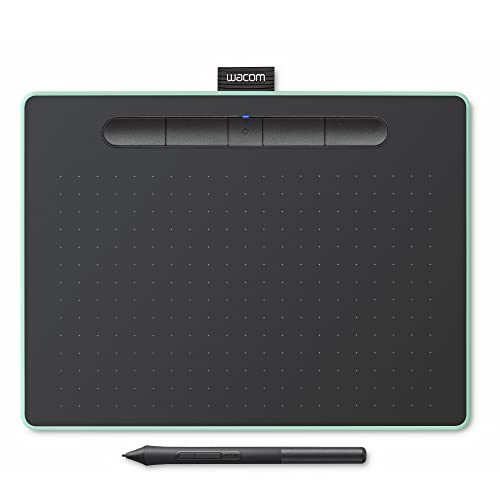
Wacom Intuos Medium Bluetooth Drawing Tablet (Pistachio)

Wacom Cintiq 16 Drawing Tablet with QHD Screen & Pro Pen 3

XPPen Artist 24 Pro 2.5K QHD Drawing Tablet with Screen (23.8″)
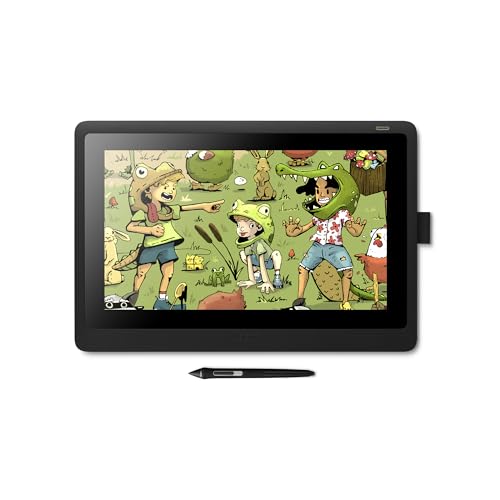
Wacom Cintiq 16 Drawing Tablet (15.4″ Full HD, Pro Pen 2)

RubensTab T14 Standalone Drawing Tablet (14.1″ FHD)

Wacom Intuos Pro Small (PTH451)
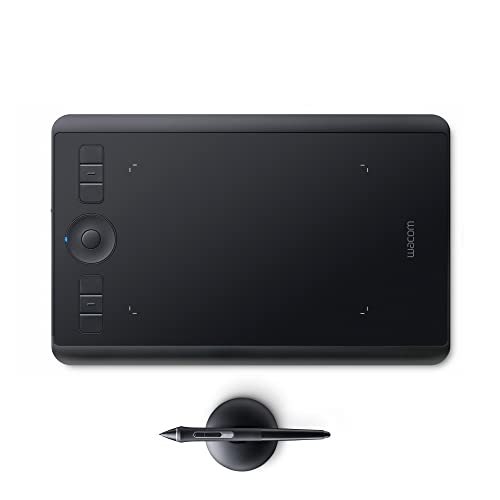
Wacom Intuos Pro Small Wireless Tablet (Pro Pen 2 & Touch Ring)

Frunsi T8 Standalone Drawing Tablet (8″)

HUION KAMVAS Pro 27 4K UHD Drawing Tablet (98% Adobe RGB)

Frunsi RubensTab T11 Pro Standalone Drawing Tablet
A Deeper Look At The Lineup
The Wacom Intuos Medium Bluetooth is the kind of tablet I point newcomers toward when they ask where to begin with digital art on a Mac. It pairs over Bluetooth or connects through a USB-A cable, which covers most home setups without any extra adapters. Pressure sensitivity feels natural right away, and the compact active area fits comfortably next to a keyboard on a standard desk.
Compared to the larger pen displays further down this list, this is a pure pen tablet, meaning I look at the Mac screen while the hand draws on the slate. That separation takes a session or two to get used to. The four customizable ExpressKeys (programmable physical buttons that trigger shortcuts) sit along the side, letting me map undo, brush size, or layer toggles without reaching for the keyboard.
Everyday Wins
- Bluetooth pairing removes cable clutter from the workspace, which matters in tight dorm desks and shared studios.
- Four ExpressKeys speed up retouching in apps like Affinity Photo, where the same undo or brush shortcut fires dozens of times per hour.
- Battery-free pen means no charging breaks mid-sketch session.
- Lightweight body slides into a backpack sleeve, helpful for class commutes.
Points To Keep In Mind
- No built-in screen, so it relies on the Mac display, which can feel slower at first.
- USB-A cable may need an adapter on modern MacBooks that only ship USB-C ports.
- Smaller active area than the Intuos Pro options for sprawling canvas work.
Who Will Love This
Students, teachers, and hobbyists stepping into digital art on a Mac who want a low-friction first tablet.
Consider Something Else When
Illustrators who want to draw directly on screen should look at the Wacom Cintiq 16 instead.
The Wacom Cintiq 16 with the newer Pro Pen 3 is the most responsive pen display Wacom makes at this size, and it pairs beautifully with macOS creative apps. The 16-inch IPS panel runs at a 2.5K WQXGA resolution (2560 x 1600), meaning every brushstroke lands where I expect it, and the laminated glass keeps the cursor close to the pen tip without much parallax (the visible gap between the nib and the drawn line under glass).
Where the older Cintiq 16 below uses the Pro Pen 2, this newer model upgrades the writing feel noticeably. The Pro Pen 3 packs 8192 pressure levels (the number of distinct pressure steps the pen can detect from light to firm presses), tilt support, and three side shortcut keys on the pen itself. Mounting that grip on either side of the display is a thoughtful touch for left-handed Mac users.
Bright Spots
- 2.5K resolution makes detailed retouching work in Photoshop feel direct and confident.
- Pro Pen 3 responds to the lightest sketch pressure, which helps when inking clean lines.
- Tilt support matters for shading and natural brush angles.
- Side-mounted pen holder keeps the stylus within reach during long sessions.
Trade-Offs To Consider
- Heavier than the smaller Intuos tablets, so it’s more of a desk fixture than a travel companion.
- No wireless option, since it draws power and signal through the connected cable.
Built With In Mind
Professional illustrators and designers who want a primary studio tablet and already own a Mac with HDMI or USB-C video out.
Look Elsewhere When
Shoppers wanting a larger color-accurate canvas should consider the HUION KAMVAS Pro 27.
The XPPen Artist 24 Pro brings a near-desktop-sized canvas to the studio, and it handles macOS cleanly across supported software. The 23.8-inch IPS panel uses a 2.5K QHD resolution (2560 x 1440) and renders 16.7 million colors, so concept pieces and matte paintings look the way they should. Anti-glare film (a textured surface layer that diffuses reflections) on the screen helps during long afternoon sessions in a sunlit room.
Twenty physical shortcut keys line both edges of the display, which is more than either Wacom Cintiq offers at this price point. That kind of layout matters when I bounce between brush presets in Photoshop, Procreate-style tools, or After Effects timelines. The battery-free stylus draws from the same 8192-level pressure family as the competition, with tilt support for shading.
Real Benefits
- 23.8-inch active area lets me spread out a full comic page or a detailed vector map without constant zooming.
- 20 shortcut keys cut down on keyboard reach during long workflows.
- 178-degree viewing angle keeps colors stable when I tilt the screen or stand beside it to review.
- Battery-free stylus means no mid-session charging pauses.
Honest Caveats
- Bulkier than the 16-inch pen displays and requires dedicated desk real estate.
- Requires two cables (HDMI plus USB) for full functionality on most Macs, which can complicate cable routing.
- Color calibration may need tweaking in macOS to match a reference monitor.
Best Suited To
Concept artists, illustrators, and editors who want a big canvas without stepping up to the 27-inch HUION.
Skip It When
Traveling creators should grab the Wacom Intuos Pro Small instead, since it packs into a laptop bag.
The earlier Wacom Cintiq 16 with the Pro Pen 2 is the workhorse I still recommend to illustrators who want a 15.4-inch on-screen tablet without paying for the newer QHD version. The full HD display renders text crisply for graphic design work and brushes predictably for sketching. Foldable legs tilt the screen to a comfortable angle, which helps during seated sessions.
Compared to the updated Cintiq 16 above, this one drops from 2.5K to 1080p and uses the older Pro Pen 2, though tilt response and 8192 pressure levels still hold up well. For someone working primarily in vector apps like Illustrator or doing photo retouching at standard resolutions, that resolution gap is less noticeable than spec sheets suggest.
What Works In Its Favor
- Tilt response makes shading in Procreate-style apps feel natural on the Mac side too.
- Scratch-resistant exterior holds up to daily studio use.
- Around 4 pounds means it can move between rooms without strain.
- Compatible with most Mac video outputs, depending on cabling.
Less Ideal Details
- Lower pixel density than the newer QHD Cintiq, so fine detail work shows softness.
- No wireless mode and no built-in shortcut keys on the bezel.
- Some older driver versions on macOS need manual updates.
Key Specs
Whose Shelf It Belongs On
Traditional illustrators, comic artists, and animators who want a proven Wacom on-screen workflow.
A Better Fit Elsewhere
Shoppers who want a sharper display should step up to the Wacom Cintiq 16 QHD model instead.
The RubensTab T14 stands out because it doesn’t need my Mac at all, and that changes the entire workflow when I want to sketch somewhere quiet. The 14.1-inch Full HD IPS panel (1920 x 1200) shows off vibrant colors with wide viewing angles, and an octa-core CPU under the hood handles brushes and layers without stuttering. Pre-installed drawing apps and tutorials mean I can start sketching out of the box.
The Mac is still part of the picture, since I export files back to my main machine for finishing. But the appeal is the freedom to leave the desk. Compared to the Wacom pen displays above, the T14 trades macOS-native app support for portability. Battery life depends on how heavy the brushes get, and storage fills up with layered pieces over time.
Notable Upsides
- No computer required, so I can sketch on a balcony, in a park, or at a café table.
- 14.1-inch screen balances portability with enough room for full sketches.
- Pre-installed tutorials lower the barrier for beginners.
- Bonus stylus and accessories reduce extra kit purchases.
Points To Note
- Running on Android under the hood means macOS-specific apps like Procreate aren’t available natively.
- File transfer to a Mac requires cloud sync or cable, adding an extra step.
- Limited internal storage means heavy layered pieces may need an SD card.
Right Fit For
Hobbyists, students, and travelers who want a self-contained sketch device that complements their Mac workflow.
Reach For A Different Pick When
Studio artists needing full macOS app access should pick the Wacom Cintiq 16 instead.
The Intuos Pro Small (PTH451) is the original professional-grade compact tablet Wacom still supports, and it remains a quietly excellent choice for Mac users. Pressure sensitivity and tilt response are at the professional level, and the wireless kit ships in the box, which is rare in this category. System requirements list macOS 10.10 or later, covering virtually any Mac in active use.
Compared to the newer Intuos Pro further down, this older model trades the Touch Ring for the six customizable ExpressKeys arranged along the side. The active area sits in the small-format sweet spot, where travel-friendly sketches and detailed retouching both feel natural. Older drivers are well established, so macOS support tends to feel stable even on recent updates.
Useful Strengths
- Professional pressure and tilt at a compact size, ideal for retouching in tight spaces.
- Wireless kit included avoids extra purchases.
- Six ExpressKeys map to common shortcuts without reaching for the keyboard.
- Works with older macOS versions that newer tablets may not support.
Small Caveats
- Older hardware means the body feels chunkier than the slimmer Intuos Pro replacement.
- No Bluetooth LE paper mode for mobile sketching without a host Mac.
- USB-A cable may need a hub or adapter on modern MacBooks.
Perfect Match For
Retouching photographers and digital illustrators who want proven Wacom precision in a compact form factor.
Swap It Out When
Creators wanting touch gestures and the Touch Ring should consider the newer Wacom Intuos Pro Small.
The newer Intuos Pro Small is a refined version of the long-running Wacom professional pen tablet, and it brings some modern touches. The active area sits at roughly 7 inches across, while the body itself measures about 10.6 by 6.7 inches, so it slips into a laptop sleeve with room to spare. At well under a pound, it travels light between the studio and remote workdays.
The Touch Ring (a circular touch-sensitive strip on the tablet for things like zoom, brush size, or scrolling) is what separates this from the older PTH451 reviewed above. In Photoshop, I can map the ring to brush size or layer opacity and avoid hunting through menus. Multi-touch on the active area also helps when zooming around detailed photos on a Mac.
Points In Its Favor
- Touch Ring speeds up brush size adjustments during painting sessions.
- Pro Pen 2 delivers consistent pressure response for ink work.
- Wireless operation keeps the desk tidy around a MacBook.
- Slim profile slides into a standard laptop bag.
A Few Limitations
- Smaller active area can feel cramped for wide brush strokes in painting apps.
- No screen, so the eye-hand adjustment period applies for new users.
- Multi-touch features sometimes need re-enabling after macOS updates.
Made For
Mobile photographers and designers who need reliable precision in a slim, wireless-friendly package.
Where A Sibling Pick Shines
Studio-bound illustrators wanting an on-screen workflow will prefer the Wacom Cintiq 16 instead.
The Frunsi T8 is the smallest standalone tablet in this roundup, an 8-inch Android 13 device that handles drawing apps without needing my MacBook in tow. The 1200 x 800 resolution display is modest, but for thumbnail sketches and concept studies that’s plenty. Built-in apps handle most of what a hobbyist needs on the road.
Where the larger RubensTab T14 above offers a 14.1-inch canvas, the T8 shrinks the form factor to something that fits in a coat pocket. Workflow sync back to a Mac still requires file transfer, but the creative freedom is the trade-off. For quick studies, urban sketching, or travel journals, this little slate earns its place.
Where It Helps
- 8-inch size slips into a bag or large pocket without fuss.
- Android 13 runs popular drawing apps smoothly.
- Untethered use means no setup time once powered on.
- Lower price point makes it a friendly starter.
Possible Compromises
- Modest screen resolution shows softness in detailed line work.
- Battery life varies with heavy brush use.
- Storage is limited for layered projects.
Who Should Grab It
Travel-loving hobbyists and field sketchers who want a pocket-sized companion to their Mac setup.
Not Your Match When
Studio painters wanting a larger standalone canvas should consider the RubensTab T14.
The HUION KAMVAS Pro 27 is the largest, sharpest pen display in this lineup, and it changes how I work on high-resolution pieces. The 27-inch screen runs at 4K UHD (3840 x 2160) with 98% Adobe RGB coverage, so the colors I see during painting match what prints come out looking like. PenTech 4.0 is HUION’s latest pen technology, designed to give a better grip and clearer sightline to the pen tip.
Compared to the 16-inch Cintiqs above, the Pro 27 removes the constant zooming and panning that comes with smaller canvases. For a Mac-driven pipeline handling print-resolution work, this is the kind of tool that genuinely speeds up a workflow. It does require a serious desk and a Mac with the right video outputs to drive 4K.
The Practical Payoff
- 4K resolution on a 27-inch canvas means full-resolution editing without constant zooming.
- 98% Adobe RGB color coverage supports print-ready work.
- PenTech 4.0 improves the pen feel and reduces visual obstruction at the nib.
- Ideal for concept artists, matte painters, and high-end photo editors.
Where It Is Less Suited
- Requires a large desk and a Mac capable of driving 4K output.
- Pricing puts it well above the smaller pen displays in this list.
- Not portable, so it’s a dedicated studio fixture.
Feature Snapshot
The Right Fit
Studio concept artists and color-critical editors with a Mac that can drive 4K output.
Another Choice May Suit
Illustrators wanting a smaller, friendlier canvas should consider the XPPen Artist 24 Pro.
The RubensTab T11 Pro slots between the compact T8 and the larger T14 in this standalone family, and it lands in a sweet spot for art students. The 10.1-inch Full HD IPS screen (1920 x 1200) gives enough space for practice studies while staying backpack-friendly. Built-in drawing apps and tutorial access mean a beginner can start without extra purchases.
Sync back to a Mac happens through cloud storage or cable, which adds a step compared to a directly connected pen tablet. For students who split time between classroom, dorm, and home studio, that flexibility is the real selling point. The T11 sits comfortably alongside a MacBook without competing for desk space.
A Strong Showing
- 10.1-inch screen balances portability and sketching space.
- Standalone operation supports study sessions anywhere.
- Tutorial access helps new artists build fundamentals.
- Stylus included means no immediate accessory shopping.
What To Weigh
- Workflow transfers files rather than working natively with macOS apps.
- Smaller screen compared to the T14 for more involved illustrations.
- Battery life depends on workload intensity.
Quick Facts
Who It Suits Best
Art students and self-taught beginners who want a self-contained tablet to complement their Mac practice.
Where Another Pick Suits Better
Creators needing native macOS app integration should look at the Wacom Intuos Pro Small.
What Actually Matters When Picking An Art Tablet For Mac
Screen Or No Screen, That Is The First Question
A pen display like the Wacom Cintiq 16 or HUION KAMVAS Pro 27 lets me draw directly on the image, which mirrors a familiar pencil-on-paper feel. A pen tablet like the Intuos Pro separates the hand from the screen, which takes adjustment but keeps the Mac display as the primary workspace. Beginners often find pen tablets cheaper and easier to mount, while traditional illustrators tend to prefer pen displays once they’ve settled into a workflow.
Resolution And Color Accuracy For Mac Creative Apps
For macOS apps like Photoshop, Affinity Designer, and Procreate-style tools, panel resolution determines how crisp brush edges look at full zoom. A 1080p panel works for general sketching, while 2.5K and 4K displays earn their keep in print-resolution work or detailed retouching. Color coverage matters for anyone preparing files for print, since a tablet showing muted blues or blown-out reds will produce predictable disappointment on the final output.
Pressure Levels, Tilt, And The Pen Feel
Pressure levels (the number of distinct pressure steps the pen can detect) translate directly to how nuanced inking feels, with 8192 levels now standard across most modern options. Tilt support matters for shading in painterly styles, since it lets the brush respond to the angle of the pen just like a real graphite stick. Battery-free styluses save on charging but rely on the tablet surface to register signal, so the pen-to-tablet handshake is worth thinking about.
Connectivity And Mac Compatibility
Modern MacBooks lean heavily on USB-C and Thunderbolt, so tablets using USB-A cables often need a dock or adapter. Pen displays typically need both a video cable and a USB data cable for full functionality. Checking the Mac’s video output capability ahead of time saves a frustrating evening of cable swaps, especially for 4K pen displays like the KAMVAS Pro 27.
Key Considerations Across These Picks
Pitfalls First-Time Mac Artists Hit
New Mac users sometimes assume any tablet works out of the box, only to discover driver updates are needed for full pressure support in macOS. Skipping the manufacturer driver installation leads to pens that hover or draw jagged lines. Another common slip is choosing a tablet with too small an active area, which forces cramped hand movement and slows the workflow. Sizing up to the medium or large version usually pays back within a session or two.
Why The Higher-Tier Tablets Cost More
Premium options like the Wacom Cintiq QHD or HUION KAMVAS Pro 27 carry higher price tags because of sharper displays, wider color gamuts, and more polished pens. For hobbyists, the extra cost rarely translates to better final art, since a strong idea matters more than a 4K screen. For professionals billing by the hour, sharper feedback loops and color accuracy pay for themselves quickly, since revisions drop and client approvals come faster. The honest read is that the upgrade is worth it once the workflow demands it, and unnecessary before that point.
Frequently Asked Questions
Do I Need A Pen Display Or A Pen Tablet For Mac?
A pen display shows the image directly under the pen tip, while a pen tablet maps the hand position to the Mac screen. Pen displays suit traditional illustrators, while pen tablets suit photographers and designers who already prefer working on a large monitor.
Will These Tablets Work With macOS Sonoma And Later?
Wacom, XP-Pen, and HUION all publish current macOS drivers on their support pages. Most modern tablets from these brands support recent macOS versions, though checking the manufacturer’s compatibility list before purchasing is wise.
What Does Pressure Sensitivity Actually Do?
Pressure sensitivity controls how line weight and opacity respond to how hard I press the pen. Higher pressure levels allow finer gradations, which matters for inking, calligraphy, and detailed shading work.
Can I Use A Standalone Tablet With My Mac Workflow?
Standalone tablets like the RubensTab series run their own apps and store files locally. Files can transfer to a Mac through cloud sync or cable export, which adds a step compared to direct connection.
Are These Tablets Compatible With Procreate On Mac?
Procreate is a macOS-native app, so any pen tablet or pen display that delivers pen pressure and tilt data through the system will work. Procreate’s brush engine picks up 8192 pressure levels naturally.
The Takeaway
The right art tablet for a Mac depends on whether I draw on screen or off, how often I travel, and whether I need color accuracy for print. The Wacom Cintiq QHD and HUION KAMVAS Pro 27 anchor the high end, while the Intuos Medium and RubensTab T14 make solid entry points. Pick the workflow that fits, and the tablet follows from there.
