Tiny chips inside your phone convert motion, light, sound, distance, pressure, and radio timing into digital values apps can act on. A grain-sized motion chip reads gravity during a tilt, while an infrared component darkens the display near your ear during a call.
You will see the hardware behind maps, screen rotation, photos, calls, privacy controls, and common sensor faults across Android and iPhone devices.
Sensors Convert Physical Changes Into Digital Values
A sensor begins with a physical change: a jolt, light beam, air-pressure shift, or sound wave. Its material reacts through charge, voltage, resistance, or capacitance changes. A chip converts that electrical response into digital values, allowing phone software to respond to activity around the handset.
You can view each part as a translator. An accelerometer translates movement, a microphone translates air vibration, and a camera image sensor translates incoming photons. The result is data for apps and system features, not human-like awareness of your surroundings.
Sensor Families Handle Different Inputs
Motion components track acceleration and rotation. Location components listen for satellite and radio signals, while environmental components sense light, distance, and pressure. Imaging, audio, and Biometric sensors handle photos, speech, and identity checks.
Your phone can still run without every category, yet a missing component removes specific features. A handset without a gyroscope may still rotate its display, but virtual-reality views and fast camera stabilization lose a source of rotational data.
| Physical input | Electrical response | Digital result |
|---|---|---|
| Phone acceleration | Changing capacitance | Motion values |
| Ambient light | Photon-driven current | Brightness level |
| Sound pressure | Diaphragm voltage change | Audio samples |
| Satellite timing | Decoded radio signal | Position estimate |
Phone Hardware Counts Differ by Model
Eight familiar components appear in a basic smartphone sensors list, yet no fixed count exists. Your model’s age, camera system, wireless hardware, and price tier shape the components inside. Some devices add LiDAR and time-of-flight sensors, temperature hardware, ultra-wideband radios, or depth scanners.
That difference explains why a diagnostic menu can show different results on two handsets. iPhone and Android models tend to include core motion, light, audio, camera, and location hardware, while added components serve narrower tasks such as room scanning or spatial tracking.
| Hardware | Input | Everyday role |
|---|---|---|
| Accelerometer | Linear acceleration and gravity | Screen rotation and step counts |
| Gyroscope | Rotation | Gaming and image stabilization |
| Magnetometer | Magnetic field | Compass heading |
| GPS and GNSS receiver | Satellite timing signals | Maps and route tracking |
| Barometer | Air pressure | Elevation estimates |
| Ambient light sensor | Room brightness | Display adjustment |
| Proximity sensor | Near-object reflection | Call-screen behavior |
| Camera image sensor | Light photons | Photos and video |
For an older adult choosing between platforms, a sensor count says little about daily comfort. Your screen-reader options, hearing-aid compatibility, interface familiarity, physical button access, and software-update policy will shape day-to-day use far more than an extra depth scanner.
Motion Chips Establish Tilt, Movement, and Rotation
Gravity gives the handset a steady reference line while it rests on a table. That reference lets the screen shift from portrait to landscape after rotation. Your device reads gravity along three axes: left-right, front-back, and up-down.
The Accelerometer Reads Force
Inside an accelerometer, microscopic movable structures shift during acceleration. Their movement changes capacitance, the charge-storing behavior between tiny conductive surfaces. The chip reports those changes many times per second, helping your phone recognize a step, shake, fall, or tilt.
A step counter does not identify feet. It looks for repeating acceleration patterns as your body carries the phone. Loose pockets, stroller pushing, and rough vehicle rides can resemble steps, so your fitness total remains an estimate rather than a literal footfall count.
The Gyroscope Reads Rotation
A MEMS sensor package distinguishes the two: accelerometers measure linear movement and gravity, whereas rotation is tracked by a gyroscope. Vibrating microscopic structures shift through Coriolis effects as the handset turns, producing angular-rate data for roll, pitch, and yaw.
Your display stays responsive during a fast turn because software reads gyroscope data between gravity measurements. The accelerometer stays stable but reacts poorly during rapid movement. The gyroscope reacts quickly but drifts across time, so their different limits make them useful partners.
The same need to balance fast, drifting signals with stable, slower ones also shapes how phones determine position and heading.
| Part | Detects | Useful example |
|---|---|---|
| Accelerometer | Acceleration and gravity | Portrait-to-landscape rotation |
| Gyroscope | Rotational speed | Smoother video stabilization |
Location and Direction Rely on More Than Satellite Signals
Rotation cannot reveal where the handset is, so location hardware listens beyond the device. GPS and GNSS receivers calculate position from timing signals sent by several satellites. Clear signals from more satellites give your phone a stronger position estimate.
Concrete walls, tall buildings, and covered parking garages weaken or reflect satellite signals. Your phone can also use nearby Wi-Fi networks, cellular towers, and Bluetooth beacons to narrow its location. Those sources matter indoors, where satellite geometry is poor.
The Magnetometer Supplies Compass Direction
A magnetometer senses Earth’s magnetic field and gives a mapping app a heading. Your phone uses that heading to rotate the map arrow toward the direction you face, rather than merely the direction your route travels.
Metal desks, vehicle interiors, magnetic cases, charging coils, and nearby electronics can bend the local magnetic field. A compass that swings wildly near a car dashboard does not prove a hardware fault. Move several feet away, remove a magnetic accessory, and check the direction again.
Compass calibration corrects sensor offsets, but it cannot overcome a strong nearby magnet or steel surface. Check direction outdoors and away from vehicles before blaming the magnetometer.
Light, Distance, Images, and Pressure Shape Daily Features
A call screen that stays lit against your cheek points toward a small distance-reading component near the display. The proximity sensor sends infrared light and reads reflected light. Near your face, it darkens the display to limit accidental taps and stray touch input.
Dust, a thick screen protector, poor alignment after repair, or a blocked sensor window can disrupt that behavior. Your screen should wake after you move the handset away. Repeated failure across several calls points toward an obstruction, software fault, or hardware damage.
Light Sensors and Camera Pixels Read Photons
An ambient light sensor uses a light-sensitive component that produces an electrical signal. Your phone uses that signal to raise display brightness outdoors and lower it in a dim room. Some models also shift display color temperature to match surrounding light.
A CMOS camera image sensor contains millions of photodiodes. Each photodiode turns photons into a pixel value, while image software adjusts exposure, color, focus, and noise. Your camera records raw light, while the photo on screen reflects both hardware and processing.
Depth, Sound, Identity, and Altitude Add Detail
LiDAR and time-of-flight sensors send light outward and time its return, creating depth estimates for portraits or room scans. A microphone diaphragm moves with air pressure from speech and music, then sends electrical signals to an audio converter.
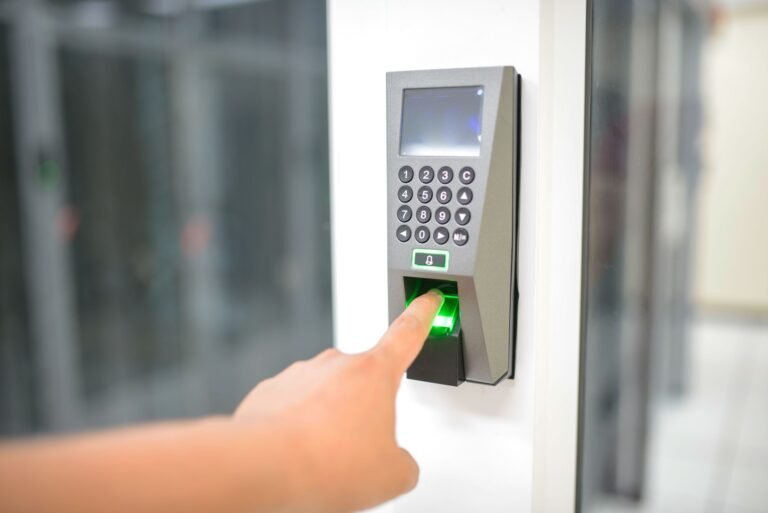
Fingerprint and face systems act as Biometric sensors, though their designs differ sharply across phones. A barometer tracks air pressure. Pressure shifts can help estimate elevation changes, such as walking up several flights of stairs, alongside motion data.
Sensor Fusion Reduces Gaps Between Imperfect Measurements
A single chip can drift, lose a signal, or react to interference. Sensor fusion joins measurements from several components into a steadier estimate. Your phone gives each source more or less weight based on noise, movement, and signal quality.
Route Tracking Shows the Process
During a city drive, satellite location can jump between tall buildings or pause inside a tunnel. Your navigation app can carry an estimated route through recent position data, gyroscope turns, accelerometer movement, magnetometer heading, and mapped roads. The estimate bridges short gaps rather than showing a sudden teleport.
Map data adds a reality check. A location dot drifting toward a river can snap back to a nearby road because software recognizes that vehicles follow mapped streets. Your route can still be wrong near stacked highways, service roads, or an incorrect map entry.
Fusion Lowers Error but Cannot Remove It
Calibration sets a sensor’s assumed zero point and corrects some bias. A gyroscope with slight drift can report rotation while resting, while gravity data can pull that estimate back toward level. Your phone continually reconciles imperfect clues, much like a pilot cross-checking instruments.
Persistent interference remains a limit. Bad satellite reception, a distorted compass field, poor Wi-Fi location data, or a damaged motion chip can push the fused result in the wrong direction. More inputs help only where their source data deserves trust.
Before treating a bad reading as failed hardware, rule out the settings and conditions that can corrupt its inputs.
Permissions, Accuracy Limits, and Basic Fault Checks
The same data streams that improve calls and maps also involve privacy choices. Mobile sensor settings and permissions control app access, not the physical existence of each chip. Denying camera, microphone, location, or motion access blocks that app from using related data.
System controls differ across Android and iPhone menus. An Android sensor toggle can block camera and microphone access across apps, while location controls can limit precise location. Your phone still relies on internal motion hardware for core functions unless a separate system setting turns that feature off.
Restricted Access Changes Visible Features
- Location blocked Map routing, ride pickup, weather location, and geotagging lose precise position data.
- Motion access blocked Fitness apps cannot record movement patterns that your phone shares with them.
- Camera disabled Scanning, video calls, and visual-search functions cannot open the image sensor.
- Microphone disabled Voice notes, calls, dictation, and sound-level features lose audio input.
- Auto-rotate off Your screen stays in the chosen orientation despite accelerometer readings.
Battery drain depends more on how an app samples data than on the chip alone. Continuous precise location tracking uses radio receivers and processing, while an occasional orientation check uses little power. Restrict background access where your privacy or battery needs outweigh a feature.
Repeatable Checks Narrow Down Faults
- Check rotation Turn auto-rotate on, rotate your phone 90 degrees, and try a photo or browser screen.
- Check compass Open a mapping app outdoors, remove magnetic accessories, and turn slowly through a full circle.
- Check proximity Place your hand near the upper display during a call and watch for the screen to darken.
- Check location Compare your position outdoors with a familiar street corner after location access is enabled.
- Check camera Switch between camera modes and inspect focus, exposure, and viewfinder behavior.
- Restart and update Restart the phone, install system updates, then repeat the same check before seeking repair.
Repeated failure after a restart, update, and accessory removal points toward professional repair, especially after a drop or screen replacement. You can use built-in diagnostics where available, but one app result does not prove a hardware fault because the app itself can lack permission or contain a bug.
Bottom Line
Your phone does not sense the world through one all-seeing component. It collects small physical clues, turns them into values, and cross-checks them through software. Once you understand how smartphone sensors work, you can separate a blocked proximity window from a permission limit, compass interference from a hardware fault, and a setting problem from a damaged component.
Start with the symptom you can see: a screen that will not rotate, a map dot that wanders, or a call display that stays awake. Then remove accessories, review permissions, repeat the relevant check, and seek repair after the same fault remains.
FAQ
How many sensors are in a smartphone?
There is no fixed total. Your phone may have 8 to 15 familiar sensing components, while models with depth scanning, LiDAR, ultra-wideband, extra cameras, or temperature hardware can contain more. Check your model specifications for the actual list, since sensor apps cannot reveal every internal radio feature.
How do phones know which way is up?
Your phone treats gravity as a reference through the accelerometer, then uses gyroscope readings to follow fast rotation. Software blends both inputs so screen orientation stays steady while you hold the handset still and reacts quickly during a turn.
What is the difference between an accelerometer and a gyroscope?
An accelerometer senses linear acceleration and gravity, while a gyroscope senses rotational movement. Your phone uses the accelerometer for tilt and impact patterns, while gyroscope data improves rapid orientation changes, gaming motion, and stabilization during video capture.
How do GPS, Wi-Fi, and cellular signals help a phone determine location?
GPS and GNSS use satellite timing to estimate position outdoors. Wi-Fi network data and cellular tower signals add location clues where walls, roofs, or tall buildings weaken satellite reception. Your phone blends those signals to place its map dot more reliably indoors and in dense city blocks.
What does the proximity sensor do during a phone call?
The proximity sensor detects your face near the upper display through infrared reflection. Your phone darkens the screen during a call to limit accidental taps. Dirt, a thick protector, or poor screen-repair alignment can stop that response.
How accurate are smartphone sensors?
Accuracy changes with the sensor, surrounding conditions, and software processing. Your outdoor location can be close to a street corner with clear satellite signals, yet drift near tall buildings or indoors. Compass direction can also shift near vehicle metal, charging coils, or magnetic cases.