A compact desktop that boots in seconds, stays quiet under a desk, and asks for almost nothing in the way of maintenance has real appeal in 2026. Remote workers, classroom IT managers, and anyone setting up a signboard-style kiosk all tend to bump into the same wall: full-size PCs feel wasteful for the task. I pulled together nine Chromeboxes and Chrome-friendly mini PCs that cover the range from bare-bones signage duty to creator-grade work, with honest notes on where each one stretches or falls short.
The Choices Worth Comparing

GEEKOM IT12 Mini PC, Intel i3-12300HE, 16GB RAM/512GB SSD
acer Chromebox CXI3-4GNKM4 Celeron 3867U 4GB 32GB
ASUS Chromebox 3-N018U Mini PC Core i3 Star Gray

HP Chromebox G2 Celeron 3867U 4GB 32GB Chrome

ASUS Chromebox 5a Core i3-1315U 8GB DDR5 128GB

GEEKOM A5 2027 Edition Ryzen 7 7730U 16GB 512GB
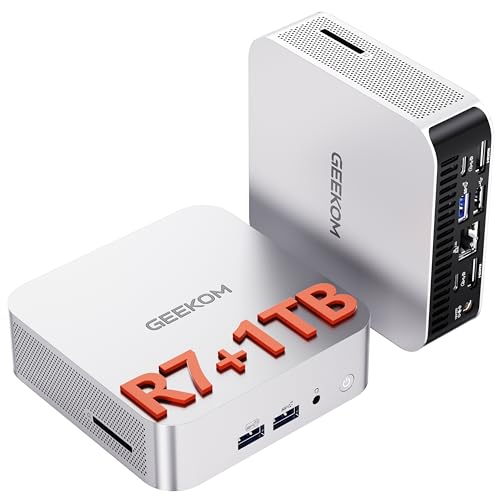
GEEKOM A6 Mini PC Ryzen 7 6800H 16GB DDR5 1TB
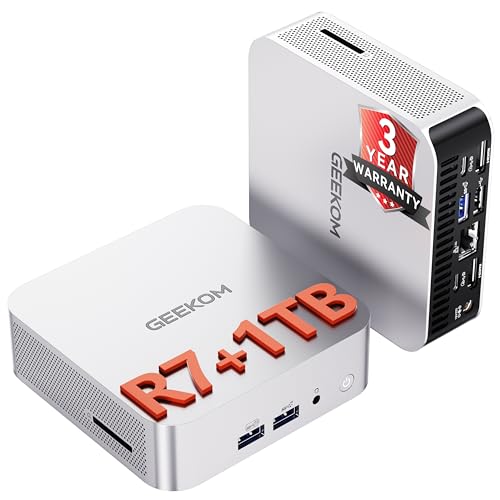
GEEKOM A8 Mini PC Ryzen 7 8745HS 16GB DDR5 1TB

GEEKOM IT13 MAX AI Mini PC Ultra 9 185H 24GB 500GB
The Details Behind The Selections
The IT12 leans into the use case IT leads actually care about: a fleet of identical boxes that survive a shared workspace. The metal chassis feels closer to a small-form-factor workstation than a toy, and the upgradable RAM and SSD slots mean a tired unit can be revived instead of tossed.
For offices that bulk-order hardware, the included three-year coverage and pre-installed OS cut the rollout time considerably. Compared to the Acer Chromebox CXI3 below, this unit runs cooler under sustained load, which matters in tight reception-desk setups where airflow is limited.
What Pays Off
- Metal chassis handles daily wear in shared workspaces better than plastic alternatives.
- Upgradable memory and storage let a five-year-old unit stay useful past its first lease.
- USB4 and 8K output support future display upgrades without replacing the box.
- Three-year coverage softens the sting of fleet-wide replacement cycles.
- Low-heat design lets it live behind a monitor without thermal throttling.
Honest Caveats
- The included 512GB SSD fills up fast when staff store local project files; budget for an external drive.
- USB4 peripherals still carry a price premium compared to plain USB-C docks.
- Bulk pricing requires a direct quote, which slows down single-unit purchases.
Feature Snapshot
Right Fit For
IT managers rolling out a dozen or more identical desktops for office or kiosk duty.
Consider Something Else When
The HP Chromebox G2 is the better fit for school districts that need a strict Chrome OS environment.
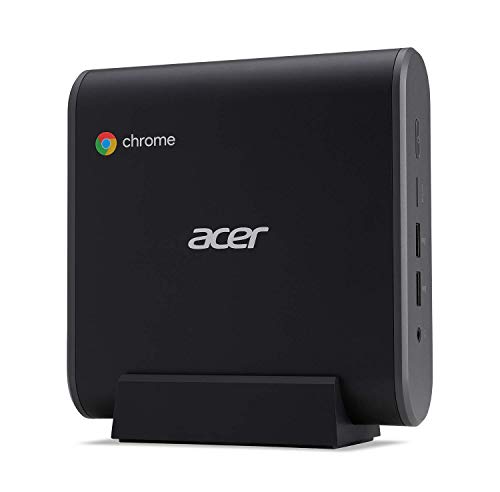
There’s something refreshingly honest about the CXI3. It does the bare minimum well and asks for almost nothing in return, which is exactly what a digital signage box or a checkout-counter terminal needs. The Celeron 3867U is not a speed demon, but it sips power and runs cool in enclosed spaces.
The 32GB SSD keeps Chrome OS snappy at its intended scale, though anyone planning to install heavy Android apps will hit the ceiling fast. For students writing essays or front-desk staff browsing a property catalog, it earns its keep.
Real Benefits
- Low power draw keeps it quiet under a counter all day.
- Chrome OS means automatic updates with very little hands-on maintenance.
- Compact shape slips behind most monitors using a basic VESA plate.
- USB-C with DisplayPort handles a single 4K monitor cleanly.
Worth Bearing In Mind
- 4GB of RAM struggles when more than a handful of browser tabs stay open at once.
- 32GB of internal storage fills quickly if Android apps are sideloaded.
- The Celeron chip is now several generations behind, which limits future ChromeOS feature support.
Whose Shelf It Belongs On
Small shops, libraries, or anyone running a single-purpose digital signage or kiosk screen.
Look Elsewhere When
The ASUS Chromebox 5a is the smarter pick for users who want quad-display support and modern DDR5 memory.
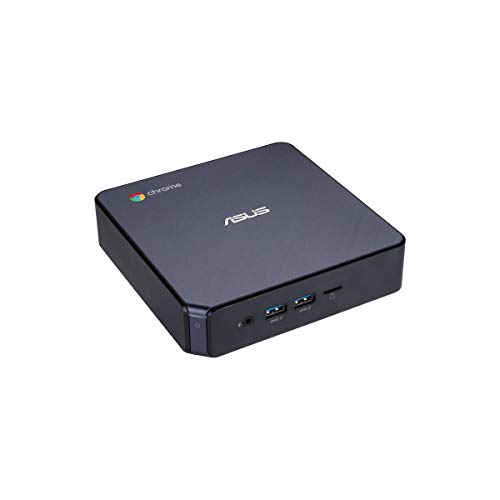
The Chromebox 3 was a quiet workhorse when it launched, and it still holds up for users who want a tidy dual-monitor desk. The 7th-gen Core i3 chip handles typical office workflows comfortably, and the integrated 4K UHD graphics let a side monitor show spreadsheets without stuttering.
Where this unit shines is the Power over Type-C port. A single USB-C cable to a compatible monitor handles display, data, and power, which removes the usual nest of adapter bricks from underneath. Anyone setting up a clean reception desk or trading-style workstation will appreciate that.
The Practical Payoff
- Power-over-Type-C cleans up the cable mess behind a single 4K monitor.
- Dual HDMI plus DisplayPort output supports a productive two-screen setup.
- Bluetooth 4.2 and gigabit LAN cover both wireless and wired networks.
- Android app support via Google Play extends usefulness beyond pure web browsing.
Less-Strong Areas
- The 7th-gen i3 is starting to age out of newer ChromeOS feature support windows.
- Only 32GB of internal storage nudges users toward cloud-only workflows.
- No native USB4 means future docks will require adapters.
Made For
Office workers who want a clean dual-monitor setup without a tangle of cables.
Swap It Out When
The ASUS Chromebox 5a is the better long-term choice for users who need four displays or longer ChromeOS support.
HP’s Chromebox G2 leans into the brand’s reputation for surviving school environments. The black plastic shell looks unassuming, but it has been a fixture in computer labs and admin offices for years, and parts tend to be easier to source than obscure alternatives.
The Celeron 3867U and 4GB of RAM put it in the same performance bracket as the Acer CXI3 above, so the choice between them usually comes down to brand familiarity and warranty terms rather than raw speed. For a school IT manager who already runs HP fleets, the choice is straightforward.
A Few Strong Suits
- HP’s repair network is broad, which matters when a lab needs a unit back in service quickly.
- Standard Chrome OS keeps admin overhead minimal for non-technical staff.
- Compact body fits cleanly on a shallow library shelf or media cart.
Small Caveats
- The plastic shell shows scuffs faster than the metal GEEKOM chassis above.
- 32GB of storage is tight for anyone saving offline media files.
- The Celeron chip limits how many simultaneous browser tabs students can keep open.
Feature Card
Who Should Grab It
School IT departments already invested in HP hardware who want a low-friction Chrome OS lab.
Reach For A Different Pick When
The GEEKOM IT12 is the stronger call for offices that need a more durable metal chassis and longer coverage.
The Chromebox 5a is the cleanest jump into current-generation Chrome OS hardware on this list. DDR5 RAM, an NVMe SSD, and a quad-display output array make it the obvious pick for trading desks, control rooms, or anyone whose work revolves around watching four things at once.
The included VESA mount and Wi-Fi 6E mean it can hide behind a monitor and still pull a strong wireless signal, which solves a perennial problem in older buildings where running ethernet is impractical. For most home offices, it might be overkill, but for the multi-monitor crowd, it’s exactly right.
Features That Help
- Quad-display support via dual HDMI, DisplayPort, and USB-C covers complex trading or ops setups.
- DDR5 memory keeps multitasking responsive when many dashboards stay open.
- Wi-Fi 6E handles high-bandwidth video calls without dropping frames.
- The included VESA mount keeps it off the desk and out of sight.
Where It May Fall Short
- 128GB of storage feels small for users who cache large media projects locally.
- Chrome OS still rules out Windows-only line-of-business applications.
- The fan noise is generally low but rises during sustained multi-display loads.
Best Suited To
Power users running dashboards, analytics, or surveillance feeds across four screens.
A Better Fit Elsewhere
The GEEKOM A8 Mini PC is the stronger choice for creators who need upgradable RAM up to 128GB.
The A5 hits a sweet spot for remote workers who want real desktop performance without a real desktop footprint. The Ryzen 7 7730U brings eight cores to bear on video calls, spreadsheets, and the occasional Photoshop session, while the 16GB of RAM keeps a typical workday’s worth of tabs and apps running side by side.
Unlike the strictly Chrome OS picks above, this is a full Windows-compatible mini PC, so it suits mixed households where one person needs Linux and another needs Office. The metal frame and modest weight make it easy to tuck behind a monitor or slide into a media cabinet.
Strong Points
- Eight-core Ryzen chip handles video calls and light creative work without breaking a sweat.
- 16GB of RAM is comfortable for the browser-tab sprawl of modern remote work.
- 512GB NVMe SSD keeps app launches snappy without forcing constant cloud storage.
Some Limits To Know
- The 7730U is a power-sipping U-series chip, so it slows down during long, heavy renders.
- No dedicated GPU rules out serious 3D or local AI model training.
Who It Suits Best
Remote workers and home-office professionals juggling video calls, browsers, and the occasional design tool.
Skip It When
The GEEKOM A6 Mini PC is the smarter call for users who need sustained performance under all-day loads.
The A6 takes the GEEKOM formula and pushes it into workstation territory. The Ryzen 7 6800H runs at a sustained 45W TDP, which is the kind of headroom home-office chips like the 7730U simply do not match. For an always-on home server or a small-business workload that never sleeps, that thermal envelope matters.
The 1TB PCIe 4.0 SSD is generous for the form factor, and the DDR5 RAM is upgradable later, which is rare in mini PCs this small. Compared to the A5 above, this unit is louder under load, but it also finishes real work faster.
Notable Gains
- 45W sustained performance avoids the throttling common to thinner U-series chips.
- 1TB PCIe 4.0 SSD handles large project files without external drives.
- Upgradable DDR5 lets the unit grow alongside heavier workloads.
Trade-Offs To Consider
- The cooling fan ramps up noticeably during long renders or compilation jobs.
- The larger thermal envelope makes the chassis slightly warmer to the touch than slimmer siblings.
- No dedicated GPU means AI training still happens on cloud services, not locally.
Quick Facts
Perfect Match For
Small-business owners running always-on services or home-server workloads in a compact box.
Another Choice May Suit
The GEEKOM A8 Mini PC is the better upgrade path for users who want to push RAM up to 128GB later on.
The A8 reads like the future-proofing play of the lineup. The Ryzen 7 8745HS is a current-generation chip, the DDR5 RAM scales to a wild 128GB ceiling, and the four 4K display outputs through USB4 make it genuinely useful as a creator workstation. For people editing photos or running virtual machines, this is the box that won’t force an upgrade next year.
The 2.5G LAN port is a quiet detail that matters in studios where large media files move over the network daily. Compared to the A6 above, the A8 leans more toward creative throughput than raw sustained clock speed, which is a real distinction depending on the workload.
Benefits That Matter
- RAM upgradable to 128GB handles virtual machines and large creative projects.
- Four 4K outputs let creators spread their workspace across multiple panels.
- 2.5G LAN accelerates large file transfers on studio networks.
- USB4 keeps the unit compatible with the newest docks and external SSDs.
Points To Keep In Mind
- Reaching the 128GB RAM ceiling requires buying modules separately, which adds to the total cost.
- Higher-spec configurations use more power than slimmer home-office picks.
- Software support for 128GB desktop workloads varies between Linux distributions.
Who Will Love This
Freelance creators and developers who want a single box to grow with their workload over several years.
Where A Sibling Pick Shines
The GEEKOM IT13 MAX is the right call when AI inference or flagship Intel performance is the priority.
The IT13 MAX is the most powerful unit on this list by a clear margin. The Intel Core Ultra 9 185H brings 16 cores and a dedicated neural processing unit to a chassis the size of a paperback book, which is genuinely remarkable. For AI experiments, local language model demos, or high-compute creative work, it sits in a different class than the Celeron-based Chromeboxes above.
Bulk pricing is available for studios that want to deploy several units together, which softens the per-unit cost somewhat. The 24GB of LPDDR5 is fixed rather than upgradable, so anyone planning serious model work should plan storage expansion from day one.
Practical Pluses
- Ultra 9 chip with 16 cores handles local AI inference and complex media work.
- Compact chassis fits on a desk without dominating the workspace.
- Bulk-pricing tier supports studio-wide deployment.
Factors To Consider
- LPDDR5 is soldered and not user-upgradable later.
- 500GB SSD fills quickly with model weights and project files.
- The flagship tier sits well above the budget of casual users.
Feature Rundown
Built With In Mind
AI-focused creators, indie studios, and R&D teams that want desktop-class compute without a tower.
Not Your Match When
The GEEKOM A8 Mini PC is the better everyday fit for users who value RAM upgradability over peak AI throughput.
What Matters Most Before Choosing Chromeboxes
Match The Operating System To The Workload
The single biggest fork in this category is Chrome OS versus a full Windows-compatible build. Pure Chromeboxes boot fast, update themselves, and resist malware well, but they cannot run legacy Windows software. Mini PCs like the GEEKOM A-series run full desktop operating systems and accept any application that fits the hardware. For classrooms and kiosks, Chrome OS usually wins on simplicity. For mixed households or design work, a full mini PC tends to be the safer choice.
RAM And Storage Set The Ceiling
RAM governs how many browser tabs and apps can stay open at once, while storage determines how much local work fits without the cloud. Anything below 8GB of RAM feels restrictive by 2026 standards, and 128GB of storage is the practical floor for users who do not want to lean on external drives. For multi-display trading desks or VM users, the upgrade ceiling matters as much as the starting spec.
Connectivity Shapes The Desk
A Chromebox that lacks the right ports forces a nest of adapters behind the monitor. Look for HDMI, DisplayPort, and USB-C output combinations that match the displays already on the desk. USB4 and 2.5G LAN are forward-looking touches that pay off over a five-year ownership window. Wi-Fi 6E helps in older buildings where running ethernet is impractical.
Key Considerations Across These Picks
Common Shopping Slip Ups
The most frequent mistake is buying a Celeron-based unit for multitasking that genuinely needs an i3 or Ryzen chip. Chrome OS hides the strain until the tenth browser tab, at which point the slowdown feels mysterious. Another common trap is ignoring the port layout: a Chromebox without USB-C DisplayPort output forces an adapter that adds clutter and a failure point. Always check the rear-panel layout against the monitors and peripherals already in use.
Where The Extra Money Goes
Spending up buys three concrete things in this category. First, a faster processor that does not flinch under sustained multitasking. Second, more RAM and storage headroom, which keeps the unit useful past the third operating-system update. Third, modern connectivity like Wi-Fi 6E and 2.5G LAN that survive the next router upgrade. For users who replace hardware every five to seven years, those three areas pay back the upgrade cost through avoided replacements.
Frequently Asked Questions
What Is A Chromebox?
A Chromebox is a small desktop computer that runs Google’s Chrome OS instead of Windows or macOS. It is designed around web apps, cloud storage, and automatic background updates, which keeps maintenance low.
Can A Chromebox Run Windows Software?
No. Chromeboxes run Chrome OS natively and cannot install traditional Windows applications. Users who need Windows software should consider a mini PC running Windows or Linux instead.
How Long Does A Chromebox Typically Last?
Most Chromeboxes receive automatic updates for around eight to ten years from release. Hardware longevity usually outlasts the software support window, which is why buying a unit with a slightly newer processor helps extend usable life.
Are Mini PCs Better Than Chromeboxes For Home Use?
Mini PCs win on flexibility because they run full desktop operating systems and accept any compatible application. Chromeboxes win on simplicity and security because Chrome OS is locked down by design. The honest answer depends on whether the household values flexibility or low maintenance more.
Do Chromeboxes Need A Monitor?
Yes. Like most small desktops, Chromeboxes output video to an external display and do not include built-in screens. A monitor with HDMI, DisplayPort, or USB-C input is required for use.
The Takeaway
The right Chromebox or mini PC comes down to honest use-case matching. Strict Chrome OS units like the Acer CXI3 and HP G2 fit schools and kiosks cleanly, while multi-monitor picks like the ASUS Chromebox 5a suit trading-style desks. For creators and AI tinkerers, the GEEKOM A-series offers the upgradability and throughput those workflows demand. Pick the box that matches the workload, and the small footprint does the rest.