Held within a few centimeters, compatible devices can exchange small pieces of data through a short-range wireless connection. You use it for a phone tap at a payment terminal, a transit pass at a gate, or an access badge at a door. Its short range makes each interaction deliberate.
This explanation covers near-field communication, phone wallets, smart tags, privacy choices, and the practical causes behind a failed tap at a checkout counter.
NFC Makes Close-Range Taps Possible
A grocery-store tap can take less than one second, yet the phone and terminal still need to recognize each other before payment begins. Near-field communication, shortened to NFC, supplies that radio connection. You bring two compatible items close together, and they exchange a small credential or instruction.
Wi-Fi sends data across rooms, while NFC works at touch distance. That physical limit gives your action a clear boundary. Your phone, card, key fob, or tag needs to sit close to the other device before an exchange can begin.
Small Exchanges Handle Familiar Tasks
The data exchange stays compact. A payment terminal requests a credential, a transit gate checks a fare pass, and a hotel lock checks whether your phone holds a valid room key. You are starting a brief, specific exchange rather than moving a large file through the air.
- Contactless payments let a mobile wallet or card send a payment credential to a checkout terminal.
- Transit passes let your phone or card show fare access at a gate or bus validator.
- Door credentials let a badge or handset present access rights to a building reader.
- Device setup lets a tap pass connection details to headphones, speakers, or home equipment.
- Smart tag actions let your phone open a web address, share contact details, or start a routine.
That narrow role explains what is NFC used for in daily life. You use it where a fast yes-or-no exchange matters more than distance or high data speed. The same close contact that feels convenient at a terminal also sets the radio limits behind it.
A Short Radio Field Controls Each Exchange
That deliberate tap relies on a radio field that reaches only a short distance. NFC uses the 13.56 MHz band and works within a few centimeters during normal use. You need to place your phone close to a terminal, badge reader, or tag because the signal fades quickly.
Transfer speed stays modest, with common data rates from 106 to 424 kilobits per second. That sits far below Wi-Fi or modern Bluetooth throughput. Your payment credential, digital ticket, web link, or short command fits this exchange; a video file does not.
Three Modes Cover Different Roles
Devices take different roles during an interaction. NFC Forum specifications describe modes that let a device read stored data, exchange a limited data item with another active device, or act like a contactless card. You see the result without selecting a radio mode yourself.
| Mode | Device role | Everyday example |
|---|---|---|
| Reader/writer | Your phone reads or writes small tag records | You tap a desk tag that opens a work check-in link |
| Peer-to-peer | Two powered devices exchange a limited data item | You pass setup details between compatible equipment |
| Card emulation | Your phone acts like a contactless card | You pay with Apple Pay, Google Wallet, or Samsung Wallet |
Card emulation sits behind mobile-wallet transactions. A phone can store payment credentials in a secure element, a protected chip, or use Host Card Emulation, where protected software handles the exchange. Your bank and wallet provider set the rules for card eligibility.
Passive Tags Draw Power Nearby
A thin NFC sticker can work without a battery because it is passive. The nearby phone or reader produces an electromagnetic field, and the tag draws enough energy from that field to reply. You can place a tag on a nightstand, poster, or equipment label without charging it.
That power arrangement sets a firm limit. Passive tags do not wake up alone, contact a network, or report a location from across town. Your phone supplies the nearby field and receives the stored record, which explains the uses you see outside a lab.
Phones, Cards, and Tags Use NFC Differently
A checkout terminal is the most visible example, but the same radio appears in offices, trains, hotels, and labeled equipment. Your phone can act as a card, read a tag, or pass setup data. Each role brings a different privacy and security concern.
Mobile Wallets Send Protected Credentials
Apple Pay, Google Wallet, and Samsung Wallet use card emulation at an EMV contactless terminal. The terminal receives a transaction-specific token rather than your card’s actual account number in many wallet transactions. That limits the value of a copied transaction record.
Before the tap, your phone asks for Face ID, Touch ID, a passcode, or another device-authentication step. A physical contactless card does not include your screen-lock layer, though card networks use transaction controls. You gain more control with a phone because access starts with device authentication.
Transit gates can work differently. Some systems accept an unlocked phone through an express transit setting, while a store payment needs face, fingerprint, or passcode approval. Your wallet screen shows the active card, so check it before holding the handset near a terminal.
Tags Hold Instructions Rather Than Location Data
An NFC tag can hold a web address, a short text record, contact details, Wi-Fi setup data, or a command for a phone routine. You could tap a desk tag to silence alerts, start a timer, and open a task list. The tag holds the trigger, while your phone performs the action.
An ordinary passive NFC tag is not a tracker. It has no GPS receiver, cellular radio, battery, or independent way to report where you are. Your phone could record that it scanned a tag, but the sticker cannot follow your movements or send location updates.
Unknown tags deserve the same caution as an unfamiliar web link. Read the prompt before accepting an action, especially near public posters, rental equipment, or unattended displays.
Phone automation apps can act on tag data beyond opening a link. Android routines can change sound settings or start a smart-home action, while iPhone Shortcuts can run compatible automations. You stay in control by reviewing a requested action before granting permissions.
Access Credentials Use the Same Radio Field
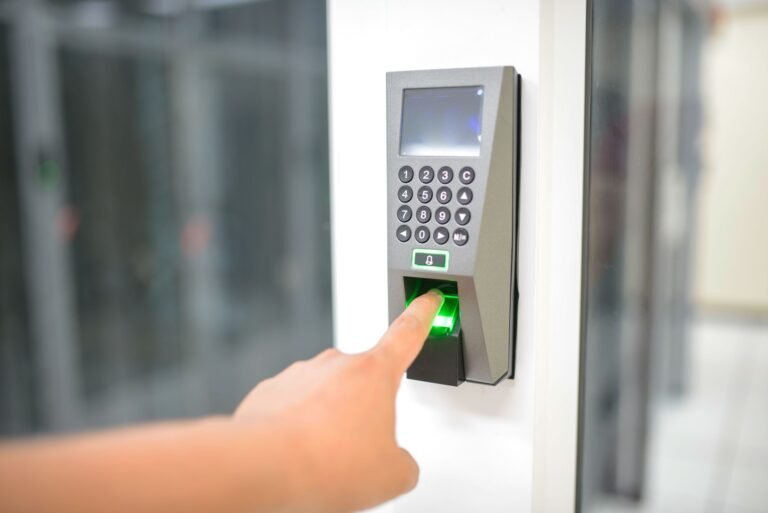
Building badges, campus cards, hotel keys, and identity documents can use related contactless communication. A reader checks a credential against local rules or a networked access system, then permits entry or rejects the attempt. Your proximity tells the system which badge or phone intends to interact.
NFC wireless charging is a smaller emerging use. It sends limited power through the same near-field concept for compact accessories such as tiny wearables, not for rapidly charging a phone. That low-power role makes sense once you separate NFC from long-range data radios.
NFC Differs From Bluetooth, RFID, Wi-Fi, QR Codes, and GPS
The few-centimeter range that protects a payment tap also separates NFC from nearby options in your settings menu. Bluetooth carries sound across a room. Wi-Fi reaches across a home. GPS receives location signals from satellites and does not exchange data with a checkout terminal.
| Technology | Range and pairing | Power and speed | Common role and tracking |
|---|---|---|---|
| NFC | A few centimeters; no manual pairing for a tap | Passive tags need no battery; small-data speed | Payments, badges, tags; no inherent location tracking |
| Bluetooth | Several feet or more; pairing is common | Powered devices; suited to ongoing audio and data | Headphones, watches, sensors; location depends on extra systems |
| RFID | Ranges vary from centimeters to many feet | Passive or powered tags; data needs vary | Inventory and access; tracking depends on deployed readers |
| Wi-Fi | Room or building range; network sign-in needed | Powered gear; high-speed data | Internet access; network logs can place a device |
| QR code | Camera line of sight; no radio pairing | Printed code needs no power; data is visual | Links and tickets; no independent tracking |
| GPS | Satellite reception; no device-to-device tap | Powered receiver; location data, not local transfer | Maps and location services; can locate your phone |
Bluetooth Carries the Longer Connection
NFC vs Bluetooth describes two separate jobs rather than competing versions of the same tool. NFC starts a close, intentional interaction in a moment, while Bluetooth keeps a connection active for audio, wearables, keyboards, and sensors. Your wireless earbuds use Bluetooth after setup because sound needs far more bandwidth.
Some accessories use a tap to pass Bluetooth pairing details. That tap saves menu work, then Bluetooth carries the continuing connection. You can view NFC as the doorman and Bluetooth as the room where the longer conversation happens.
RFID Covers a Wider Tag Family
From warehouse labels to access badges, RFID includes a broad range of tag-and-reader systems. NFC belongs to that family but focuses on standardized close-range consumer interactions with two-way capability. You see RFID in warehouse labels and toll systems, while NFC appears where a phone or card meets a nearby reader.
Standards shape compatibility. NFC Forum specifications help phones, tags, and readers exchange known record formats, while EMV contactless rules shape card payments. Your Samsung phone, iPhone, bank card, and transit terminal still need compatible hardware and local service rules.
Android Phones and iPhones Need Compatible Hardware
The comparison points to a practical requirement: your handset needs an NFC chip, a compatible wallet, and correct placement near the other device. Not every phone model includes the feature, and regional versions can differ. Your specifications screen or Settings search gives the fastest answer.
Settings Show Whether Your Phone Has NFC
On Android, search Settings for “NFC,” “contactless payments,” or “connection preferences.” Samsung models place it under Connections in many software versions, while other Android brands group it under Connected devices. Your menu wording depends on the manufacturer and Android version.
On an iPhone, Apple Pay setup sits in Wallet, and payment use works through that wallet flow. Many newer iPhones can read supported NFC tags without a separate visible switch. Your model and iOS version decide which tag actions appear automatically or through Control Center.
- Check model details Search your phone model specifications for NFC before assuming the setting is missing.
- Search Settings Type “NFC” into Settings search to avoid manufacturer-specific menu paths.
- Update software Install current phone and wallet updates before diagnosing an unavailable payment feature.
- Review region settings Confirm that your country, bank, and card issuer allow the wallet service.
- Find the antenna Check the device manual because the NFC antenna is not always at the phone center.
Android Wallet Setup Requires an Enabled Feature
For how to use NFC on Android, turn the feature on where your handset offers a switch. Add an eligible debit or credit card to Google Wallet or Samsung Wallet, finish bank verification, and set the wallet as the contactless payment service. Your screen lock needs to stay active for payment protection.
- Wake the phone Unlock your Android handset before approaching the payment terminal.
- Choose the wallet Open Google Wallet or Samsung Wallet where your phone does not use a default tap flow.
- Hold the antenna Place the back or upper area of your phone within a few centimeters of the terminal symbol.
- Wait for confirmation Keep the phone still until the terminal beeps, vibrates, or displays payment acceptance.
- Move away promptly Remove the handset after confirmation rather than holding it against the terminal through another prompt.
Android tag scans follow the same physical rule. Hold the antenna near the tag for a moment, then wait for the phone to display the stored action. Your case, hand position, and metal accessories can block the narrow field more easily than expected.
iPhone Payments Run Through Wallet Authentication
On iPhone, add a card in Wallet and complete bank verification before attempting a purchase. Double-click the side button on Face ID models, then authenticate and hold the top of the phone near the terminal. Your device sends the wallet credential only after that approval step.
Touch ID iPhones use their own button sequence, and some transit systems allow Express Mode for selected cards. Tag reading works on supported models through a detected banner or the NFC Tag Reader control. Your phone does not need to pair with a tag before reading its stored instruction.
Because a tag can deliver an instruction without pairing, treating unfamiliar taps cautiously becomes a sensible safeguard.
Close-Range Use Calls for Simple Security Habits
Once wallet payments and tag scans work, a few habits matter more than fear. Leaving NFC enabled has little battery effect because the radio waits for a nearby field rather than broadcasting across a room. You can leave it on for payments and tags, or turn it off because you never use it.
Short Range Limits Exposure but Does Not Remove Risk
Physical proximity lowers the chance of an accidental interaction, yet it does not make security automatic. Mobile-wallet tokenization keeps your actual card number out of many transactions, while screen authentication blocks a stranger holding your locked phone near a terminal. Your passcode and biometric settings matter more than the NFC switch.
Malicious tags pose a different risk. A tag can send your phone toward a harmful website or request an unwanted action, much like a printed QR code can. You should reject prompts that do not match the place or task in front of you.
- Use a screen lock Keep a passcode, fingerprint, or face authentication active before adding payment cards.
- Inspect public tags Skip stickers that cover another label or appear attached without a clear purpose.
- Read prompts closely Stop before opening an unfamiliar link, joining a network, or granting a permission.
- Review wallet alerts Check transaction notices promptly and report unfamiliar charges through your card issuer.
- Remove old credentials Delete expired access passes and payment cards from phones you no longer carry.
Phone Positioning Explains Many Failed Taps
A failed payment rarely means the radio is broken. Checkout terminals have different antenna locations, and a phone’s NFC antenna can sit near its camera, top edge, or center back. Your tap works better when you hold that area still against the terminal’s contactless symbol for one full second.
Thick cases, wallet cases, metal rings, and magnetic accessories can weaken the field. Remove the case for one attempt, then try a different angle. Your phone needs to be unlocked, the right wallet needs an eligible card, and the terminal needs contactless capability.
Tag Problems Need a Narrower Check
A tag scan can fail because the stored record is damaged, the tag sits against metal, or your phone has NFC disabled. Move the handset slowly across the tag rather than tapping once and pulling away. Your phone can also need its screen awake before it reacts.
Some tags are formatted for an action your handset does not recognize, and some access tags are encrypted for a single organization. A generic phone cannot copy or rewrite protected credentials. Your building administrator or transit agency needs to resolve that kind of access failure.
That boundary helps distinguish a device problem from an issue only the credential issuer can fix.
Repeated payment failure at one store points toward that terminal or its contactless setting. Failure at several terminals points toward your wallet, card status, phone settings, case, or hardware.
Practical Next Steps for Safer Taps
A tap must bring your phone, card, or tag within inches of a reader before the small exchange begins. That makes it suited to payments, passes, access, and quick actions rather than long-distance tracking or high-speed transfers. Your next step is simple: locate the NFC setting or Wallet app, confirm your screen lock, and make one deliberate tap at a compatible terminal or tag.
Keep the antenna location in mind during that tap. A terminal can look ready while your phone’s top edge, camera area, or center back sits outside its active field. You will get a clearer result by holding the right area still for a full second.
FAQ
Should your NFC be on or off?
You can leave NFC on because it has little battery effect while waiting for a nearby field. Turn it off when you do not use tap payments, tags, or access credentials and prefer the setting disabled. A screen lock and careful handling of unfamiliar prompts matter more than the on-off choice.
Is an NFC tag a tracker?
Without GPS, a battery, cellular service, or an independent network link, an ordinary passive NFC tag cannot track anything. You must bring your phone close enough to power and scan it. A business system could log your scan, but the tag cannot report your location on its own.
What is NFC on your phone used for?
At checkout counters and transit gates, a phone can handle tap-to-pay purchases, passes, building credentials, tag scans, and quick setup actions. Your phone can work as a card through a mobile wallet or as a reader that opens a stored link, routine, or contact record from a nearby tag.
Is NFC the same as Bluetooth?
Bluetooth reaches much farther than NFC, so the two are not the same. You use NFC at a few centimeters for a short exchange, while Bluetooth carries ongoing audio or data across a room or farther. A tap can pass setup details to start Bluetooth pairing, but the two radios perform separate jobs.
How do you turn on NFC on Android or iPhone?
On Android, search Settings for NFC, Contactless payments, Connections, or Connected devices, then enable the available switch. On iPhone, set up Apple Pay in Wallet for payments; supported iPhones handle tag reading through built-in features or the NFC Tag Reader control rather than a universal NFC switch.
How secure are NFC payments?
At a payment terminal, close range, wallet authentication, and tokenization can keep your actual card number from reaching the merchant. You should still use a strong screen lock, review transaction alerts, and contact your card issuer about charges you do not recognize. Short range limits exposure but does not replace account security.