In seconds, a phone or compact hotspot turns 4G LTE or 5G cellular data into a nearby Wi-Fi network for your devices. Your laptop’s Wi-Fi bars show its link to the hotspot, while cellular bars show the internet path beyond it.
You’ll see how service, SIM cards, data limits, battery demand, and security settings shape the connection you rely on away from home.
Cellular Service Becomes Your Local Wi-Fi Network
A hotspot acts much like a small home router, but it has no cable or fiber line behind it. Instead, its modem reaches a cellular network and turns that connection into a password-protected Wi-Fi network for your laptop, tablet, or streaming device.
Your local Wi-Fi signal travels only a short distance, such as from a hotspot on a cafe table to a laptop three feet away. The cellular link carries your traffic from the hotspot to a nearby tower, then through the carrier network to the internet.
A mobile hotspot describes any device that shares cellular data through Wi-Fi. Pocket Wi-Fi, MiFi, and a portable Wi-Fi router describe dedicated battery-powered units, while a phone can share data through its built-in hotspot feature.
Wi-Fi and cellular links handle separate parts of the trip
Wi-Fi carries data between your device and the hotspot. Cellular service carries that same data from the hotspot toward a website, work server, video call, or cloud storage account.
Your cost, speed, and coverage depend more on the cellular link than the Wi-Fi bars on your laptop. A strong local signal cannot overcome a weak tower connection, a congested site, or a data limit on your account.
Home Wi-Fi has fixed broadband behind it, while public Wi-Fi uses a venue’s shared internet connection. Your hotspot uses the cellular service connected to your SIM card or eSIM and keeps your nearby devices on a network you control.
NAT lets several devices share one connection
Behind the scenes, NAT allows one cellular connection to serve several local devices. Your hotspot assigns local addresses to devices, then tracks return traffic so a web page reaches the correct laptop or tablet.
That shared route has a practical limit. Add a video meeting, cloud backup, and high-definition stream to one hotspot, and your lighter browsing traffic waits behind larger data transfers.
For a family trip, that limit becomes visible fast. Four active devices divide both the available speed and your data allowance, even though each device shows a full Wi-Fi signal.
That full signal reflects the local Wi-Fi link, while the cellular connection determines whether data can move online.
Data Travels Through a Clear Connection Path
Strong Wi-Fi bars can mislead you. A laptop can sit three feet from a hotspot with an excellent local signal while the hotspot has one weak cellular bar or no service at all.
Your device joins the hotspot before it reaches the internet
The hotspot broadcasts a network name, called an SSID, such as “TravelNet-5G.” You select that name on an Android phone, iPhone, laptop, or tablet, then enter the network password.
WPA2 or WPA3 encryption protects the local wireless connection between your device and the hotspot. That protection matters most in airports, hotels, cafes, and shared workspaces where unfamiliar devices sit nearby.
- Device sends data: Your laptop sends a web request through its Wi-Fi radio to the hotspot.
- Hotspot assigns address: The hotspot gives your device a local address and sorts traffic through NAT.
- Cellular modem transmits: Its radio sends the request to a nearby tower through LTE or 5G service.
- Carrier routes traffic: The cellular network verifies your account and sends data toward its destination.
- Data returns home: Response data travels back through the carrier, hotspot, and local Wi-Fi link.
A hotel room near a window shows why those stages matter. Your tablet can stay fully connected to a pocket Wi-Fi unit on the desk while concrete walls, tower distance, or congestion slow the cellular portion of the trip.
Signal icons point to different problems
| Indicator | What it measures | What weak service looks like |
|---|---|---|
| Wi-Fi icon | Your device-to-hotspot link | Short local range or device disconnection |
| LTE or 5G bars | Hotspot-to-tower link | Slow loading, high lag, or no internet access |
| Plan status | Your carrier data permission | Connection stops despite strong signal bars |
Because those links are separate, restarting your laptop rarely fixes a carrier outage. Check the hotspot screen or control app for cellular bars, account status, and service alerts before changing laptop settings.
A joined Wi-Fi network with no internet access points upstream. Your next checks should cover cellular bars, airplane mode, hotspot sharing, remaining data, and account status.
SIM Cards and Data Plans Activate the Cellular Link
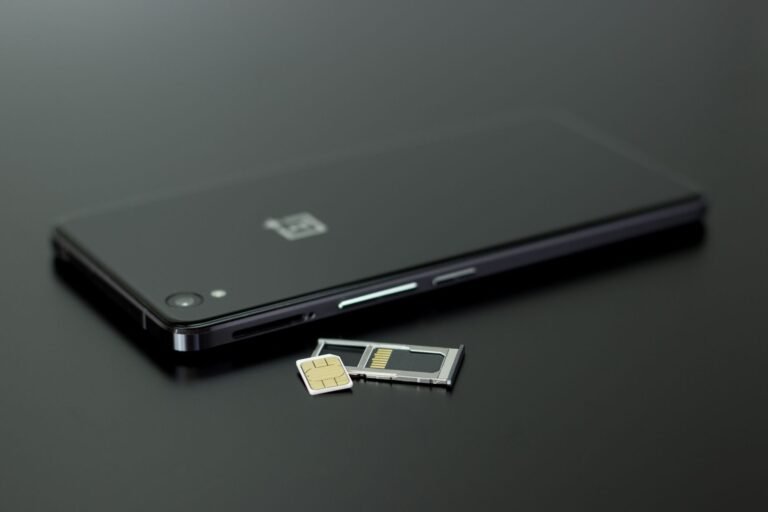
A dedicated hotspot has no internet source on its own. Its modem needs active cellular service, compatible radio bands, and a SIM card or eSIM that identifies your account to the carrier.
A SIM card identifies your account
A physical SIM card fits into many dedicated units, while an eSIM stores the subscriber profile electronically. Both tell the carrier which account receives service and which mobile Wi-Fi data plans control the traffic.
You do not need home broadband for portable Wi-Fi. Your hotspot still needs a carrier plan or paid travel-data service, plus usable coverage where you plan to work or travel.
A device with no active service is a radio with nowhere to send your data. A SIM that fits physically also needs compatibility with the carrier’s LTE and 5G bands.
Plan terms shape your actual data access
Monthly plans renew on a billing cycle. Prepaid plans load a stated data amount before travel or short-term work, while travel plans can include roaming access across selected countries.
| Plan term | What it means for you | Common effect |
|---|---|---|
| Data allowance | A stated amount of high-speed data | Service can slow after that amount is used |
| Hotspot allowance | A separate sharing limit on a phone plan | Phone data and hotspot data can follow different rules |
| Data throttling | A speed reduction after a threshold | Video calls and large files become difficult |
| Network deprioritization | Lower priority during tower congestion | Busy airports or stadiums can slow your session |
| Roaming charge | An added charge outside your home service area | Travel use can become expensive without clear plan terms |
Plans with no stated usage ceiling can still place a high-speed hotspot allowance, congestion-priority rule, or fair-use limit in the fine print. Read the hotspot terms, not only the plan label.
Carrier names such as T-Mobile matter because device bands and plan rules differ. Your hotspot needs radio compatibility with that carrier’s network, especially for 5G access.
Phone Sharing, Tethering, and Dedicated Hotspots Fit Different Routines
Your plan sets the data ceiling, but hardware changes the daily experience. A phone works well for a brief laptop task, while a dedicated unit keeps your work connection separate from your phone battery.
| Option | Portability and power | Device support and privacy |
|---|---|---|
| Smartphone hotspot | Already in your pocket; drains phone battery | Several devices; private password-protected network |
| USB tethering | Phone stays cabled and can charge | One computer; no Wi-Fi broadcast needed |
| Dedicated hotspot | Separate battery and charger | Several devices; stronger capacity for repeat use |
| Cellular dongle | Small USB accessory powered through a computer | One host device; limited flexibility |
| Public Wi-Fi | No cellular battery draw | Shared venue network; lower privacy control |
Phone sharing works for short, light sessions
A smartphone hotspot is enough for email, document uploads, map checks, or a short call from a parked car. Your phone still handles calls, navigation, messages, and battery demand at the same time.
Long workdays expose that trade-off. Video calls warm the handset, drain charge, and leave your phone less available for navigation or urgent calls.
USB tethering sends phone data through a cable to one computer. Your phone can charge through the laptop, but your tablet or another family member cannot join that wired connection.
Dedicated units keep your connection separate
A Netgear-style hotspot, or similar portable Wi-Fi router, has its own modem, battery, SSID, and device limit. You can place it near a window for a stronger cellular signal while keeping your phone with you.
A dedicated hotspot is better than a phone hotspot for repeated multi-device use, extended remote work, or backup connectivity. Your phone hotspot remains a sensible option for light sharing that lasts minutes rather than hours.
Public Wi-Fi is a venue service, not a private cellular hotspot. Keep banking, employer systems, and sensitive files on your encrypted hotspot or behind a trusted VPN.
Careful Setup Protects Your Data Allowance and Devices
Your network name and password form the gate between your data allowance and nearby devices. Set them before travel, rather than from an airport gate with a low phone charge.
Activation happens before device sharing
- Activate service: Confirm that the cellular line is active and hotspot sharing is part of your plan.
- Enable your SIM: Insert the physical SIM card or activate the eSIM profile in device settings.
- Power the unit: Turn on the phone hotspot or dedicated router and wait for cellular bars.
- Find the SSID: Open Wi-Fi settings on your laptop or tablet and select the displayed network name.
- Enter the password: Use the current network password, then verify that a web page loads.
WPA settings limit casual access
Set WPA3 where every connected device supports it, or use WPA2 for broader compatibility. Your password should be long, unique, and unrelated to your name, travel dates, or phone number.
Change a default SSID that reveals the device model or account detail. A name such as “SmithFamilyHotspot” shares more personal information than a neutral label such as “BlueMaple.”
Turn hotspot sharing off after use. That habit saves battery power and stops an old laptop from silently reconnecting for software updates or cloud syncing.
Coverage, Data Demand, and Battery Power Shape Daily Results
Two cellular bars near a rural highway can feel slower than a crowded coffee shop, even though both locations show 5G. Signal quality, tower distance, building materials, congestion, plan priority, and modem capability all affect speed and lag.
Coverage can change within a few feet
Glass, metal, concrete, and low-e window coatings weaken radio signals. Move your hotspot a few feet, place it near an exterior window, and keep it away from a laptop heat vent.
Your device can regain a usable cellular link without any setting change. In a hotel room, moving a hotspot from the floor to a windowsill can separate a weak signal from a stable work connection.
Carrier coverage maps show reported service areas, not indoor performance. Check maps for your town, road route, or campground, then review roaming terms for travel outside your normal service area.
Heavy activity consumes data quickly
- Video meetings: A one-hour call can consume hundreds of megabytes, with camera quality and screen sharing raising use.
- High-definition streaming: A movie can use several gigabytes, far beyond a short email session.
- Cloud backups: Photo syncing can upload hundreds of files while your devices sit idle overnight.
- System updates: Laptop and tablet updates can use gigabytes without a visible warning.
- Shared activity: Four active devices divide both available speed and your remaining data allowance.
Pause automatic backups and large updates before relying on a capped hotspot. Your carrier app can show usage, though some meters update after a delay, so leave room beneath the stated allowance.
Heat and weak signals shorten battery life
Battery-powered pocket Wi-Fi units run for hours rather than a fixed all-day period. Screen brightness, weak cellular signal, temperature, and connected-device count all draw power at different rates.
A hotspot searching for a distant tower drains faster than one with a clear signal. Phone tethering also warms your handset and reduces its remaining charge during video work.
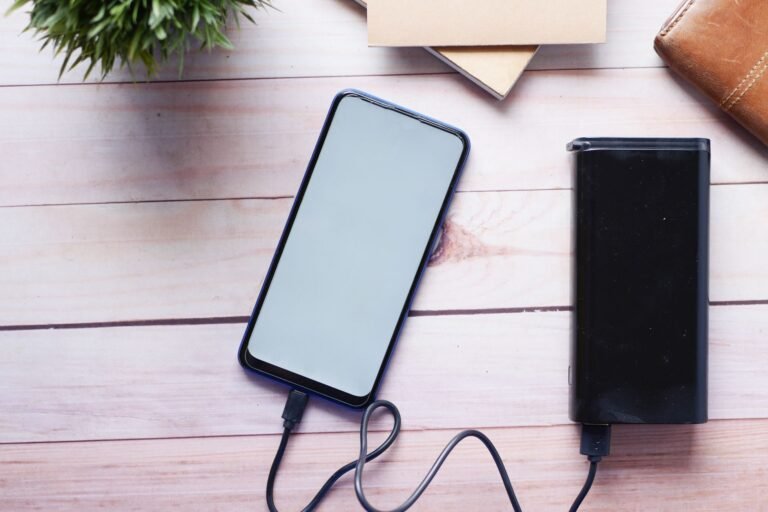
Carry suitable charging power for long work sessions or travel days. Disconnect idle devices that keep polling in the background, and keep the hotspot out of direct sun.
Choose the Setup That Fits Your Situation
A setup that handles a 20-minute outage can frustrate you during a week of family travel. Match your device count, daily data demand, route coverage, and power access to the connection option on your shortlist.
| Situation | Practical connection choice | What you should check |
|---|---|---|
| Brief emergency access | Smartphone hotspot | Hotspot allowance and phone charge |
| Solo travel | Phone hotspot or prepaid pocket Wi-Fi | Roaming terms and route coverage |
| Family trip | Dedicated hotspot | Device limit, daily data demand, and charging |
| Remote work | Dedicated hotspot with backup power | Video-call use, latency, and carrier priority |
| Home internet backup | Dedicated cellular router or hotspot | Data cap, local tower capacity, and external antenna support |
For repeated sharing, how mobile Wi-Fi works becomes less about the Wi-Fi signal and more about plan limits and tower conditions. Estimate data from your real habits, then check carrier compatibility before choosing a device or rental.
Use a phone hotspot for light, occasional sharing. Choose a dedicated unit for repeated multi-device use and cleaner battery management.
Public Wi-Fi remains convenient for low-risk browsing. Your encrypted hotspot is the stronger choice for banking, employer systems, and sensitive files.
Final Takeaways
Your nearby Wi-Fi link is only half the system. The cellular service behind it decides whether your connection reaches the internet, how fast it feels, and how much data it draws from your plan.
Choose the sharing method that fits your device count, work habits, and charging access. Secure the network with WPA2 or WPA3, watch your usage, and check coverage before you rely on a hotspot far from home.
FAQ
How does mobile Wi-Fi work?
Your phone or hotspot receives data through a cellular network, then shares that connection as a local Wi-Fi network. Your device connects to the hotspot through Wi-Fi, while the hotspot uses 4G LTE or 5G service to reach the internet.
Is mobile Wi-Fi the same thing as a mobile hotspot or pocket Wi-Fi?
A phone’s cellular signal can be shared as a nearby Wi-Fi network for laptops, tablets, and other devices. A mobile hotspot can be a phone or dedicated device, while pocket Wi-Fi usually refers to a small battery-powered hotspot with its own SIM card or eSIM.
Do you have to pay monthly for portable Wi-Fi?
You do not always pay monthly. Portable Wi-Fi can run on a recurring carrier plan, a prepaid data package, or a travel-data plan. Your device still needs paid cellular access of some kind, and each option can place limits on high-speed hotspot data or roaming use.
Can I get portable Wi-Fi without an internet provider?
Even without home broadband, a cellular carrier or other paid data service is still required to reach the internet. Your hotspot needs a physical SIM card or eSIM, an active plan, and network coverage before it can send your device traffic online.
Does portable Wi-Fi work anywhere?
Portable Wi-Fi works only where your hotspot can reach compatible cellular service. Your Wi-Fi signal may remain strong inside a car or cabin while the cellular link fails because of terrain, distance from a tower, building materials, carrier coverage gaps, or roaming restrictions.
How much data does a mobile hotspot use?
Your mobile hotspot use depends on the activity connected to it. Email uses little data, while a one-hour video call can use hundreds of megabytes and high-definition streaming can use several gigabytes.