A tap, a beam of light, a spoken command, or a radio signal triggers coordinated electronic steps that produce actions. A smartphone system-on-a-chip (SoC), mobile operating system, memory, antennas, and app and cloud servers pass data in milliseconds so your phone can call, photograph, map, and store files.
This article explains the hidden hardware and software behind everyday phone use, from chip-level processing and wireless connections to the systems that handle calls, photos, messages, and navigation.
A Smartphone Combines Computing With Radio Links
It is a pocket computer with a screen, sensors, storage, apps, and radio hardware inside one enclosure. Unlike a basic calling device, your phone can run several tasks at once, from playing audio through Bluetooth earbuds to saving a photo and showing a map.
Your iPhone or Android handset runs a mobile operating system that directs hardware and apps. That software gives your phone rules for files, screen controls, notifications, cameras, location data, and network traffic.
Hardware Parts Handle Separate Jobs
No single chip produces the result on your screen. A photo app needs a camera sensor, image processor, flash storage, display, touchscreen digitizer, battery, operating system, and sometimes an app and cloud server. A failure or delay along that chain changes what you see.
| Part | What it does for you |
|---|---|
| Smartphone system-on-a-chip | Handles calculations, graphics, camera processing, and power controls. |
| Central processing unit | Runs general instructions, such as opening an app or sorting contacts. |
| Random-access memory | Holds active app data while you switch between tasks. |
| Flash storage | Keeps photos, apps, messages, and files after power is off. |
| Display and touch layer | Shows pixels and detects the position of your finger. |
| Lithium-ion battery | Supplies electrical energy to active hardware. |
| Modem and antennas | Send and receive cellular, Wi-Fi, Bluetooth, GPS, and NFC signals. |
| Cameras, microphones, and sensors | Turn light, sound, motion, and nearby conditions into data. |
That shared workload explains why your phone can play music, receive a text, refresh weather data, and keep a location dot visible at the same time. The mobile operating system assigns each job to the hardware that can handle it with the least delay and power demand.
Electricity starts every action. Your tap becomes coordinate data, then the phone directs that data toward an app, a screen element, a processor, or a radio path.
The Computing Core Turns Physical Signals Into Digital Data
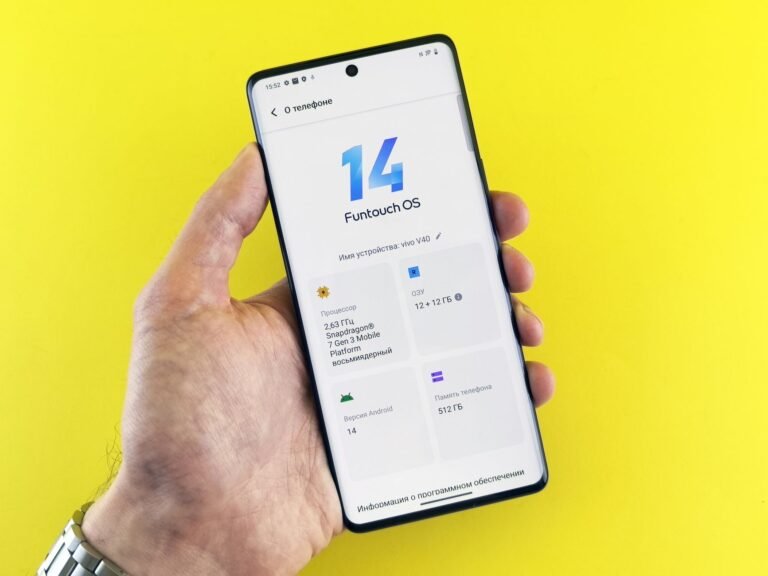
Beneath the back glass sits a compact smartphone system-on-a-chip, or SoC. This silicon package holds several specialized processing parts that once occupied separate chips, saving space inside a device only a few millimeters thick.
Specialized Processors Share the Work
Your central processing unit, or CPU, handles general instructions such as opening an app, sorting a contact list, or loading a saved note. A graphics processor draws text, video, games, menus, and animations on the display.
An image signal processor handles raw camera data. Audio hardware handles sound, while power controls reduce energy demand during lighter tasks. That division keeps a live camera preview or video call from placing every task on the CPU alone.
Many SoCs also contain hardware for video encoding, wireless tasks, and machine-learning features. Your phone shifts work between these parts in fractions of a second, which is why a map can redraw while music continues in the background.
RAM and Storage Work on Different Time Scales
Random-access memory, or RAM, is short-term workspace. Opening a map, browser, camera, and music app places active instructions and data in RAM. More available RAM gives your phone room to keep tasks open instead of reloading them after each app switch.
Flash storage holds long-term data. Your photos, downloaded music, messages, system files, and installed apps remain there after a restart. Storage that sits close to capacity leaves less room for camera files, cached data, updates, and temporary system work.
A crowded storage chip can slow photo saving and interrupt updates. You can check storage settings before deleting anything, then remove old downloads or confirm that backed-up photos are safely stored elsewhere.
A Tap Passes Through Multiple Layers
Glass is only the surface beneath your finger. A transparent capacitive sensor layer, called a touchscreen digitizer, tracks small changes in an electrical field caused by skin contact.
- Detect contact: The touch layer locates your finger through electrical changes across a sensor grid.
- Send coordinates: A touch controller passes screen-position data to the mobile operating system.
- Identify the target: The operating system checks which icon, button, or gesture occupies that location.
- Open the task: The selected app receives the command and requests processor time.
- Refresh the display: Graphics hardware redraws pixels, sometimes within a fraction of a second.
Your touchscreen turns a tap into an app response through this chain of electrical signals and software rules. A tap on a contact name, for example, becomes coordinate data before the calling app receives any instruction.
Other physical signals enter through dedicated hardware. Camera sensors turn incoming light into electrical values. Microphones convert changing air pressure into digital audio, while speakers reverse the path by turning digital audio into moving air.
Motion sensors add context. An accelerometer detects straight-line movement, a gyroscope senses rotation, a proximity sensor can darken the display near your face, and an ambient-light sensor adjusts screen brightness around you.
The Mobile Operating System Directs Apps, Files, and Permissions
Those incoming signals need rules before they become useful actions. Android and Apple’s iOS schedule processor time, draw the interface, track files, regulate memory, and limit an app’s reach into sensitive hardware.
Your phone does not give every app unrestricted access to photos, contacts, microphones, cameras, or location data. Permission prompts place those choices in your hands. A flashlight app has a clear reason to reach the camera flash but not your contact list.
Permissions Tie Privacy to Specific Tasks
Permission labels describe a type of access, not an app’s character. Location access can place a rideshare pickup point. Camera access can scan a document. Nearby-device access can pair headphones or a smartwatch.
Grant access that matches the task in front of you. You can change a permission later in privacy settings, so a rushed tap does not need to remain your long-term choice.
Background activity affects daily performance even with no visible app window. Mail refreshes, photo syncing, alerts, and location updates can draw battery power, occupy RAM, consume cellular data, and request processor time.
Apps Run on the Phone, on Servers, or Both
A calculator completes its work inside your phone. A weather app needs remote information from a server. A photo editor can alter a picture locally, then send a copy to cloud storage for backup or sharing.
Your available RAM, unused storage, software version, and background activity shape how responsive the device feels. A full storage chip can block an operating-system update, while an outdated app can stop working after its remote service changes.
This split explains a familiar situation. You can open an offline note with no signal, while a chat app can show older messages but cannot receive a new one until a data route reaches its server.
The operating system can manage a request, but only network hardware and credentials can carry it beyond the device.
Radio Hardware and Subscriber Identity Reach Networks
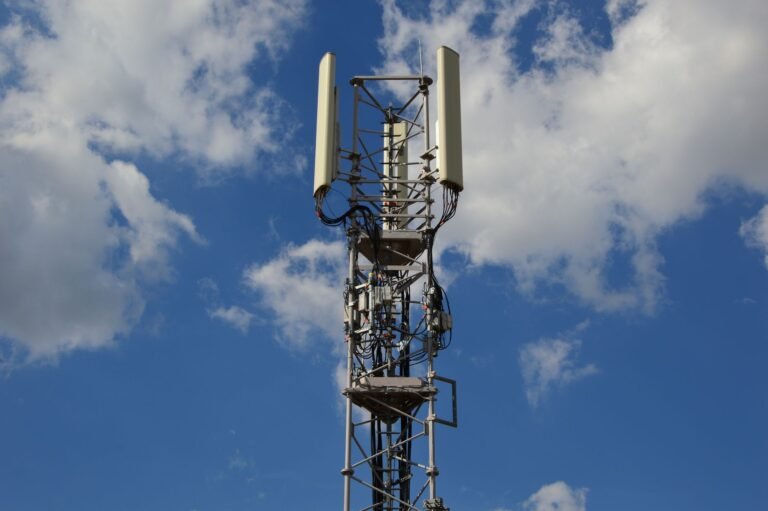
App data must leave the phone through a cable or radio signal before it reaches another place. The modem changes digital information into radio signals, while radio frequency antennas send those signals outward and receive incoming transmissions.
Your grip, a metal elevator, concrete walls, distance from a tower, and nearby radio noise can change reception. A strong signal indicator means your phone hears a cellular base station well, but it does not promise fast internet traffic at that moment.
SIM Cards and eSIM Profiles Identify Your Carrier Account
A SIM card and eSIM store subscriber credentials for carrier authentication. Those credentials tell the carrier which service account your phone seeks to access. They do not create internet access by themselves, and they are not storage cards for photos or apps.
An eSIM performs the same identity role without a removable plastic card. Your carrier places a profile in secure phone hardware, allowing cellular service without opening a tray. Some phones hold several eSIM profiles, though only certain profiles stay active together.
Wireless Technologies Perform Different Jobs
| Technology | Main job | What it needs |
|---|---|---|
| Cellular signal | Radio path between your phone and a carrier tower. | A reachable tower and compatible radio bands. |
| Cellular service | Carrier access for voice, SMS, and mobile data. | Subscriber credentials and an active carrier account. |
| Mobile data | Internet traffic carried through a cellular network, including 5G or LTE. | Cellular service and usable tower capacity. |
| Wi-Fi | Short-range link to a router that can reach the internet. | A nearby router and network access. |
| Bluetooth | Short-range link to nearby accessories. | A paired device within radio range. |
| GPS | Location estimate from satellite timing signals. | A clear enough view of several satellites. |
| NFC | Very close-range data exchange for tasks such as tap-to-pay. | A compatible terminal and stored payment credentials. |
GPS does not send your location to satellites. Your receiver listens for timing signals from multiple satellites and calculates its distance from each source. Wi-Fi and cellular information can speed the starting estimate in dense city areas where buildings block part of the sky.
Bluetooth does not supply internet access on its own. Your Bluetooth headset can play a downloaded song with no carrier service, while live map traffic needs a working internet route.
Calls, Messages, Photos, and Maps Show the Full System
Pressing a contact name starts several processes before you hear a ringtone. Your operating system opens the calling service, checks the selected number, and sends call-setup data toward your carrier through the modem and antenna.
Calls Turn Voice Into Timed Digital Audio
After the carrier routes the call, your microphone captures changing air pressure from your voice. The phone converts that signal into digital audio, compresses it for transmission, and sends packets across the cellular network or through Wi-Fi calling where that service is active.
At the far end, the receiving device turns those packets back into sound through its speaker. Your voice does not travel as a continuous electrical copy. It travels as timed digital pieces that need to arrive quickly enough for natural conversation.
Messages Pass Through Local Storage and Servers
A text or chat begins with keyboard input. The app records characters, displays them on screen, and saves a local copy. SMS travels through carrier systems, while chat services send encrypted data through internet servers over Wi-Fi or mobile data.
Your message can wait on a server while the other phone has no service, no battery, or airplane mode enabled. Delivery marks do not always show that a person saw the message; they can show only that another device or service accepted it.
Photos Start as Light Rather Than Files
Pressing the shutter button tells the camera sensor to expose tiny light-sensitive sites. The sensor produces electrical values, and image-processing software turns those values into a viewable photo through color, brightness, focus, noise, and detail adjustments.
Night mode shows the computing load behind a photo. Your phone can capture several exposures, line them up, reduce blur, and merge useful detail into one image. The finished file then moves into flash storage, followed by cloud backup or sharing only after you allow it.
Maps Blend Position, Motion, and Network Data
A map dot needs more than GPS. Your phone blends satellite timing with accelerometer and gyroscope data, Wi-Fi clues, cellular information, and map software. That blend helps the dot stay near a road through a tunnel or beside tall buildings.
Traffic, business hours, route changes, and street-search results come from remote servers. A downloaded map area can show roads offline, but live congestion and new search results need a working data path.
These actions show how smartphones work as coordinated systems rather than isolated parts. The same distinction explains why your phone remains useful in a dead zone, though fewer features remain available.
Offline Tasks Depend on Where Data Lives
A blank signal indicator does not turn your phone into a paperweight. The processor, storage, display, camera, speakers, sensors, and battery still operate, so your device can complete several local tasks without Wi-Fi or mobile data.
Local Features Continue With No Internet
- Alarms and timers: Your local clock data can trigger alarms with airplane mode enabled.
- Camera capture: Photos and video save to flash storage with no carrier signal.
- Downloaded media: Files already stored on your phone can play without an internet route.
- Calculator and notes: Local apps work without remote access unless that app requires sign-in.
- Offline maps: Downloaded regions can show roads, saved places, and some route details.
- Bluetooth accessories: Nearby headphones, keyboards, watches, and speakers can pair locally.
Your phone still needs battery power and storage space for local tasks. A camera can capture pictures with no internet, yet cloud backup waits until Wi-Fi or cellular data becomes available.
Carrier Service and Internet Access Are Separate
Regular cellular calls and SMS need carrier service. Emergency calling can still work through an available cellular network without an active service plan, though local rules, device state, network availability, and location affect the result.
Wi-Fi can give your phone internet access without cellular service. Cellular data can give your phone internet access with no Wi-Fi router nearby. Bluetooth does neither alone, though special paired-device setups can pass data through it.
| Activity | Offline status | Extra requirement |
|---|---|---|
| Take a photo | Works offline | Battery power and available storage. |
| Play downloaded music | Works offline | A file stored locally. |
| Call a saved contact | Needs a network | Carrier service or Wi-Fi calling access. |
| Send a chat message | Needs internet servers | Wi-Fi or cellular data. |
| Tap to pay | Can work without internet | NFC, stored credentials, and a compatible terminal. |
A useful three-part check starts with the location of the information, then the radio path, then the need for an outside server response. That check helps you identify whether a failed task stems from storage, signal, carrier access, or internet access.
Because failures can share similar symptoms, the phone’s physical condition and safeguards also deserve attention.
Battery Wear, Heat, Storage, and Security Affect Reliability
The lithium-ion battery supplies every calculation, screen pixel, radio burst, and speaker vibration described above. Charging circuitry controls voltage, current, temperature, and power delivery to reduce unsafe charging conditions.
Heat and Age Reduce Battery Capacity
After hundreds of charge cycles, stored energy gradually declines as calendar age and heat affect the battery. A cycle equals total use of 100 percent of rated battery capacity, whether that happens during one discharge or several smaller discharges. Lower capacity means less time between charges, not immediate hardware failure.
At 100 percent, charging circuitry regulates power flow, so reaching a full charge does not harm the phone by itself. Sustained heat and long periods at a high charge add stress over time, especially inside a hot car, beneath bedding, or during demanding gaming while charging.
Keep charging sessions cool. Remove heavy cases during hot charging, avoid direct sun, and keep your phone out from under bedding where heat cannot escape.
Slowdowns Have Different Causes
A weak cellular signal forces the modem to work harder while it searches for a stable tower path. That extra radio activity can drain your battery faster than strong coverage. Streaming video, gaming, camera recording, bright screens, and background syncing also raise power demand.
Low free storage can slow photo saving, app updates, and file searches. Your fix should match the symptom: clear large downloads, close a stuck app, install pending updates, or move photos only after confirming backup status.
Security Relies on Hardware and Daily Habits
Encryption makes stored data unreadable without the correct key. Secure hardware keeps sensitive keys in a protected area, while a passcode, biometric check, and screen lock limit casual access to your phone.
No dependable “most hacked phone” label exists. Your risk depends more on delayed updates, reused passwords, deceptive links, unsafe app installs, stolen account credentials, and weak screen locks than on one model name.
- Install updates promptly: Security patches close known weaknesses in the operating system and apps.
- Choose a strong passcode: A longer code resists casual guessing better than a four-digit pattern.
- Review permissions quarterly: Remove camera, microphone, location, and contact access that no longer matches an app’s role.
- Protect account recovery: Use unique passwords and multi-factor sign-in for your main phone account.
- Keep storage headroom: Leave room for photos, updates, temporary files, and normal app operation.
- Avoid excess heat: High temperatures speed battery wear and can reduce performance during heavy tasks.
Your daily reliability improves through current software, careful permissions, protected accounts, spare storage space, and cooler charging conditions. Those small habits address the same hardware and software limits behind slow apps, missing messages, weak signals, and drained batteries.
Putting the Parts Together
Your phone works because a tap, voice sound, light signal, or location pulse moves through specialized hardware under mobile operating-system control. Once you separate local processing from carrier service and internet access, you can make better sense of slow apps, missing messages, weak signal, battery drain, and offline features.
FAQ
Do you have to have internet to use a smartphone?
No. Your phone can run alarms, take photos, play downloaded media, run locally stored apps, pair Bluetooth accessories, and show offline maps without internet. Internet access is needed for tasks that rely on remote servers, such as live traffic, chat delivery, cloud backup, and web searches.
How does a smartphone reach a cellular network?
Your phone’s modem changes digital data into radio signals that travel through antennas to a nearby cellular base station. A SIM card or eSIM supplies subscriber credentials, allowing carrier authentication for your service account before calls, SMS, or cellular data pass through the network.
How does a touchscreen turn a tap into an app response?
Your finger changes an electrical field across the capacitive sensor layer beneath the display glass. The touch controller sends coordinates to the operating system, which identifies the screen target, gives the app the command, and tells graphics hardware to refresh the display.
What is the difference between Wi-Fi, cellular data, Bluetooth, GPS, and NFC?
Wi-Fi links your phone to a nearby router, while cellular data reaches the internet through a carrier network. Bluetooth links nearby accessories, GPS estimates your location from satellite timing signals, and NFC exchanges small amounts of data at very close range for contactless payments.
How do smartphones make calls and send text messages?
A call app sends setup information through your carrier or Wi-Fi calling service, then your microphone converts voice into digital audio for transmission. SMS travels through carrier systems, while chat messages travel through internet servers using Wi-Fi or cellular data and can wait there until another device reconnects.
Is it bad to leave your phone charging at 100%?
Reaching 100 percent does not harm your phone by itself because charging circuitry regulates power flow. Battery aging can speed up with sustained heat and long periods at a high charge, so cooler charging conditions matter more than unplugging at an exact percentage.